

eBox Administrator 5-Minute Quick Start Guide
Set up your eBox account, create users and share a team folder, in about 5 minutes.
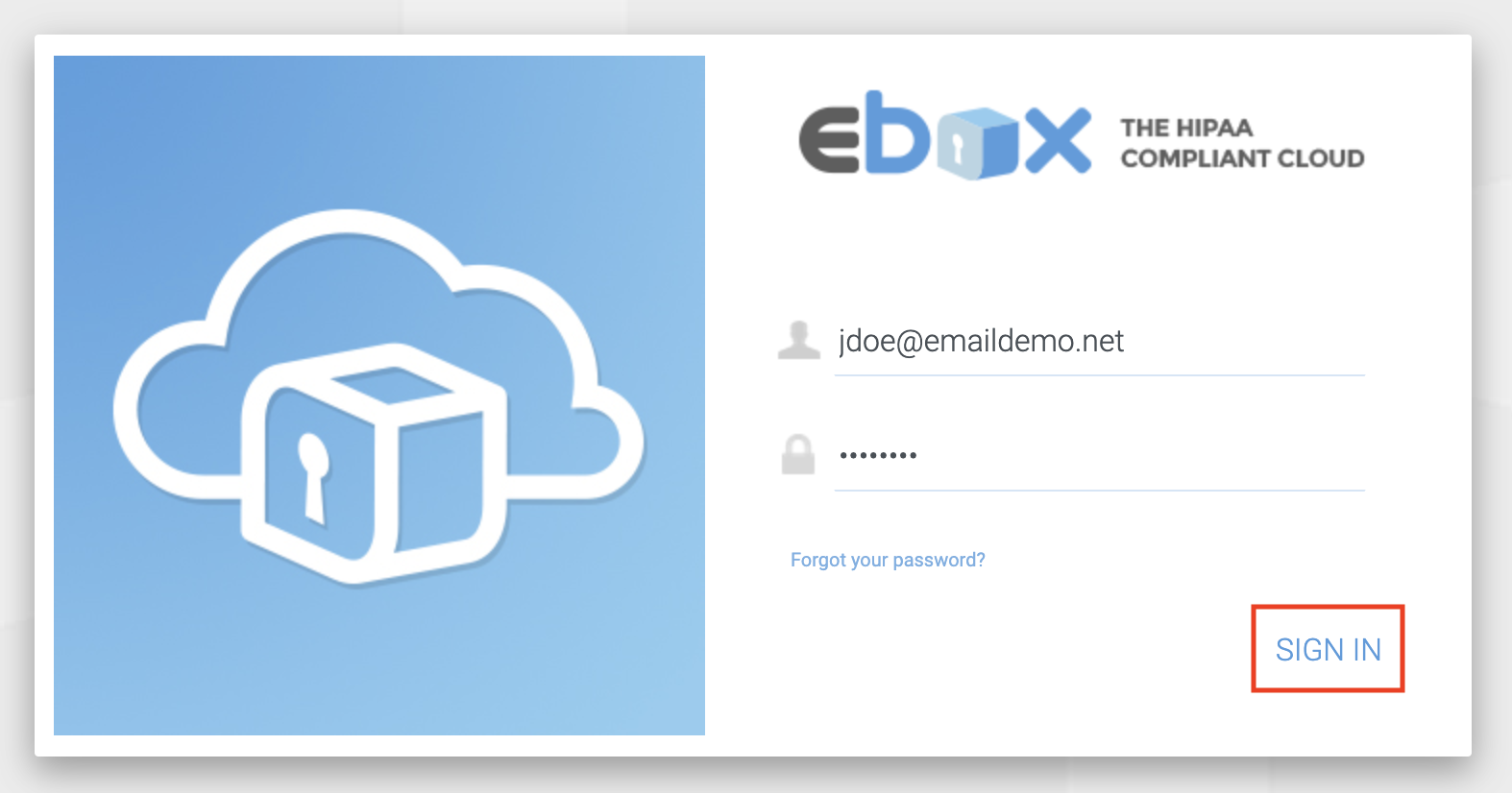
Step 1: Sign in to the eBox website
Use the temporary password we sent you by email.
Step 2: Look around the web file browser
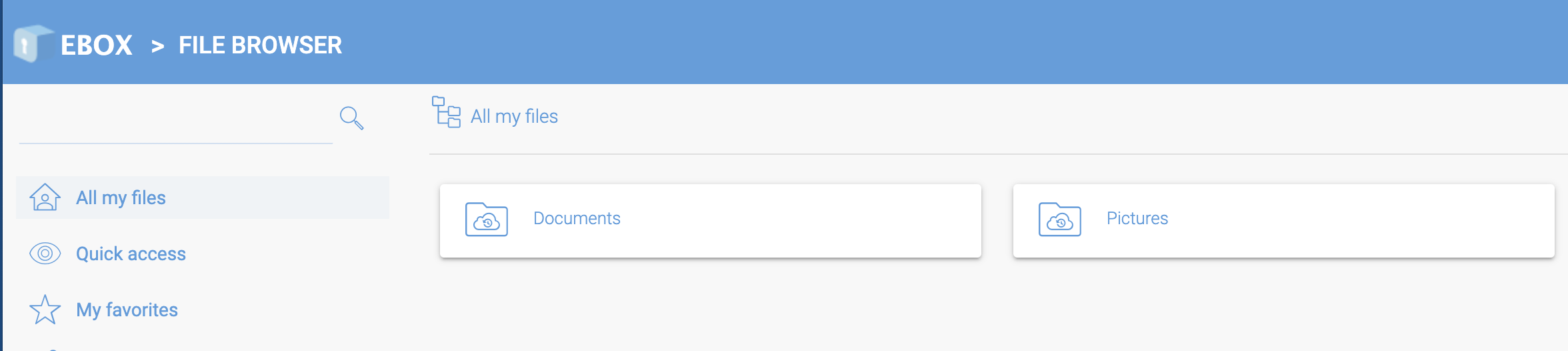
Every new user gets a default Documents folder and Pictures folder. You can delete them if you want.
You can drag and drop files and folders into the web page. Everything in All my files is private. Other users cannot see it.
This website has limited functionality. Install the desktop software at the end of this guide.
Step 3: Change your password
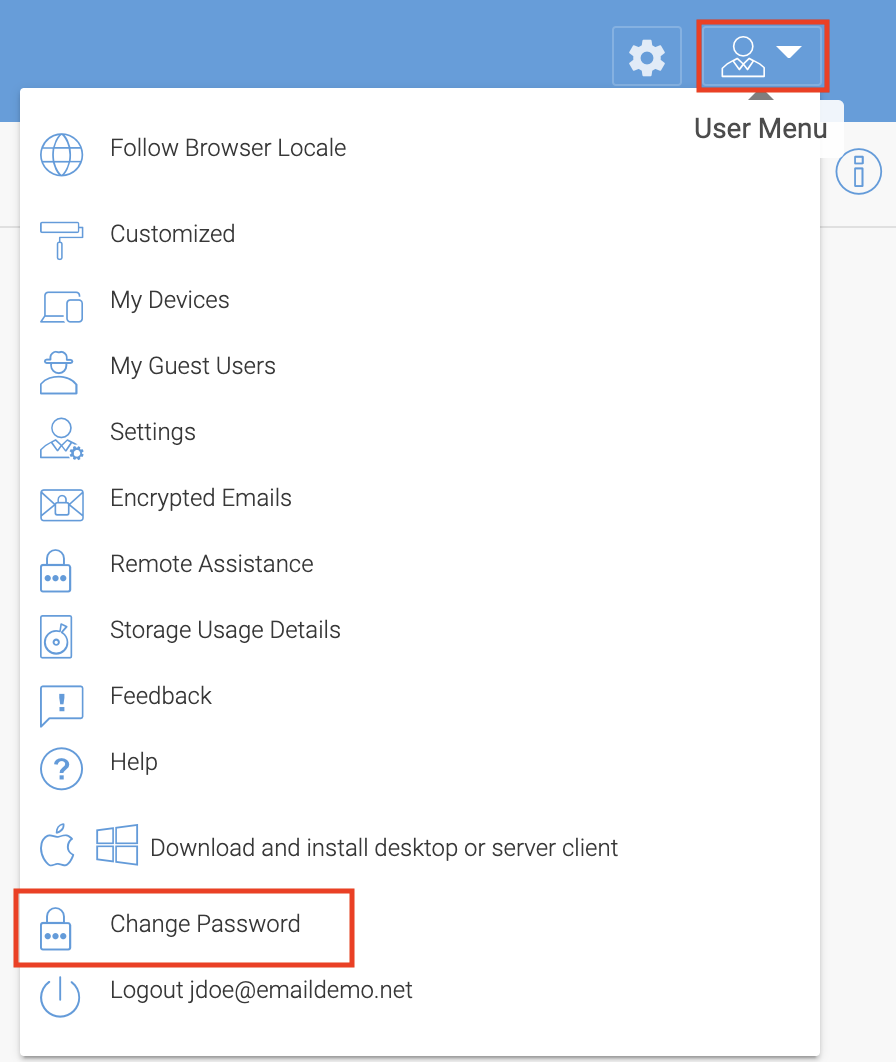
3A: Click the User Menu (top right) and choose Change Password.
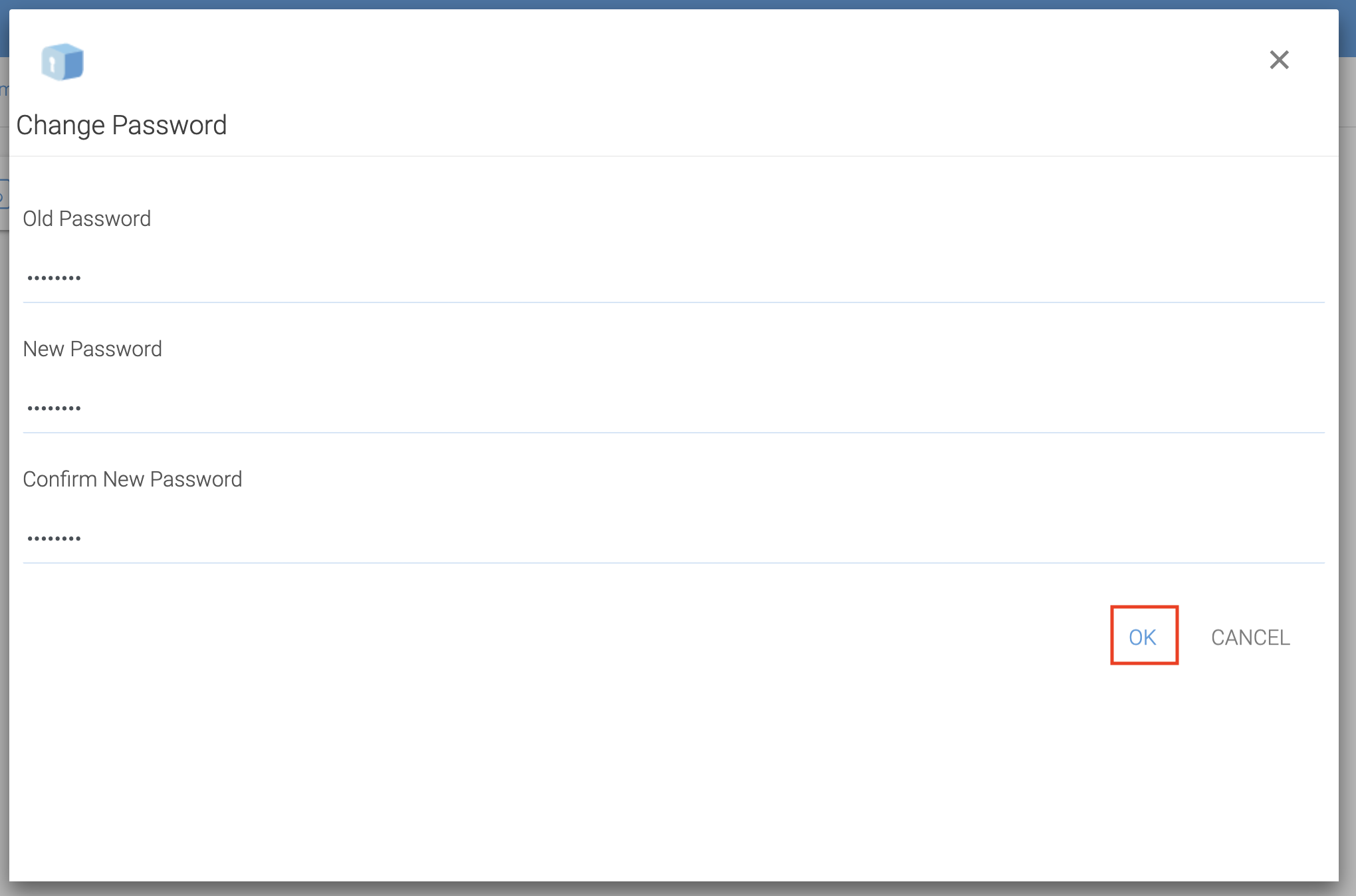
3B: Type the temporary password we sent you into the Old Password box.
Type your New Password twice, then click OK.
Step 4: Create eBox users
4A: Click the Management Console icon (top right).

4B: Click the Users menu (left side).
Click the + Create User tile.

4C: Click Native User.

4D: Fill in the user's details, then click CONTINUE.
The default 100GB is more than enough for each user. You can change it later if you need to.

4E: Click CONTINUE.

4F: Click COMMIT.
We email this user a temporary password and a quick start guide.

4G: Click a user tile to manage that user's settings.

Step 5: Create a Team Folder to share with your users
5A: Click the Team Folders menu (left side).
Click the + tile.

5B: Select Existing Tenant Storage.

5C: Select Default Tenant Storage.

5D: Type a name for the team folder (we used Company), then click CREATE.

5E: Click Add Collaborators.

5F: Select the eBox users who should have access to this team folder, then click APPLY.

5G: Check that the right users are listed, then click SAVE.

5H: Go back to My Files (top right).

5I: You will now see the new team folder.
Files in a team folder are shared with every user assigned to that folder. Users cannot see each other's files unless the files are in a team folder they both belong to.

All done
For the full eBox experience, install the desktop software on your computer.
eBox Desktop Client Software for Windows
eBox Desktop Client Software for Mac
You can also get our mobile app for iOS and Android. Search for EnGuard Box in the App Store or Google Play.