Email Setup in Windows 10 Mail
Add your EnGuard email account to the Windows 10 Mail app.
The screenshots are for reference only. Please read the instructions at each step.
Step 1: Open Mail
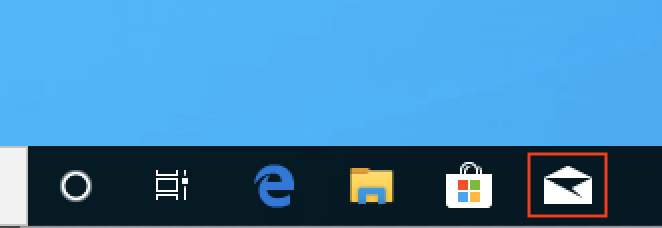
Open the Mail app from your taskbar.
Step 2: Start adding an account
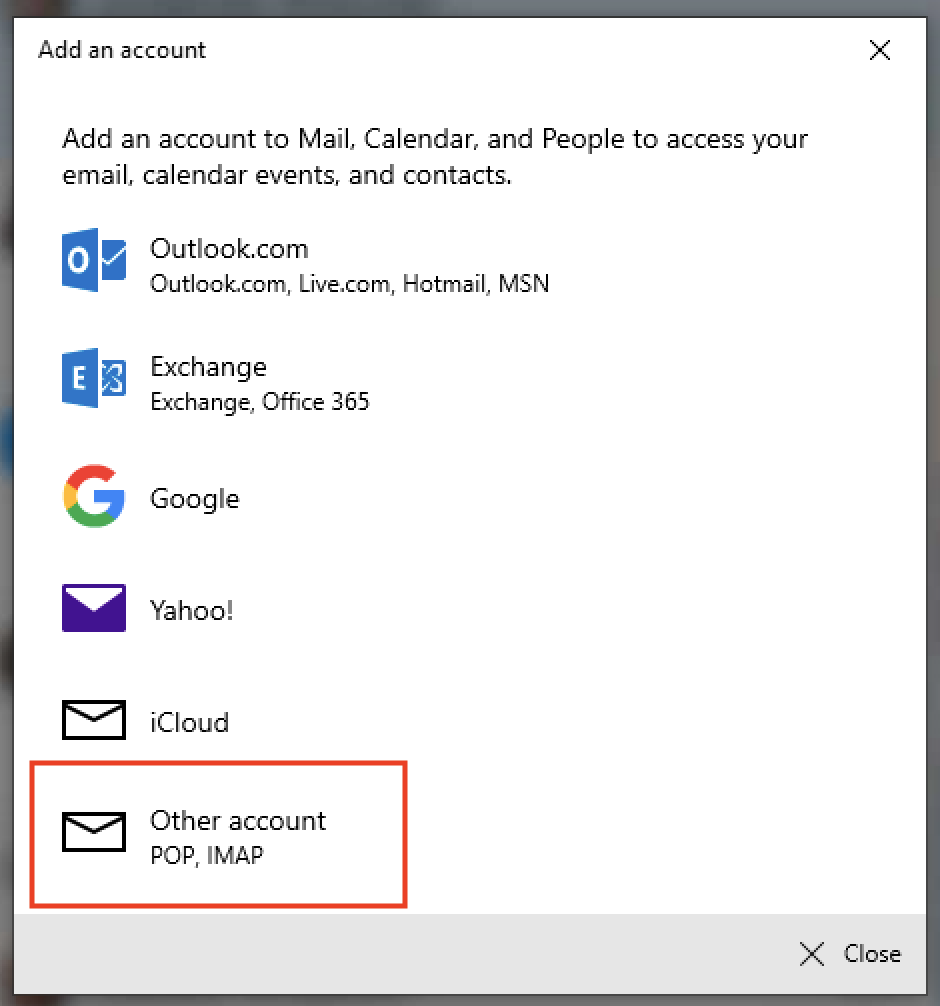
If this is the first time you open Mail, you will see this pop-up. Select Other account (POP, IMAP).
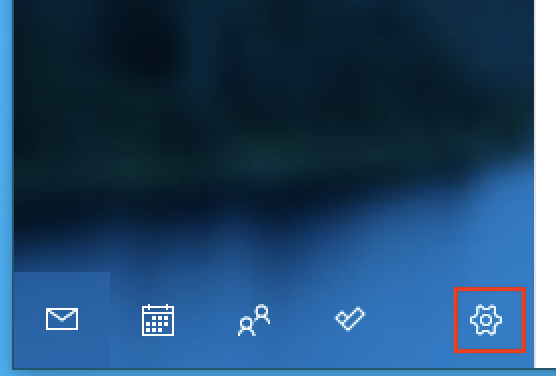
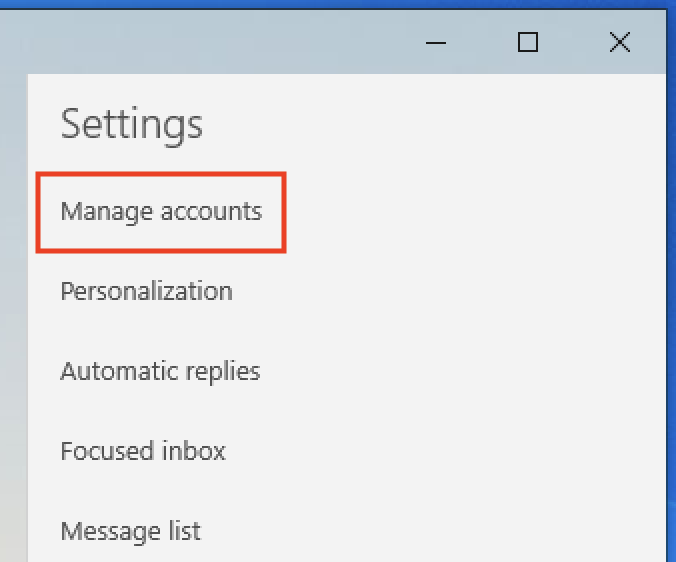
If you already have another account in Mail, click the Settings icon.
Select Manage accounts.
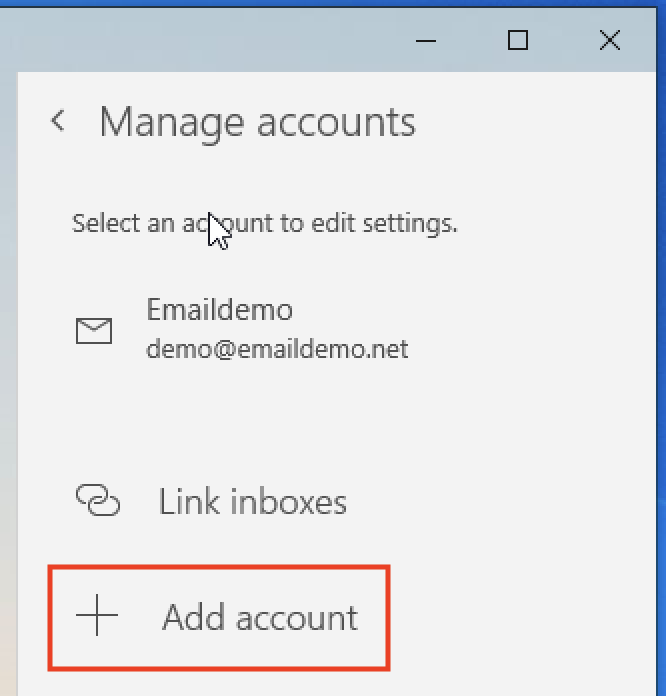
Select + Add Account.
Step 3: Enter your details
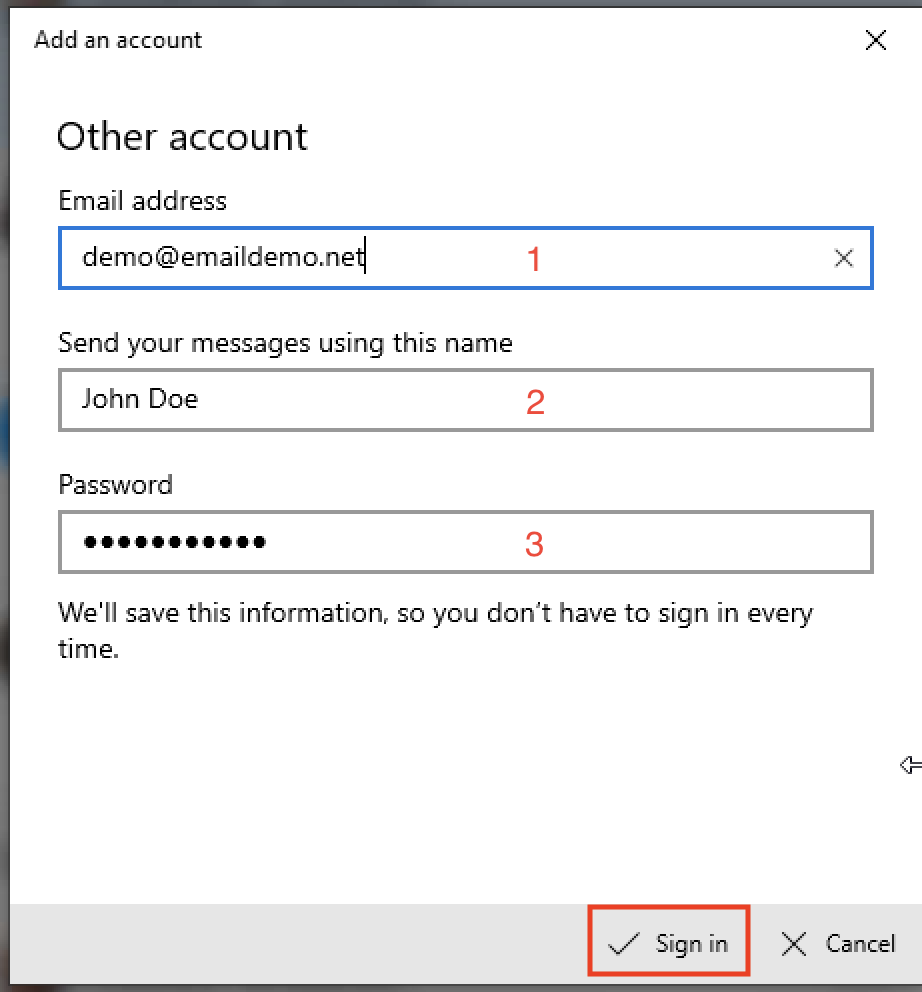
Fill in your EnGuard email account details:
1) Your email address
2) Your name. Recipients see this on all outgoing messages.
3) Your password
Click Sign in.
Step 4: Finish
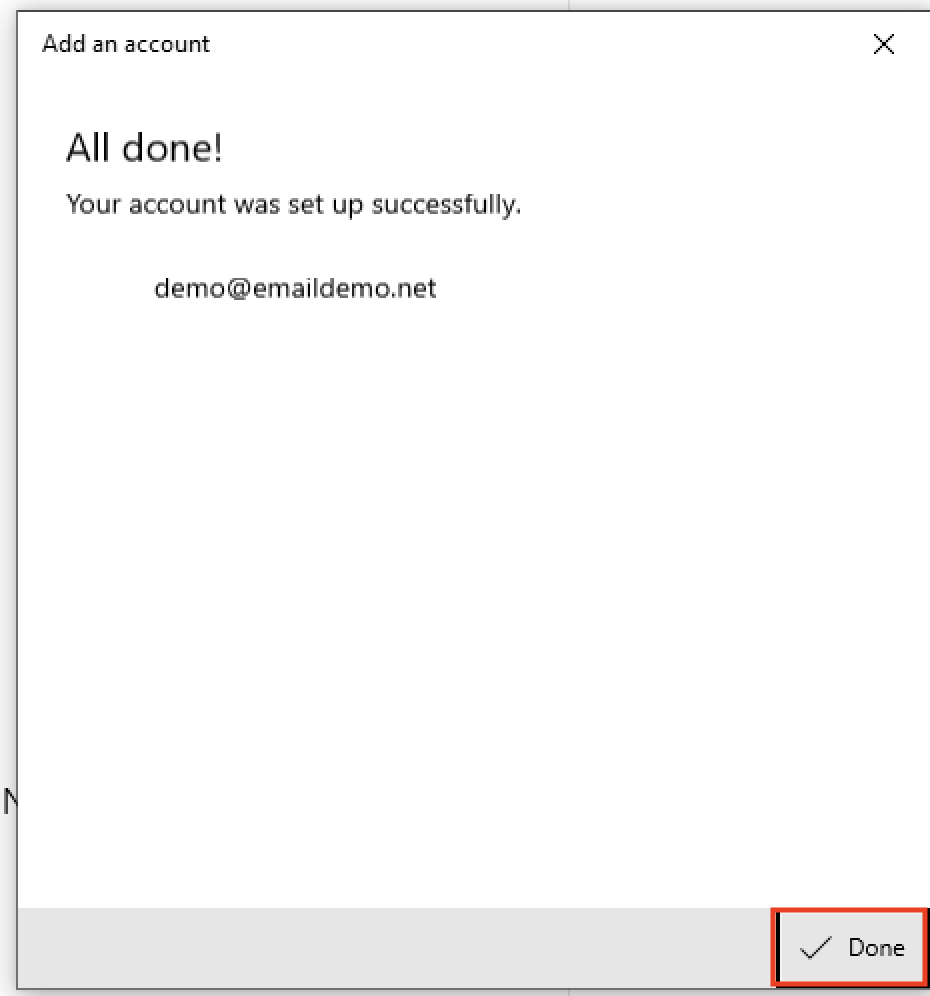
Click Done.