Managing Folders
Create, rename, delete and move email folders in webmail.
Create a new folder
Step 1: Open the folder menu
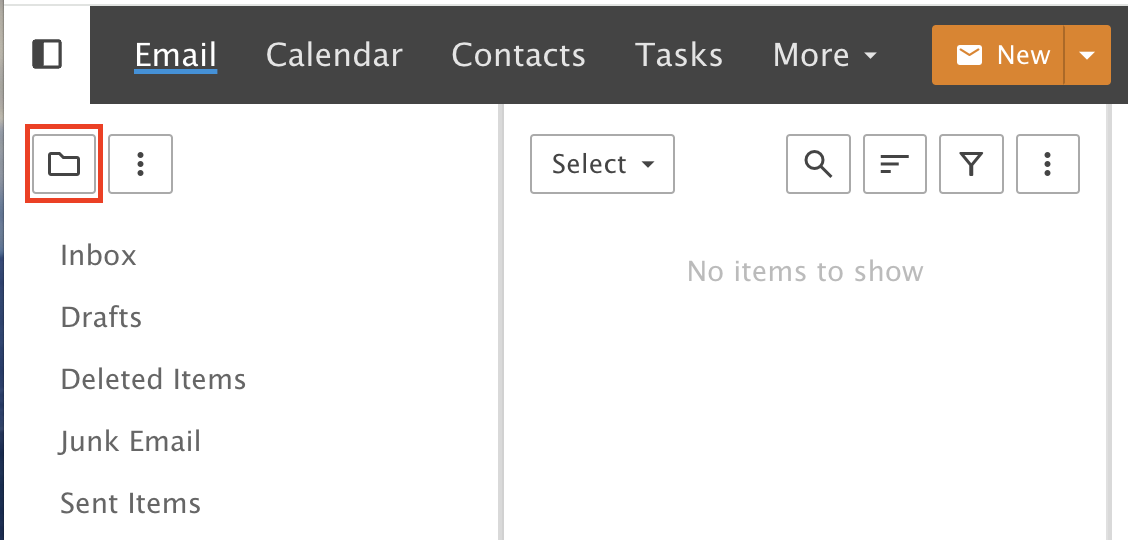
In the email section, click the Folder Icon above the default folders.
Step 2: Choose New Folder
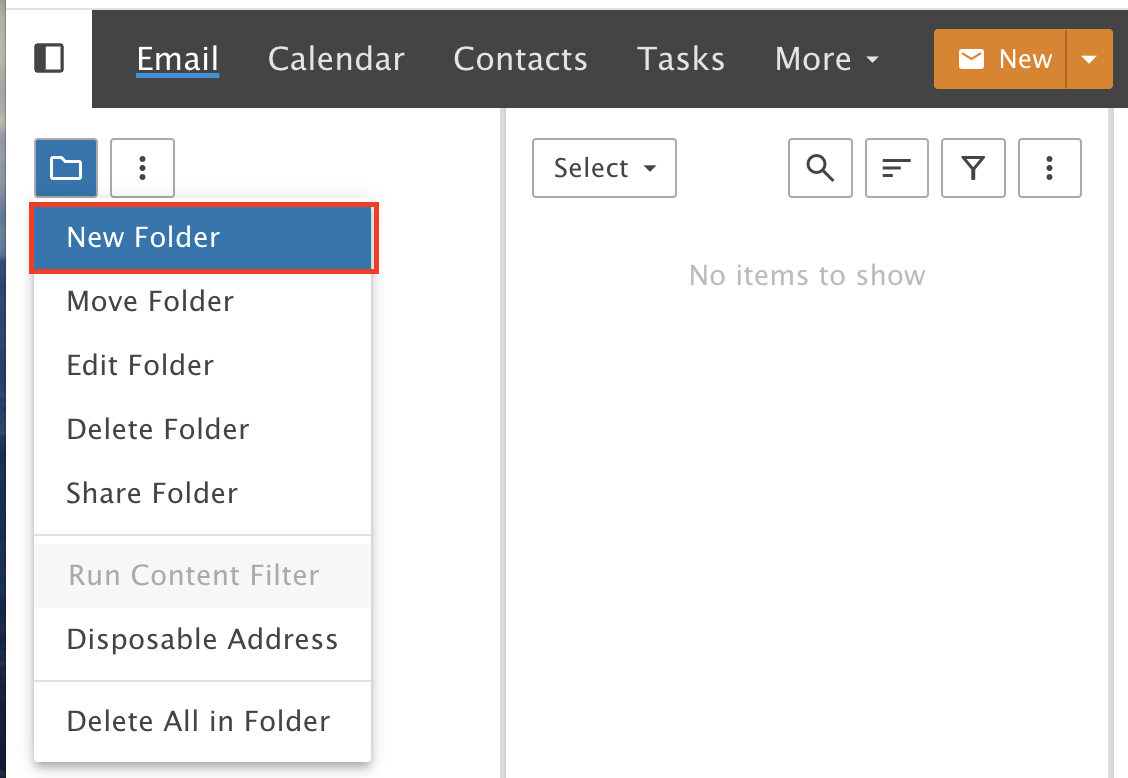
Select New Folder.
Step 3: Name the folder
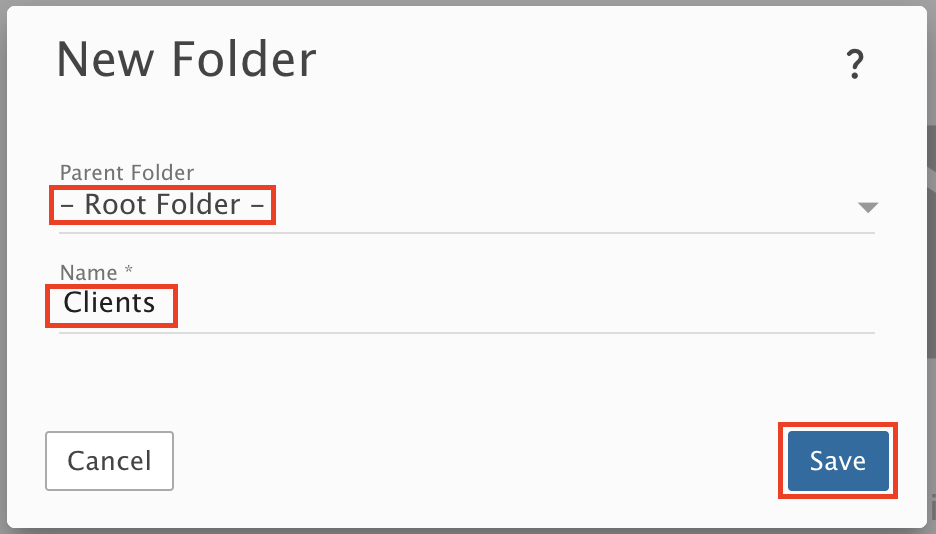
In this example we create a custom folder named Clients inside the Root Folder.
A) Parent Folder: select - Root Folder -
B) Name: type the folder name
Click Save.
Do not create folders inside (or under) the Inbox folder. The root folder holds all your Custom Folders. Folders under the Inbox make your mail load slowly in email programs.
The Clients folder now shows as a top level folder in Custom Folders. Top level folders are sorted in alphabetical order.
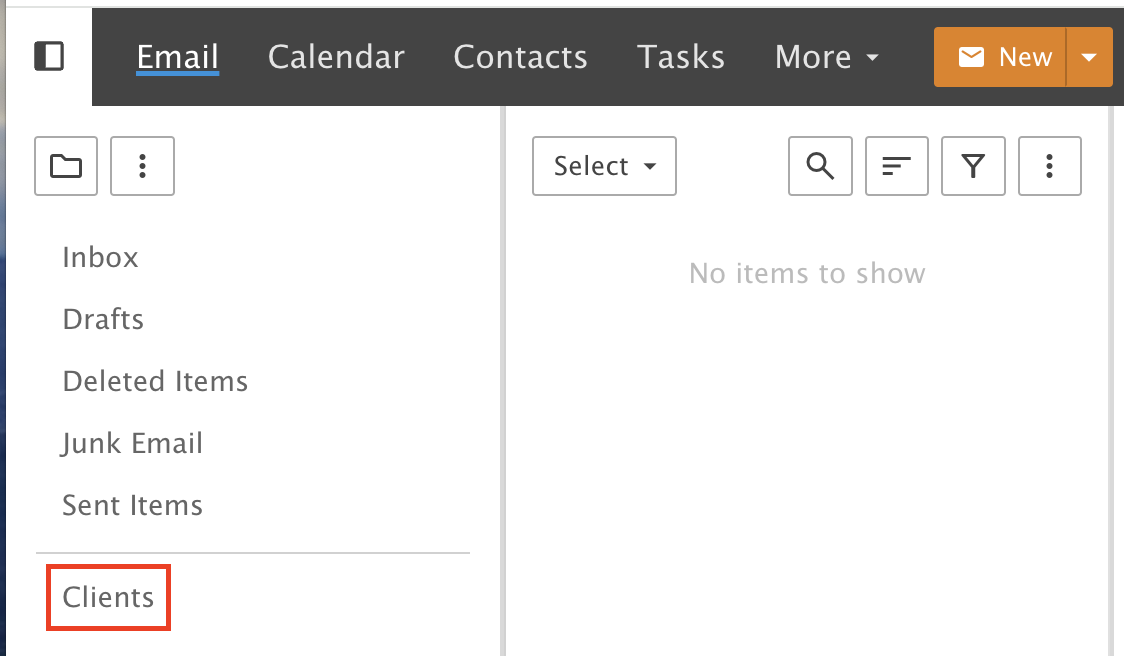
Step 4: Create a subfolder
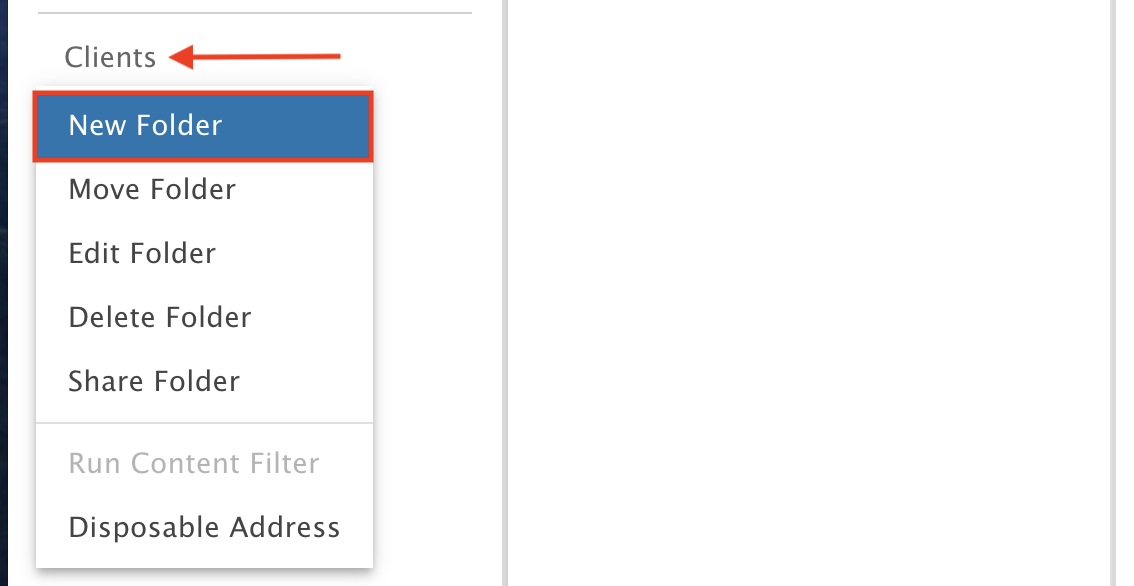
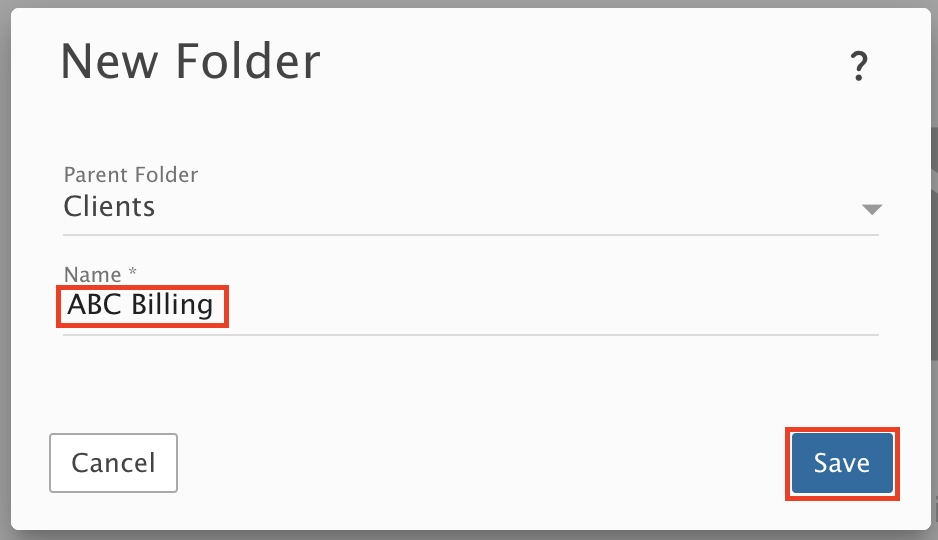
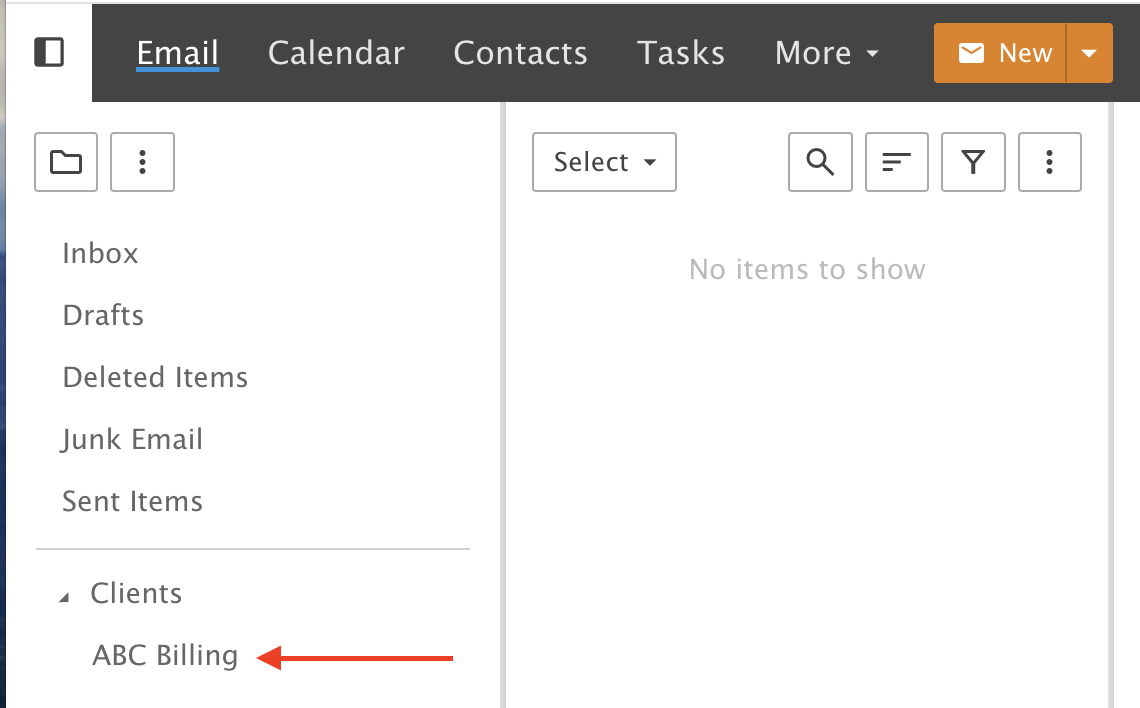
You can create subfolders inside (under) your top level folders. We will make a subfolder named ABC Billing inside Clients.
Right-click the top level folder and select New Folder.
Type the folder name and click Save.
The subfolder now shows inside (under) the top level folder in Custom Folders.
Rename a folder
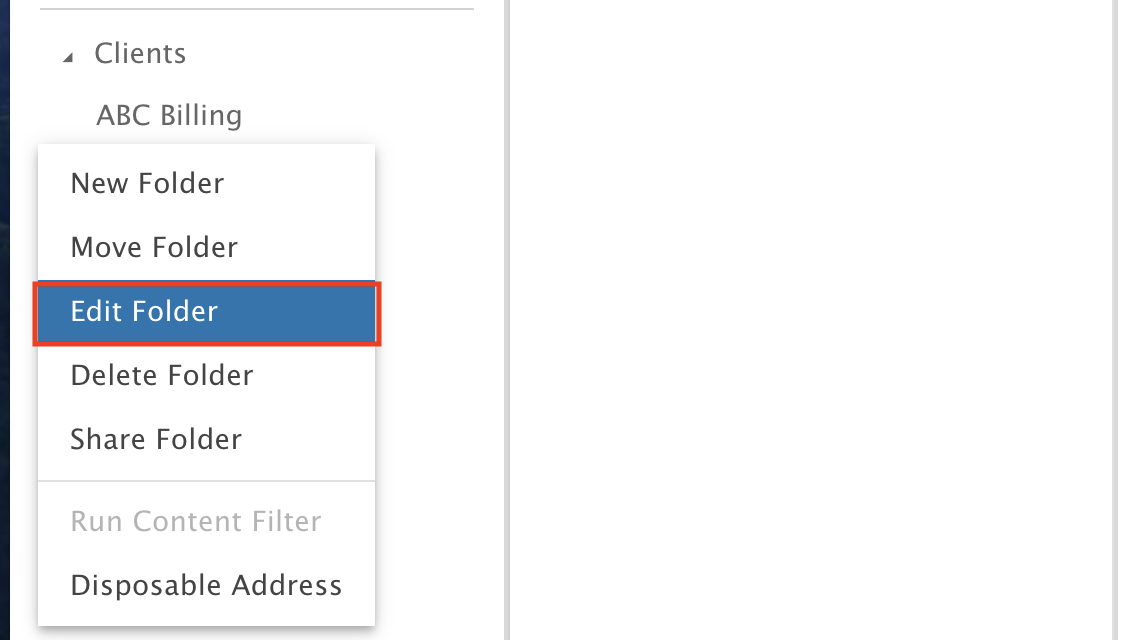
Step 1: Choose Edit Folder
Right-click the folder you want to rename and select Edit Folder.
Only custom folders can be renamed.
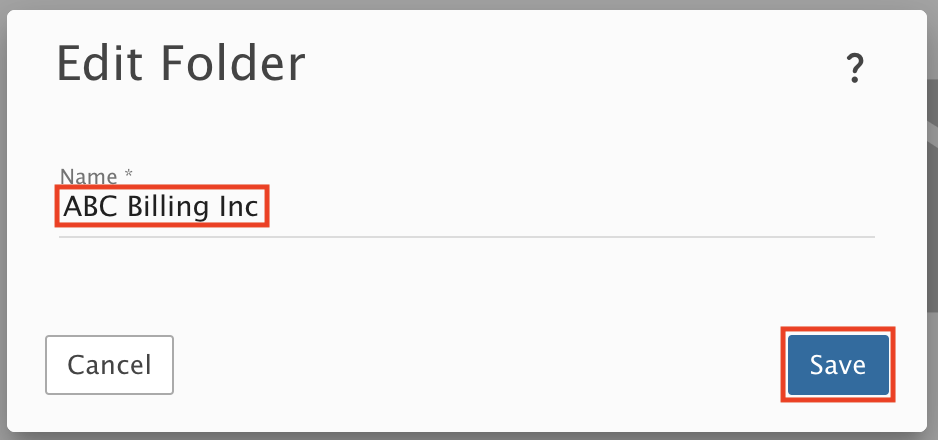
Step 2: Type the new name
Type a new name and click Save.
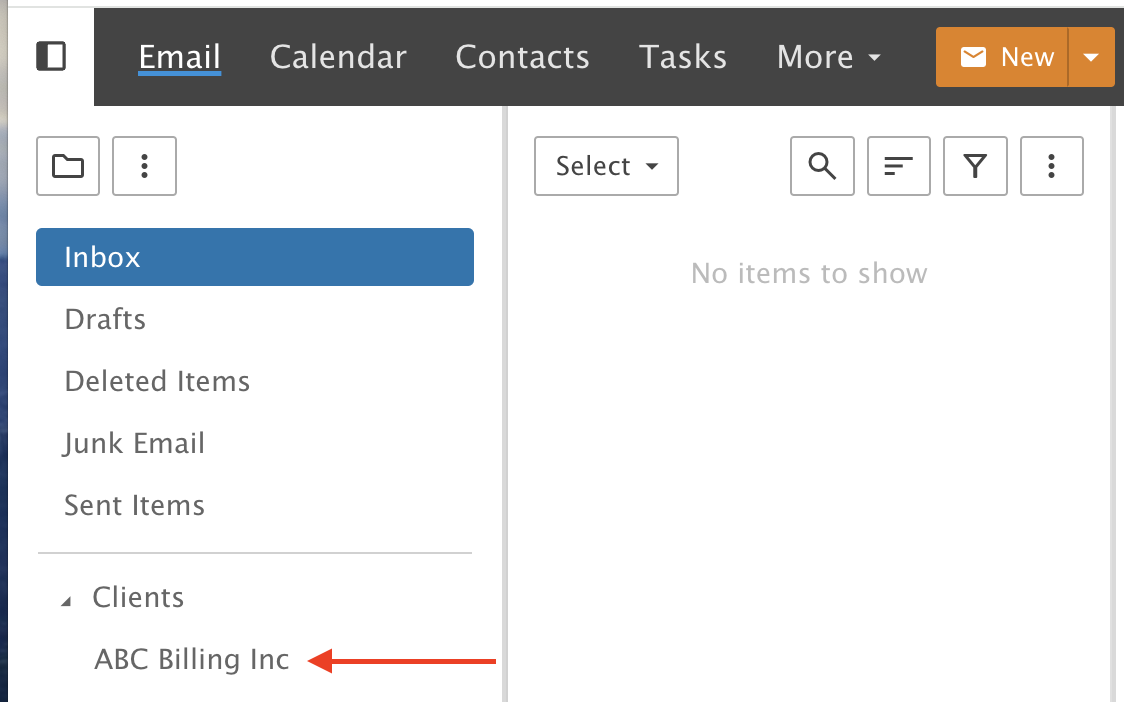
The folder now shows with its new name.
Delete a folder
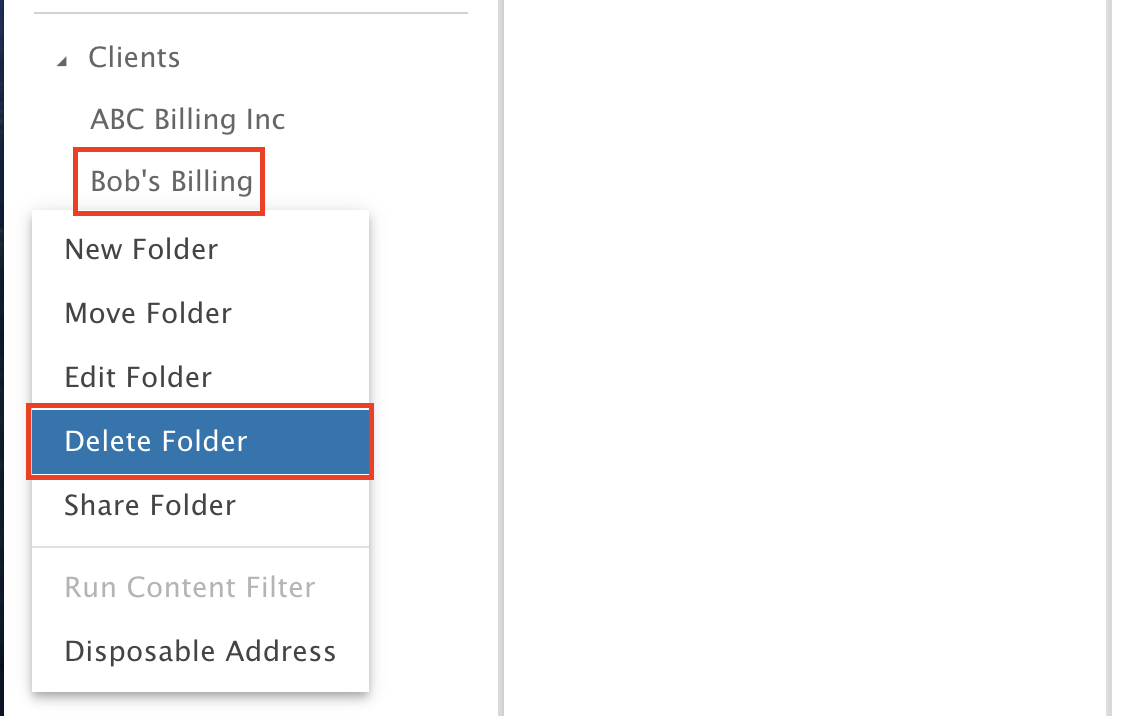
Step 1: Choose Delete Folder
Right-click the folder you want to delete and click Delete Folder.
Only custom folders can be deleted.
Step 2: Confirm
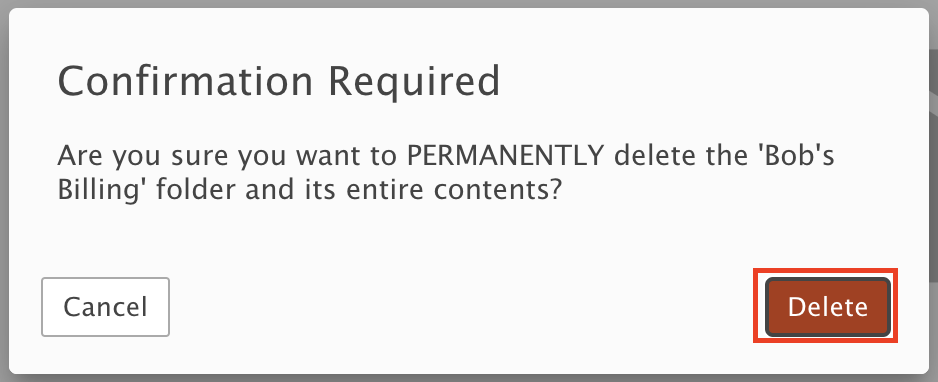
A Confirmation Required pop-up appears. Click Delete.
This permanently deletes the folder and everything in it.
Move a folder
Step 1: Choose Move Folder
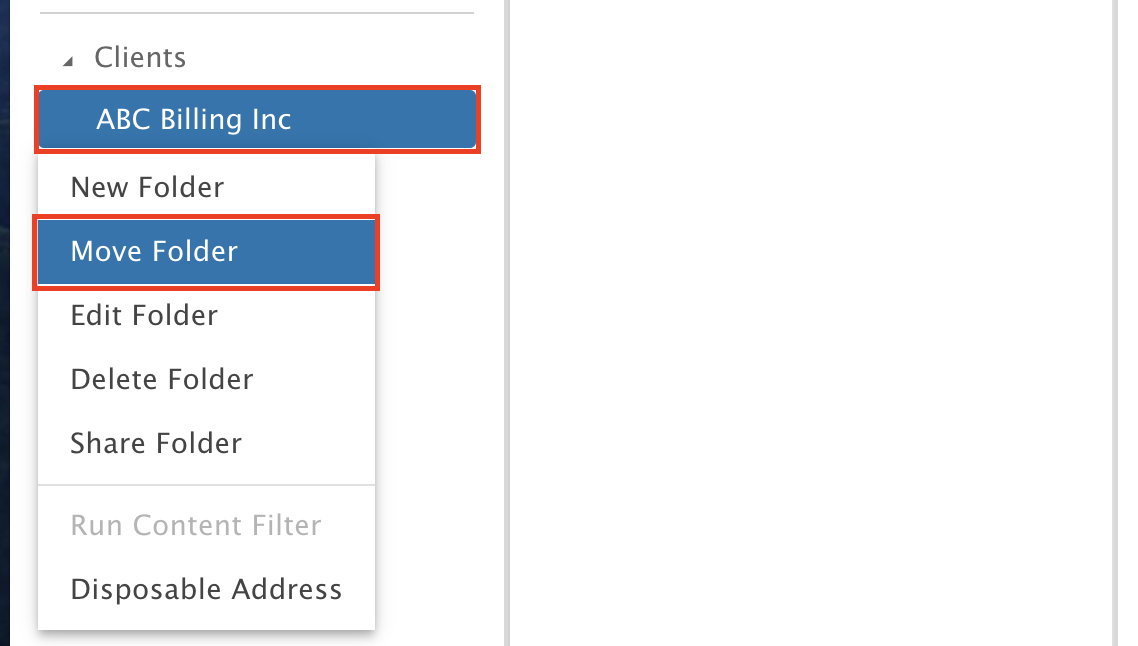
Right-click the folder you want to move and click Move Folder.
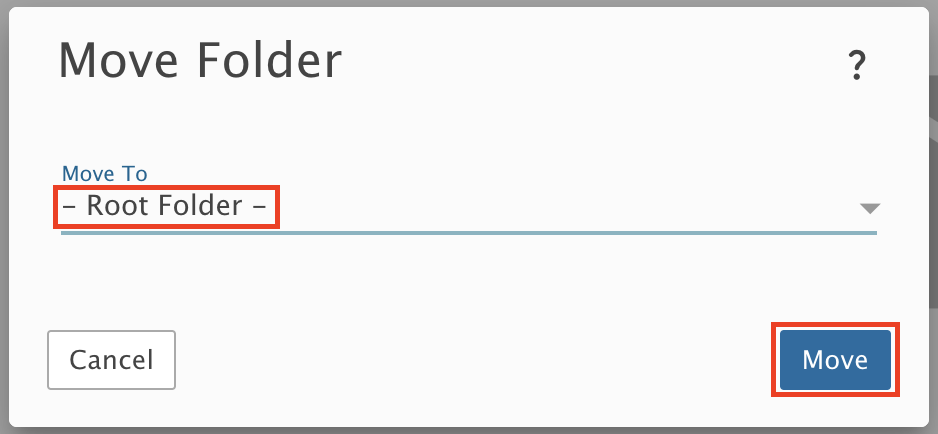
In this example we move the ABC Billing Inc subfolder into the root folder, to make it a top level folder.
Step 2: Pick where it goes
Select the folder from the Move To drop-down menu and click Move.
A folder with lots of messages can take a few minutes to move. Please do not refresh the page.
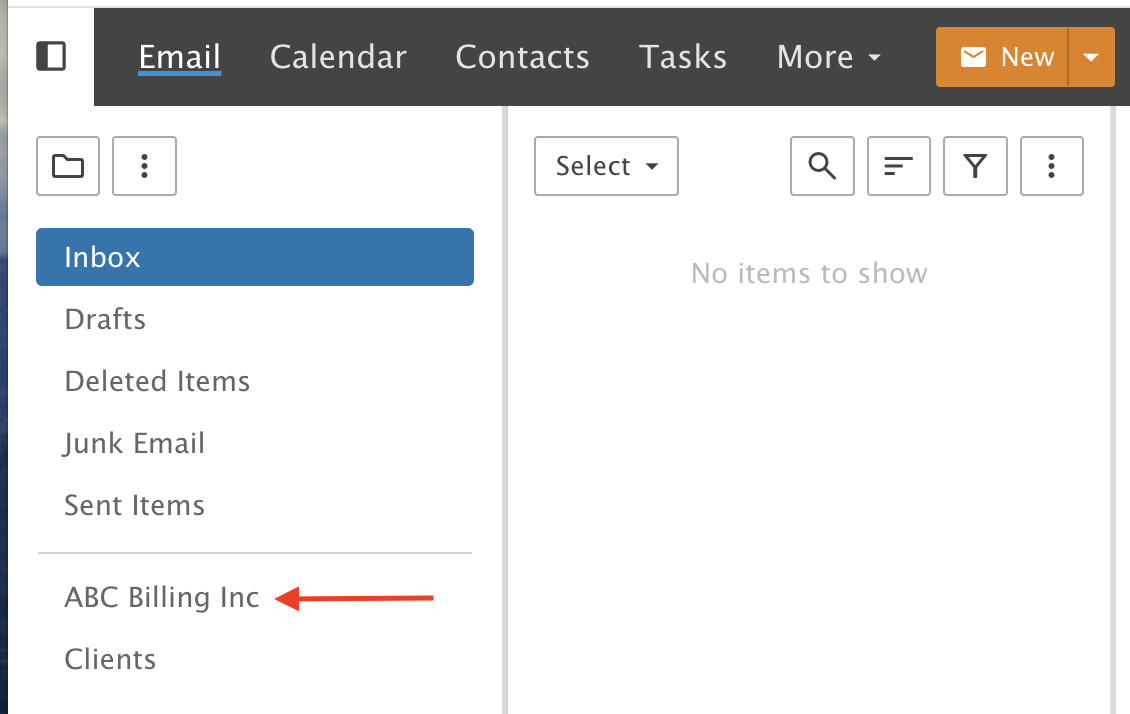
ABC Billing Inc is now a top level folder.
Step 3: Move a subfolder to another top level folder
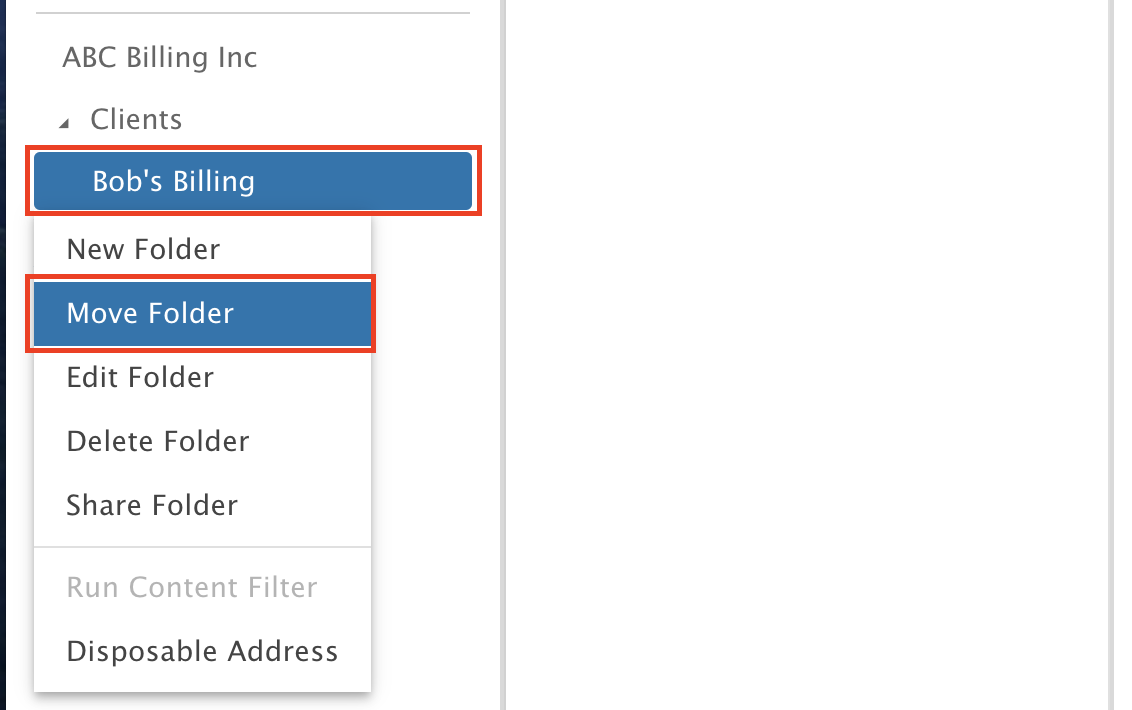
Next we move a subfolder from one top level folder to another. In this example we move the Bob's Billing subfolder from the Clients top level folder to the New Clients top level folder.
Right-click the folder you want to move and select Move Folder.
Step 4: Pick where it goes
Select the folder from the Move To drop-down menu and click Move.
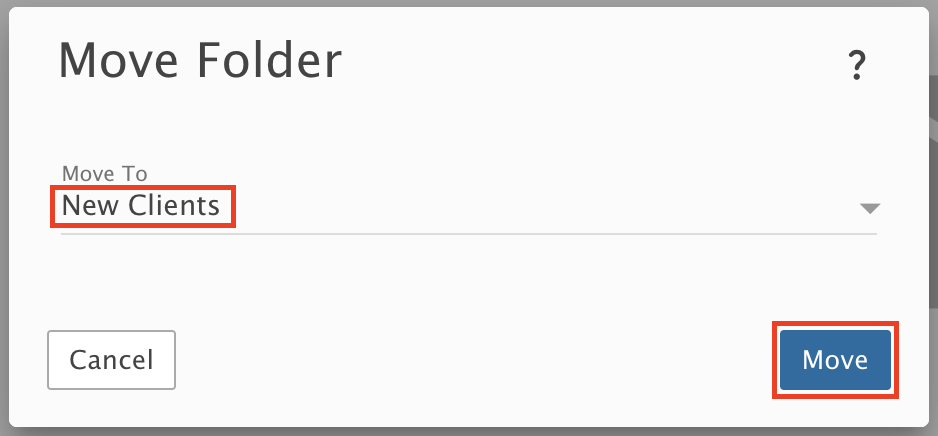
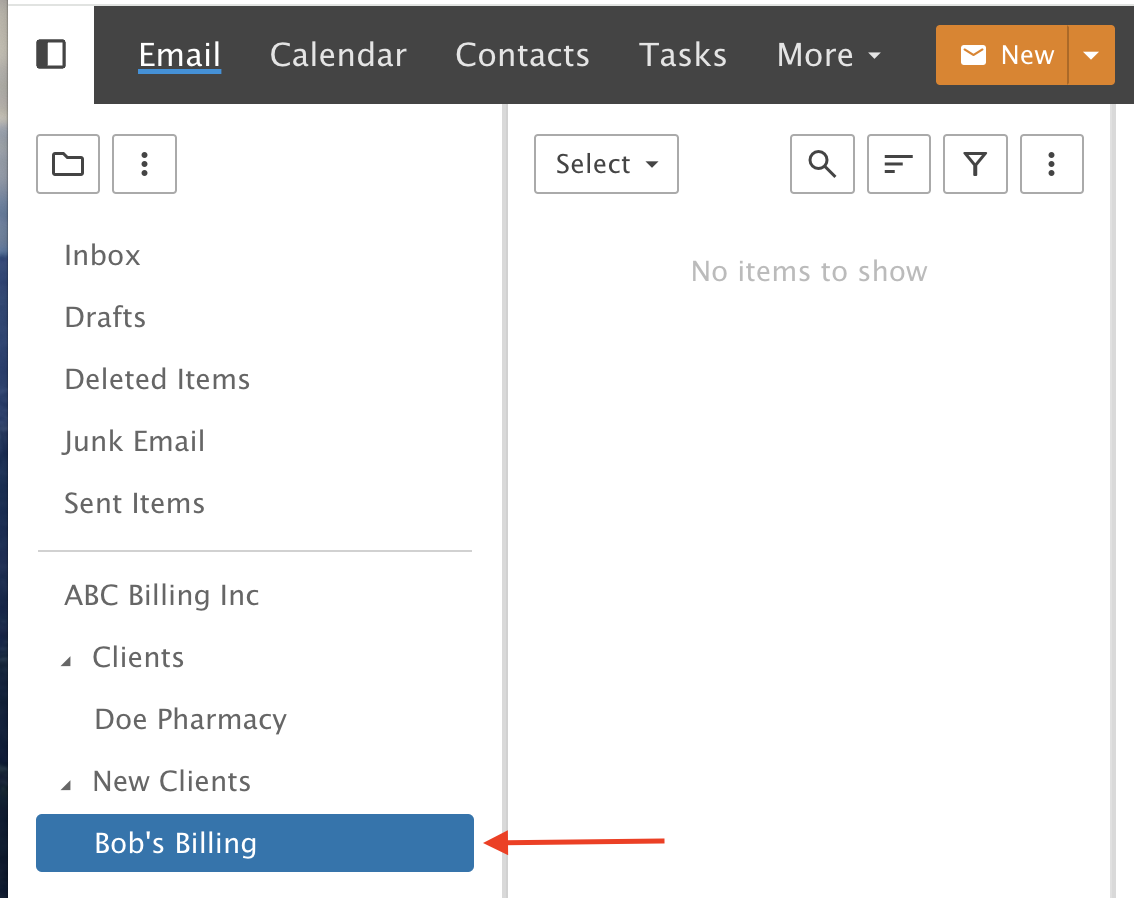
The Bob's Billing folder is now inside (under) the New Clients folder.