

Clear Cache for Chrome in Windows
Clear the Chrome cache on Windows so webmail updates and fixes show up.
Sometimes bugs show up after an EnGuard webmail update. When a fix comes with a new update, your browser may still hold the old code in its cache. You need to clear it so your browser downloads the new code.
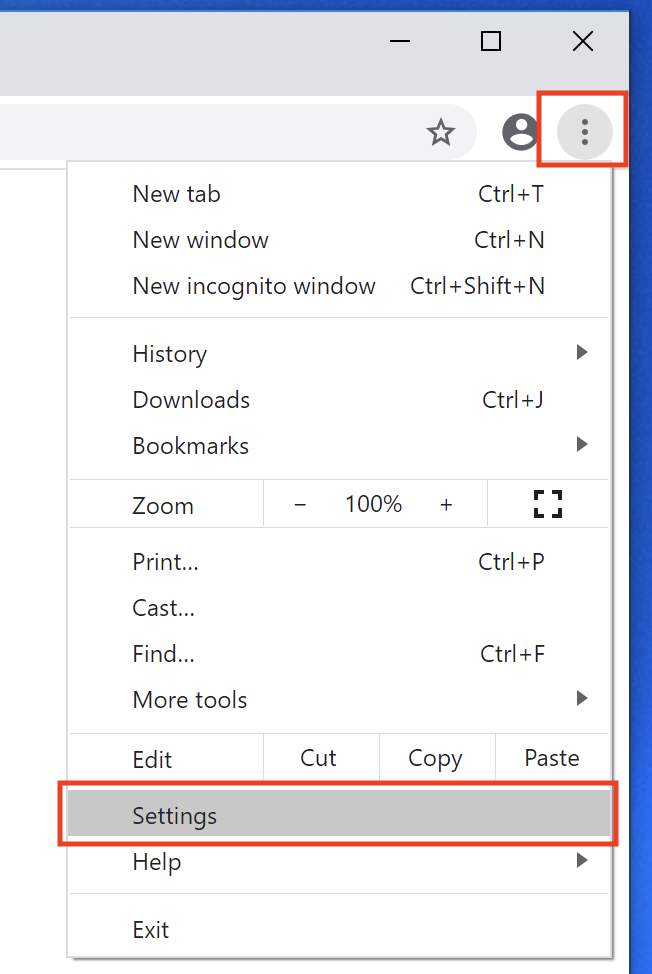
Step 1: Open Settings
Go into the Chrome menu and select Settings.
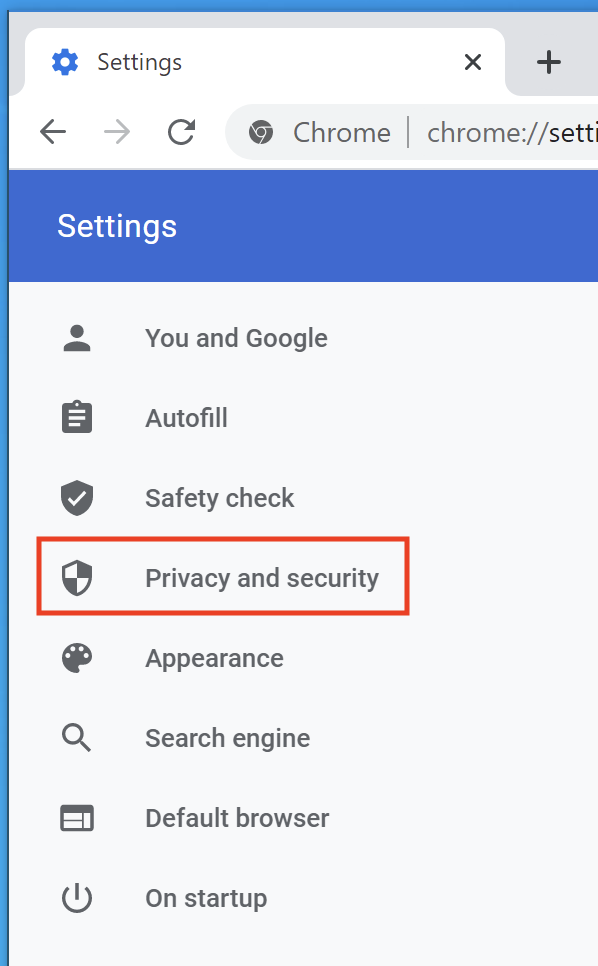
Step 2: Open Privacy & Security
Select Privacy & Security.
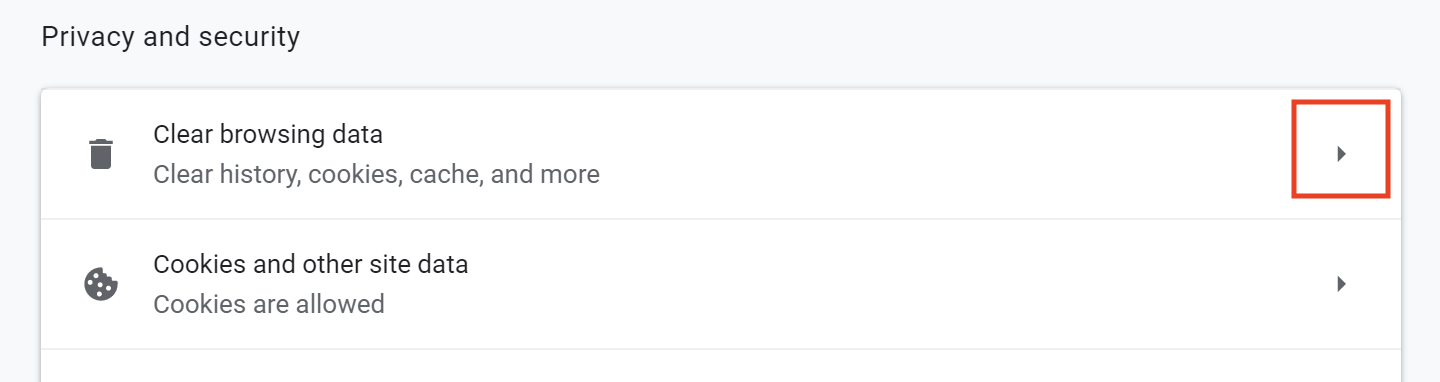
Step 3: Choose Clear browsing data
Under Privacy and security, select Clear browsing data.
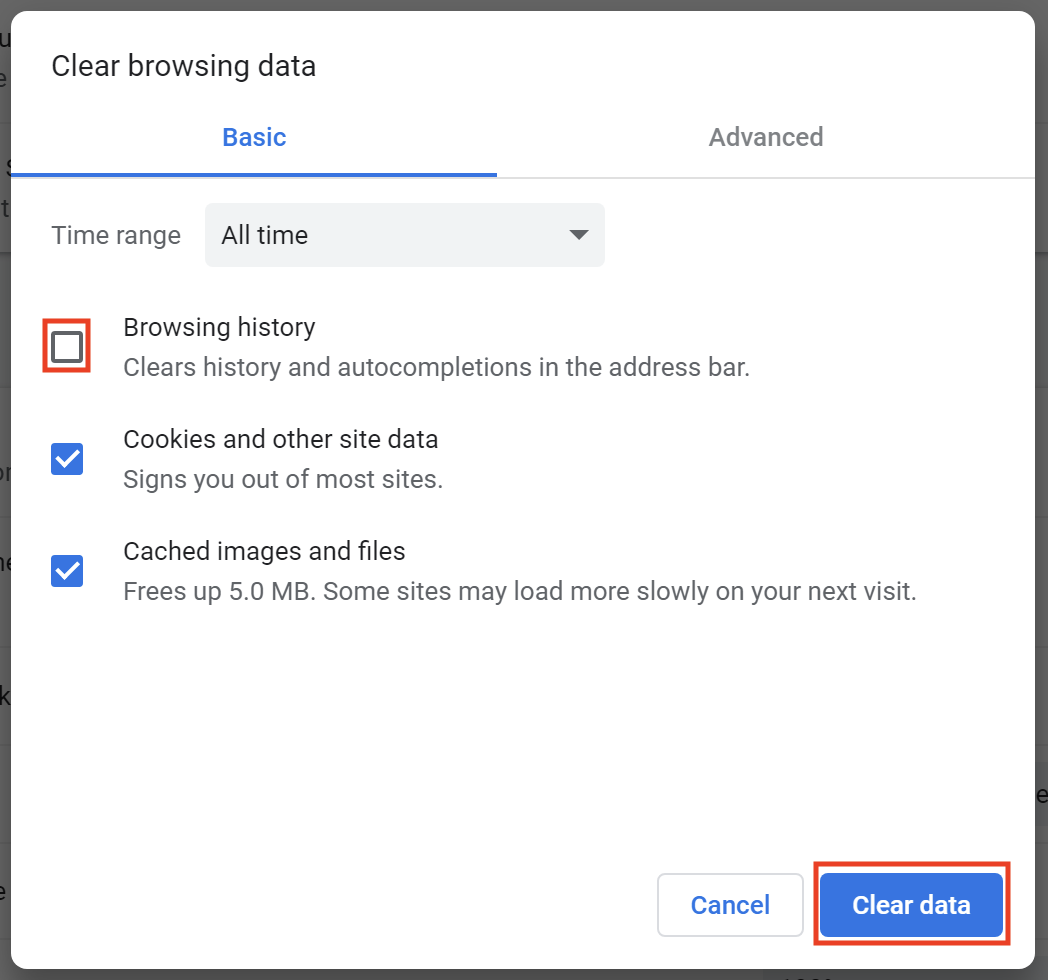
Step 4: Clear the cache
Select All Time from the drop-down.
Browsing history: you can leave this unchecked.
Check the boxes for Cookie and other site data and Cached images and files.
Click Clear data.
Step 5: Restart Chrome
Quit Chrome and open it again. Go to our webmail. It will now download all the new code and fixes into your browser cache.