

Enable pop-ups in Google Chrome
Turn on pop-ups for webmail in Google Chrome, for one site or for all sites.
For our webmail to work properly in Chrome, you must allow pop-ups.
This example uses Google Chrome on a Mac. Your screen may not match exactly, but the steps are about the same.
If your browser lets you add exceptions to its pop-up blocker, that is better than turning on all pop-ups. In Chrome, you can allow pop-ups from specific sites only, or from all websites.
Topics covered:
Allow pop-ups from specific websites (exceptions)
Step 1: Open Chrome
On your computer, open Chrome.
Step 2: Go to the page where pop-ups are blocked
For example, your pop-up blocker may be stopping you from writing a new email in Webmail.
Step 3: Click Pop-up blocked
In the address bar, click Pop-up blocked.

Step 4: Click the pop-up link
Click the link for the pop-up you want to see.
Step 5: Always allow it
To always see pop-ups for the site, select Always allow pop-ups from [site]. 
Allow all pop-ups
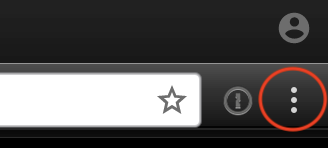
Step 1: Open the Chrome menu
Open Google Chrome. Click the three-dot icon at the top right of the browser window.
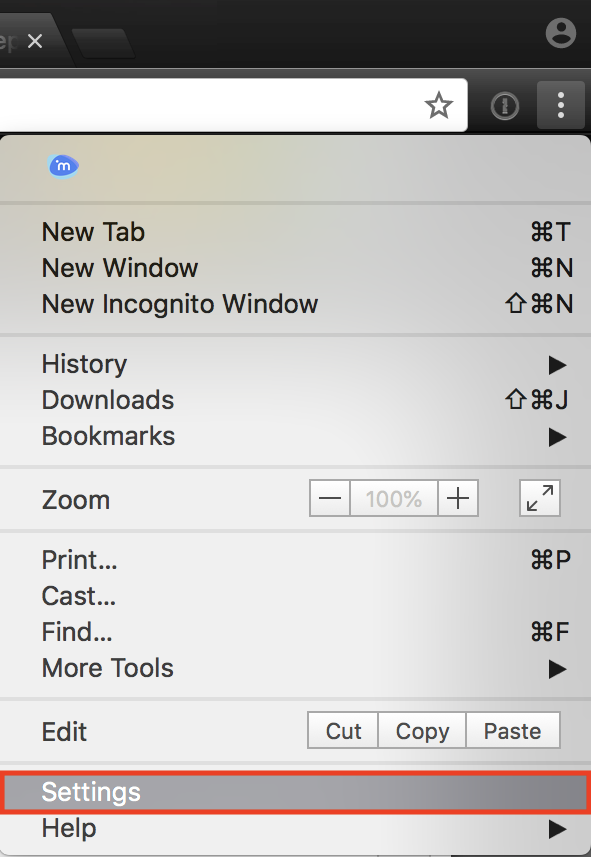
Step 2: Open Settings
Select Settings from the drop-down menu.
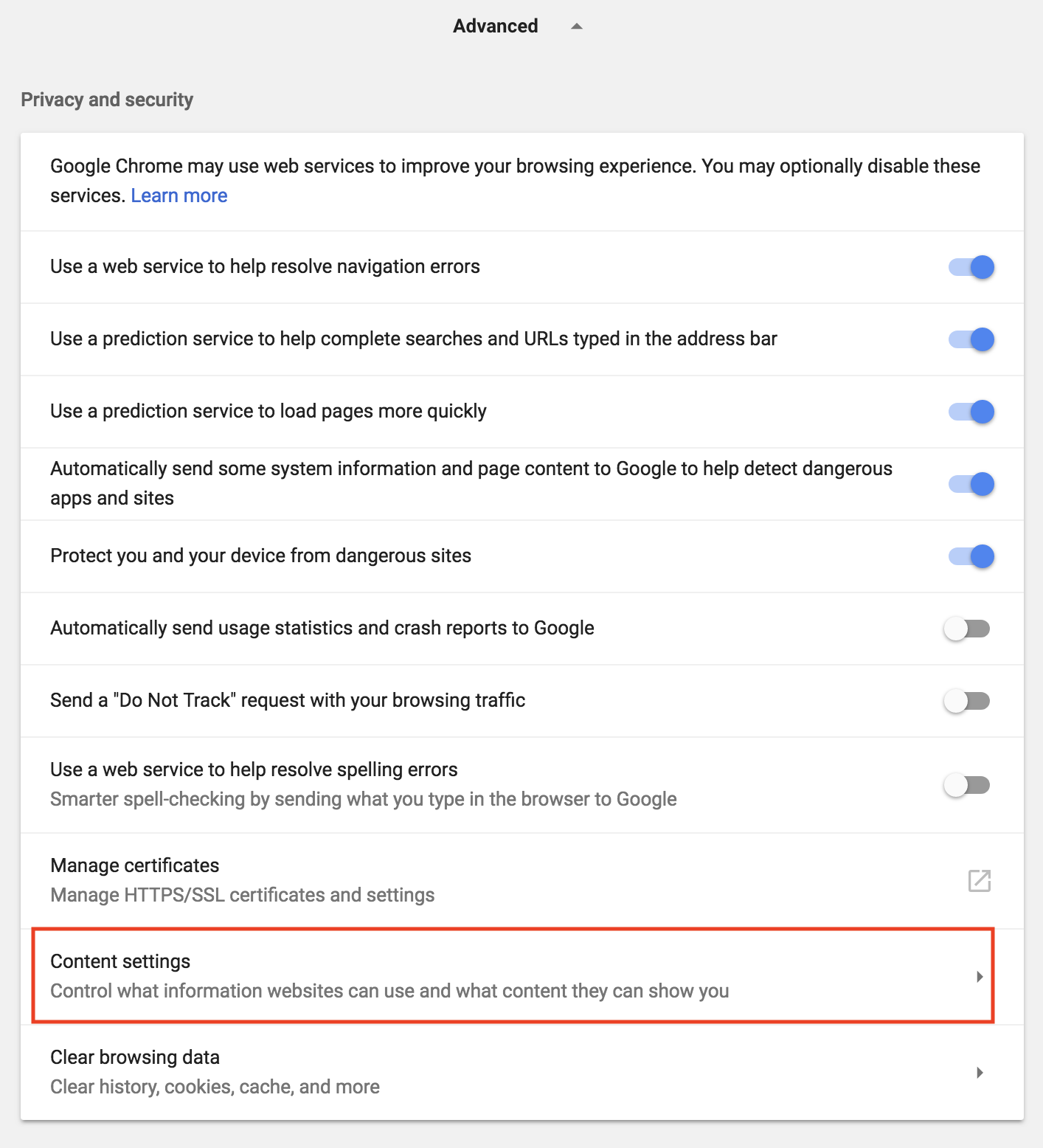
Step 3: Open Advanced settings
Scroll to the bottom of the Settings page and click Advanced to open Advanced Settings.

Step 4: Open Content Settings
Click Content Settings.
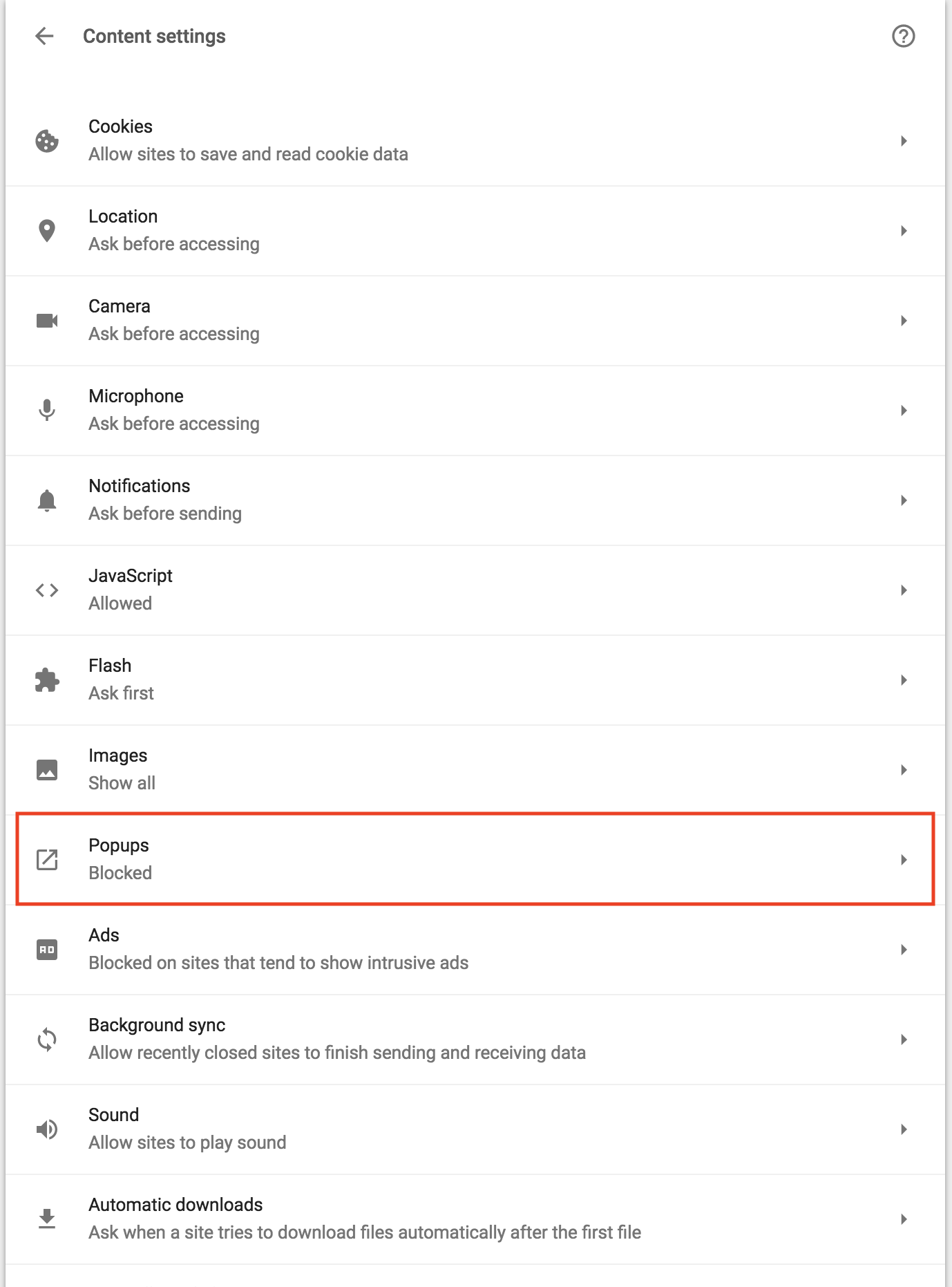
Step 5: Open Popups
Click Popups.
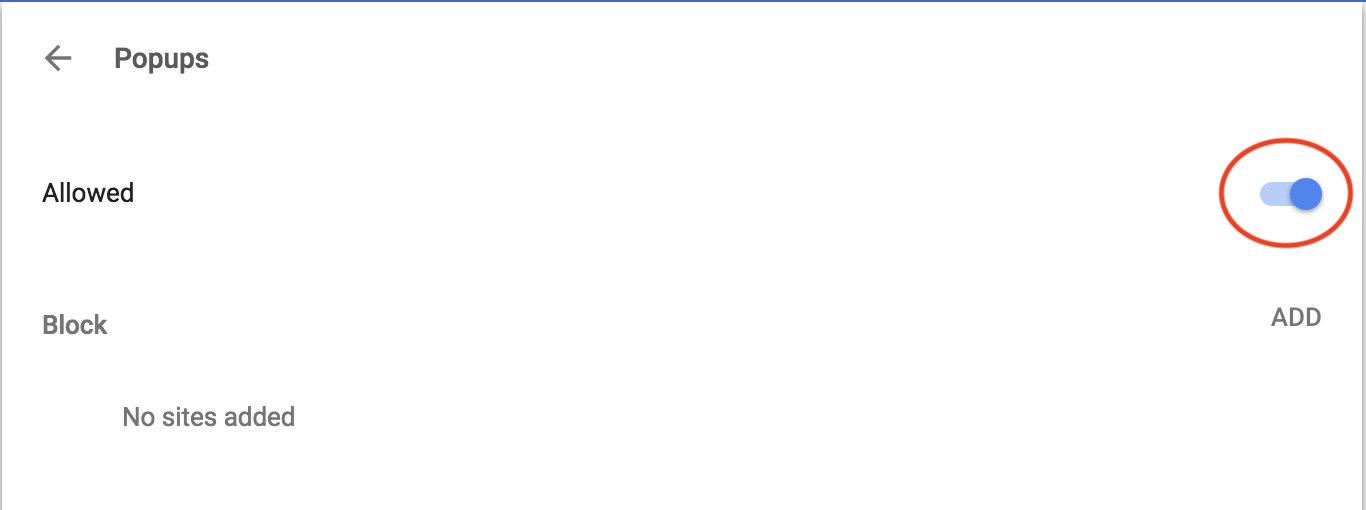
Step 6: Switch pop-ups on
Click the switch to change between allowing and blocking pop-ups.
Step 7: Restart Chrome
Close or quit Chrome when you finish changing this setting.