Creating an Email Signature
Create an email signature in webmail, and choose a default signature.
This guide shows you how to set up an email signature in webmail. You can create more than one signature and pick the one you want each time you write a new email.
Step 1: Open Settings
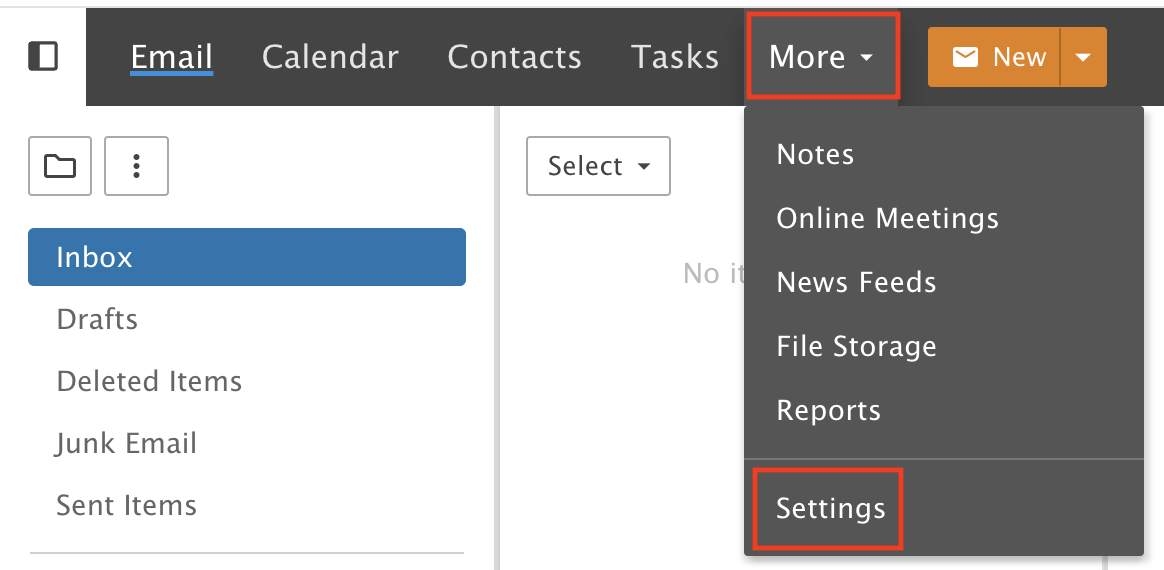
Click the More drop-down menu and choose Settings.
Step 2: Open Signatures
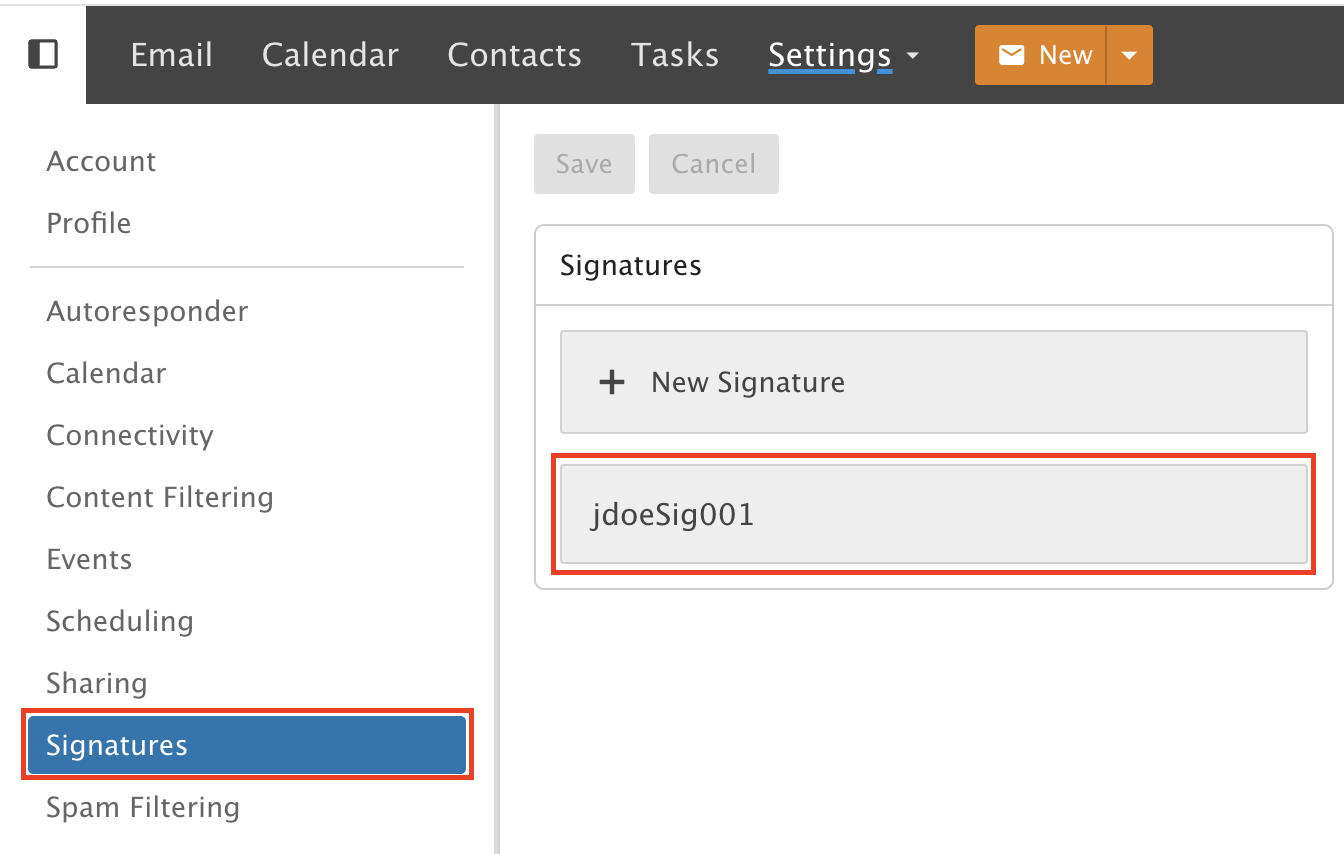
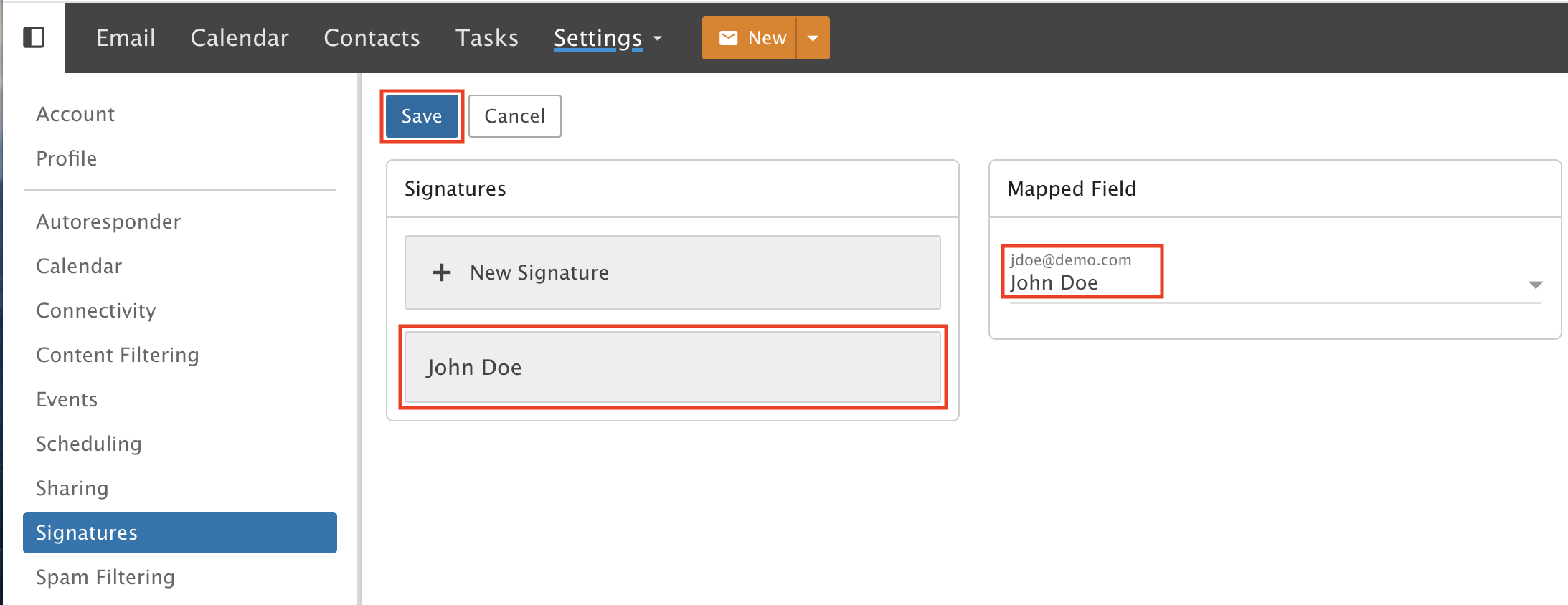
Click Signatures in the left menu. Then click the default signature that is already there, or click + New Signature.
Step 3: Write your signature
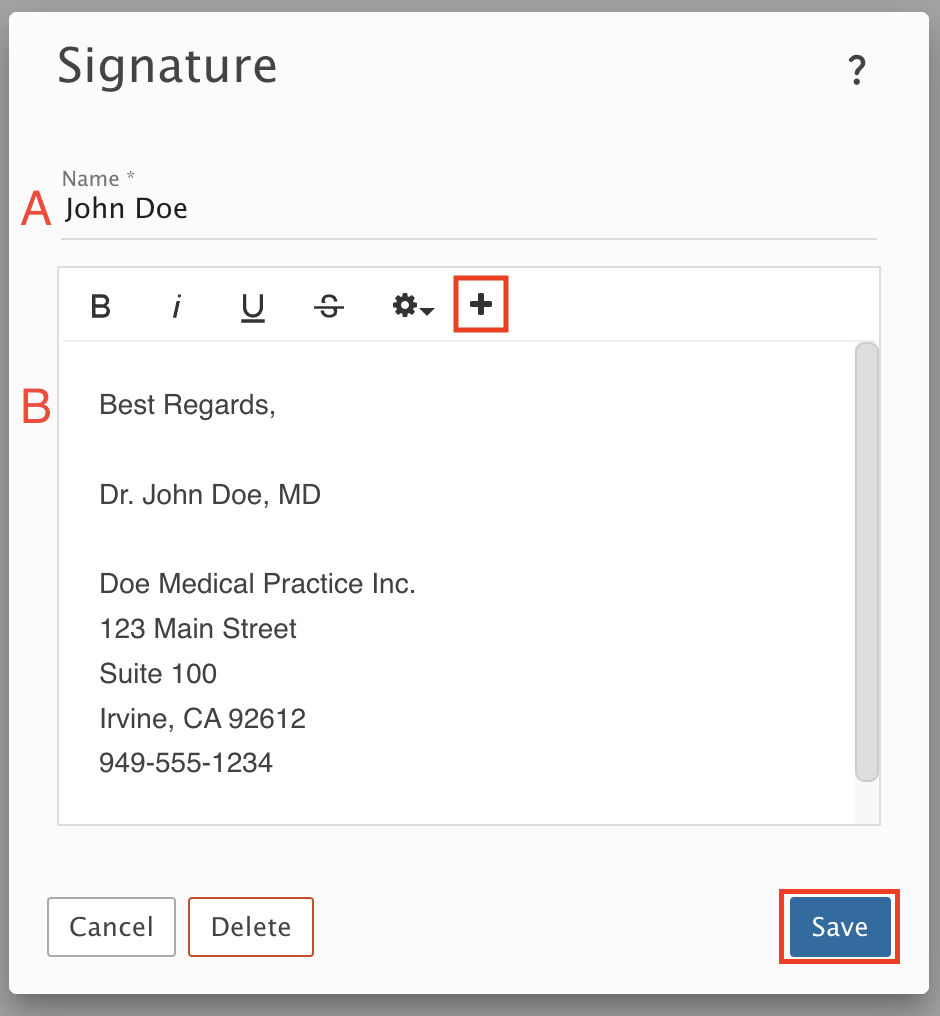
A) Enter a name for this signature. In our example, it is John Doe.
B) Write your signature. In our example, we added a name, company, address and phone number.
Click the + icon to see formatting options. Then click Save.
Step 4: Set it as your default
Your new signature now shows in the list. To make it your default signature, open the Mapped Field drop-down menu and select it. Click Save.
Your signature now shows at the bottom of every email you send from Webmail.
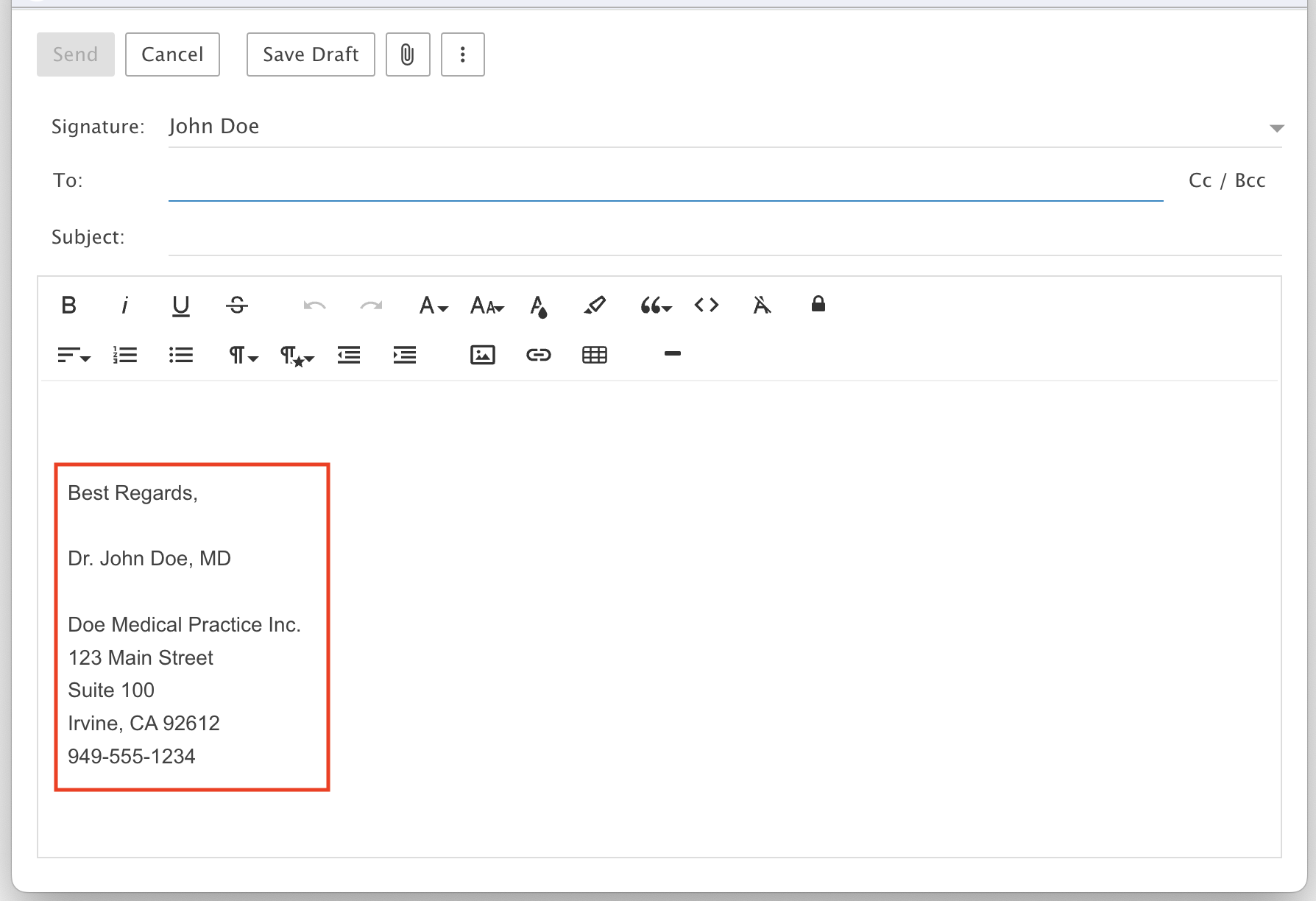
If you have more than one signature
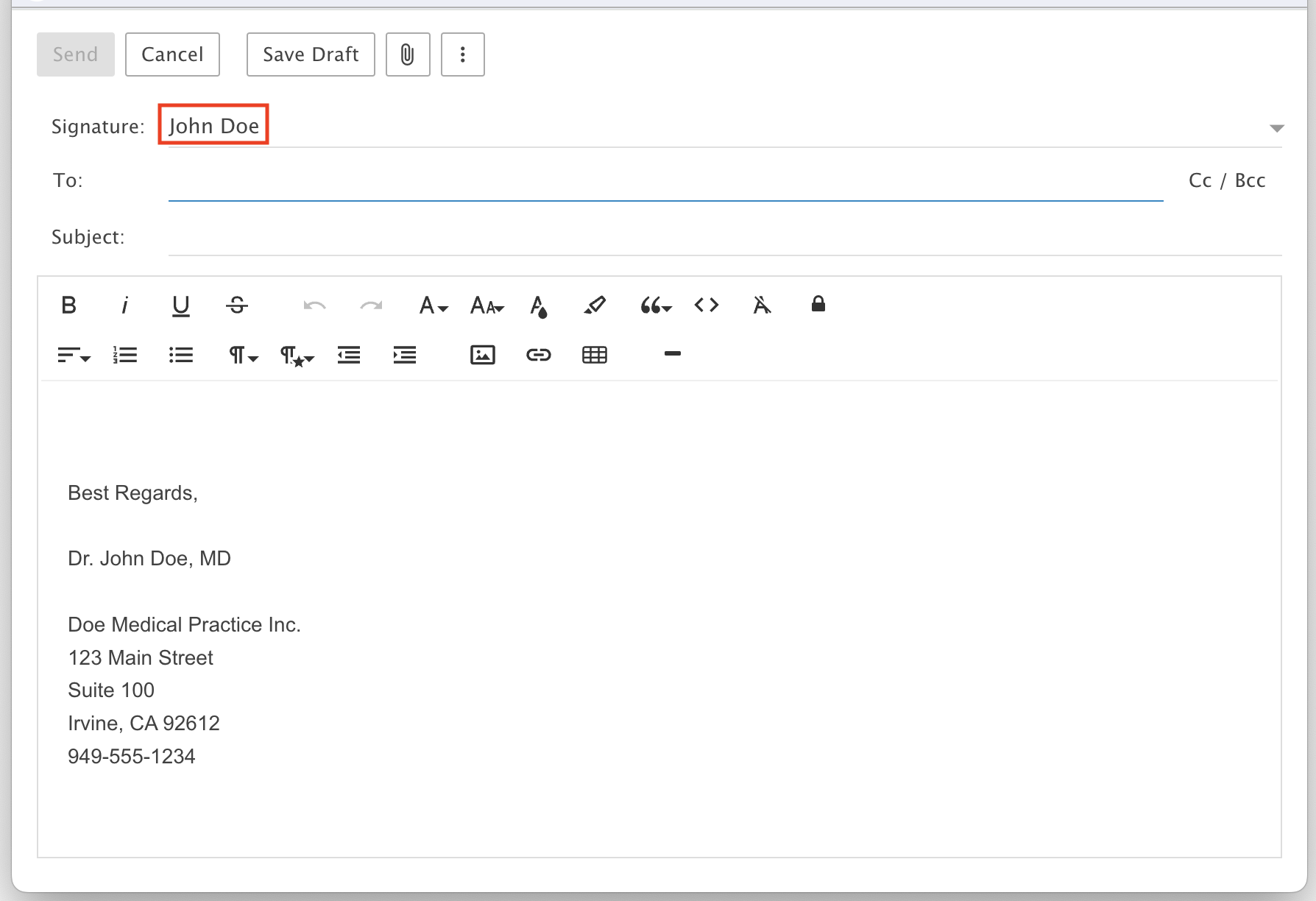
Choose the one you want here when you write a message: