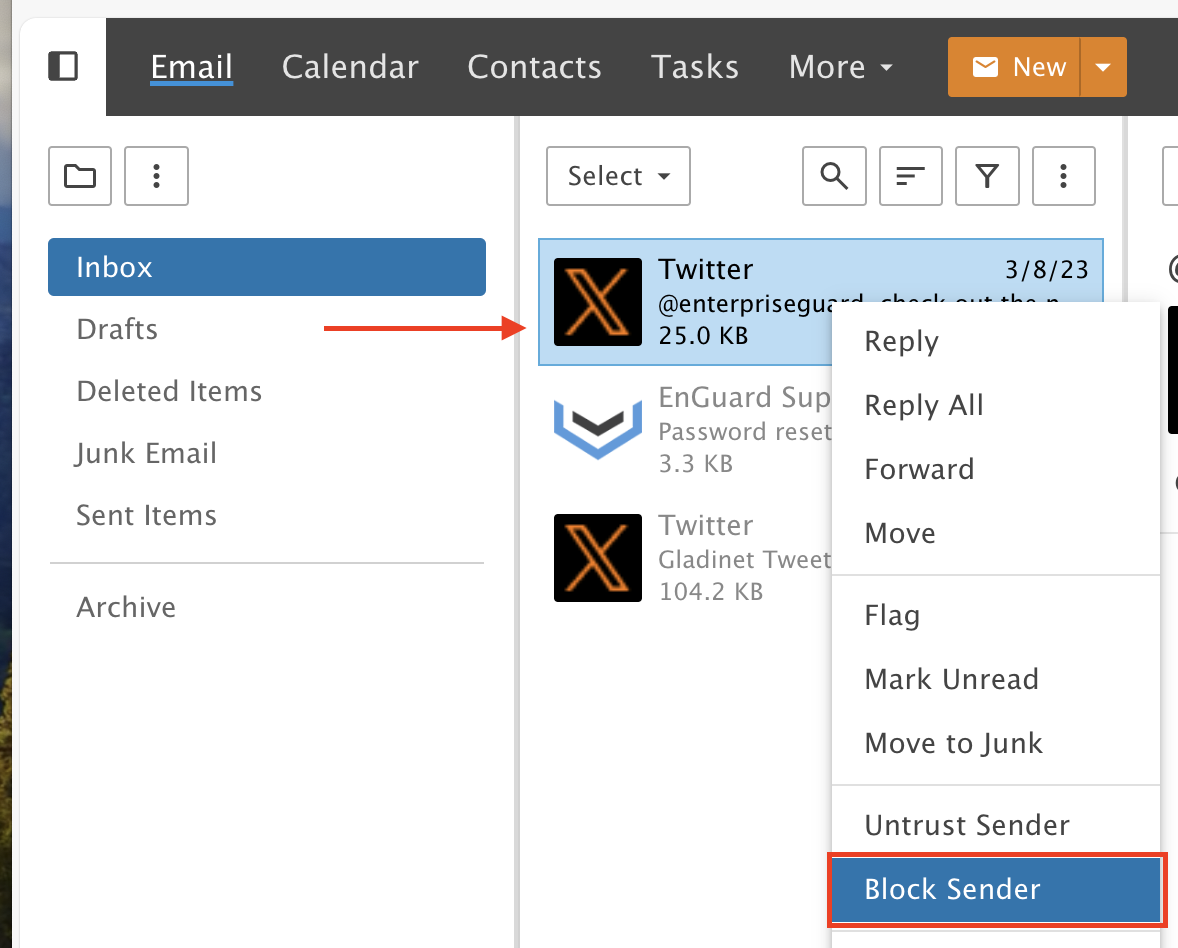
How to Block Senders
Block a sender so their email goes to Junk, Deleted Items or is deleted.
When you block a sender, all email from that sender is moved to your Junk Email folder automatically. You can also send blocked messages to Deleted Items or permanently delete them.
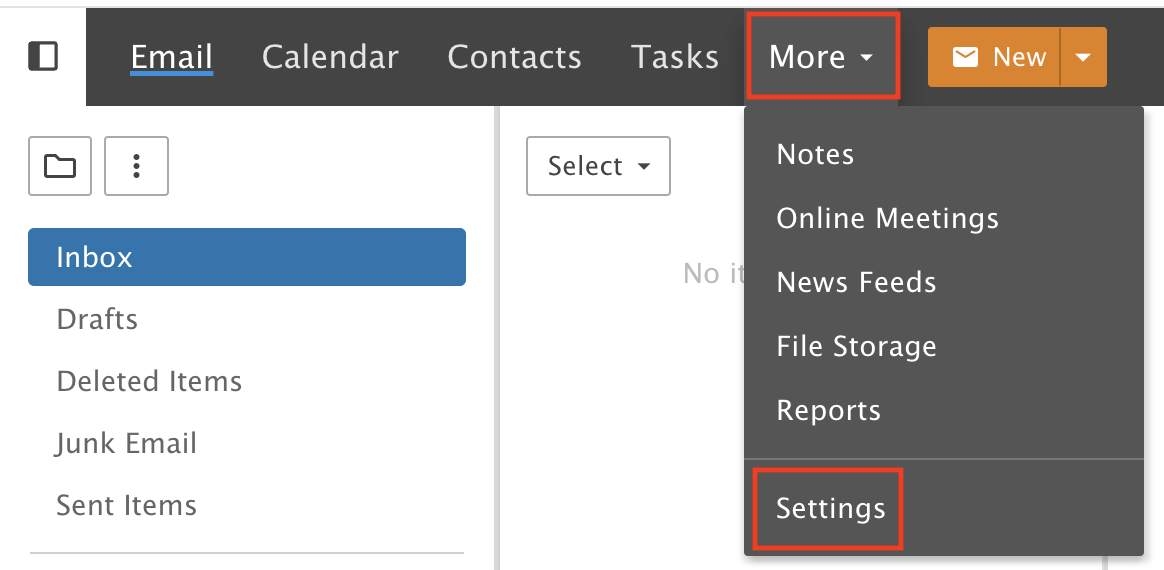
Step 1: Open Settings
Click the More drop-down menu and choose Settings.
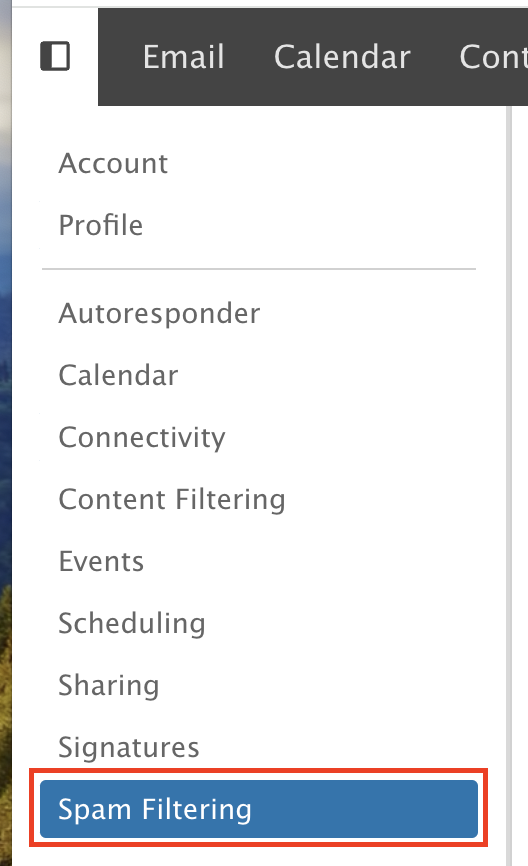
Step 2: Open Spam Filtering
Click Spam Filtering in the left menu.
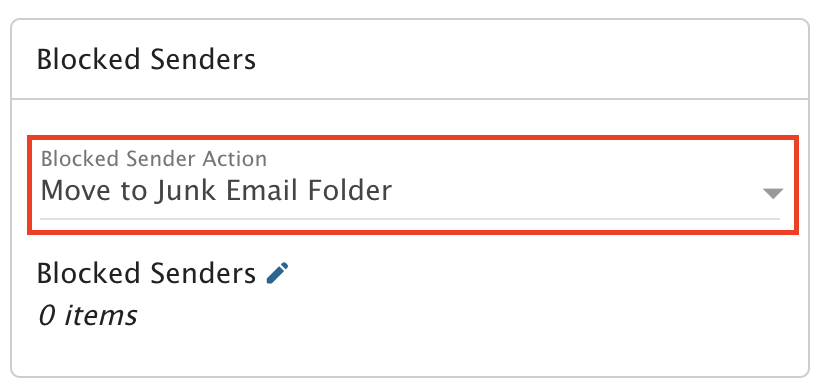
Step 3: Choose what happens to blocked mail
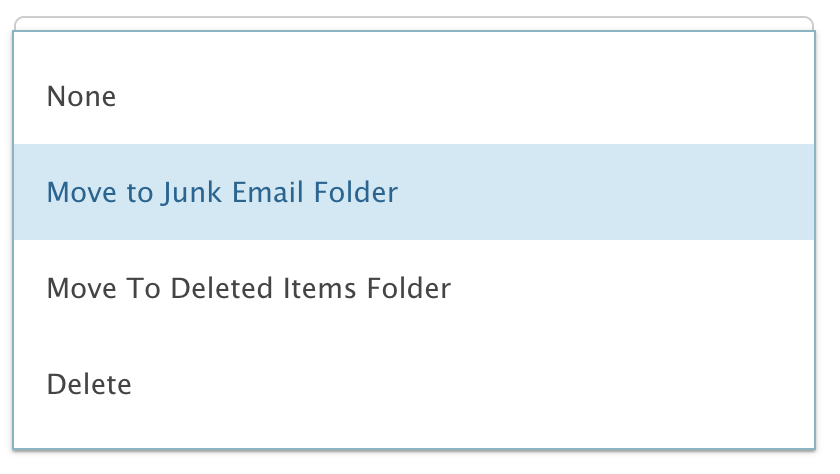
By default, messages from blocked senders go to your Junk Email folder.
You can send them to Deleted Items instead. If you want them permanently deleted, select the Delete option.
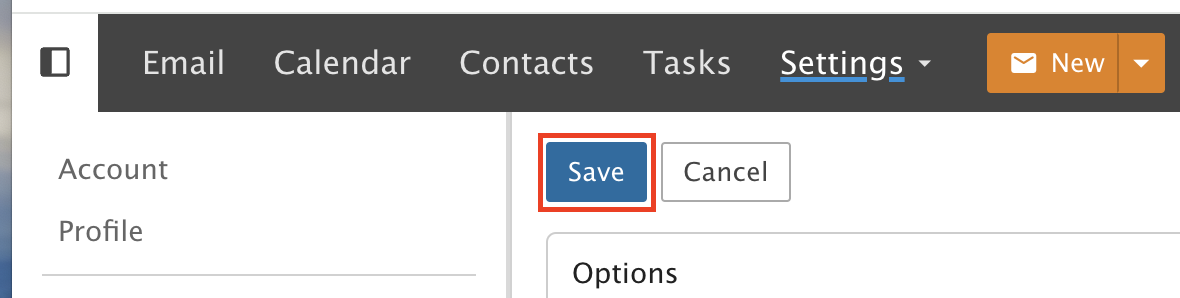
Click Save.
Step 4: Edit your blocked list
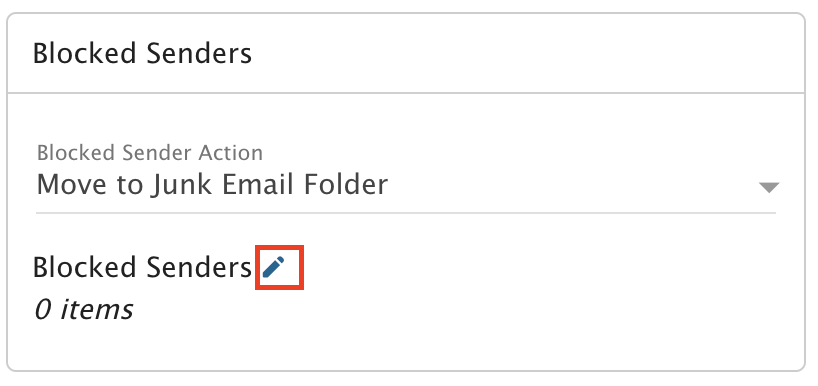
To add or remove an email address on your Blocked Senders list, click the pencil icon.
Step 5: Enter the addresses
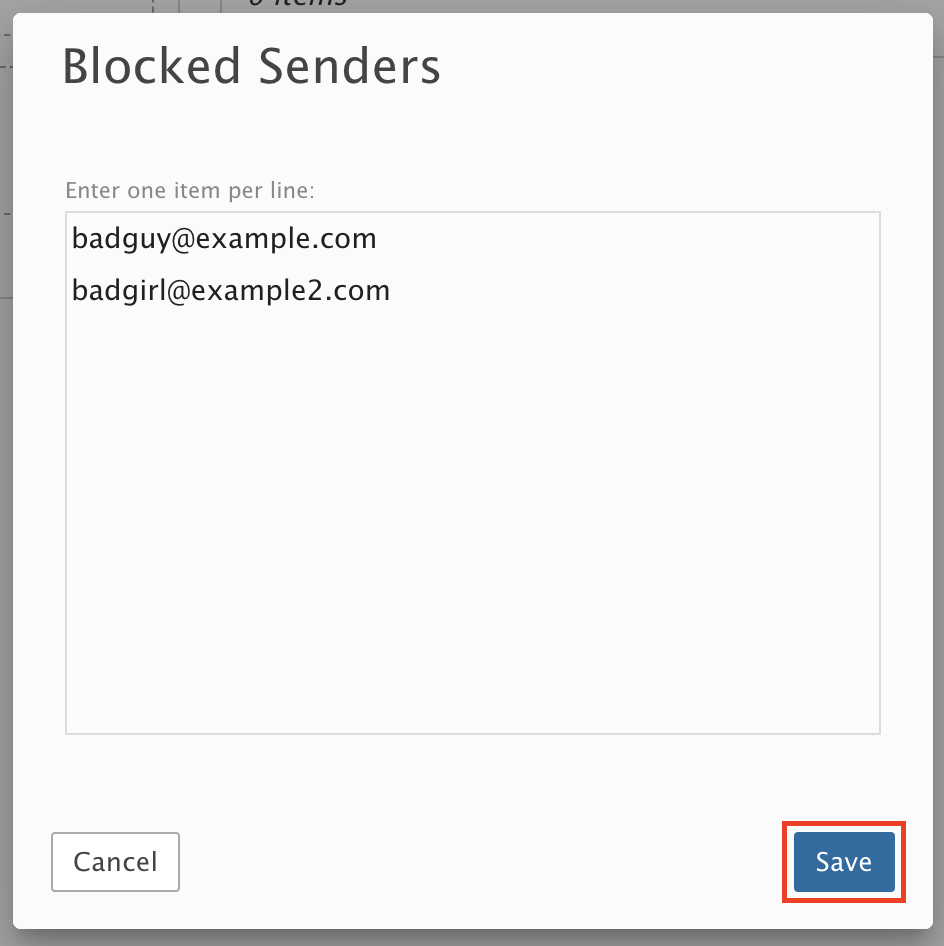
Enter each email address you want to block and click Save.
Then click Save at the top left.
Step 6: Or block from a message
To block a sender quickly, right-click one of their messages and select Block Sender.