Request Read Receipts
Ask for a read receipt on one message or on every message you send.
When you request one, your recipient sees this message: "The sender has requested that a read receipt be sent when this message is read. Do you want to send a receipt? Yes | No". They can accept by clicking Yes or decline by clicking No.
Not every email provider or app supports read receipts, so they are not 100% reliable. Most popular email services do support and return them. But some recipients are not set up for it, and you will not get a receipt when they open your message.
Request a read receipt on one message
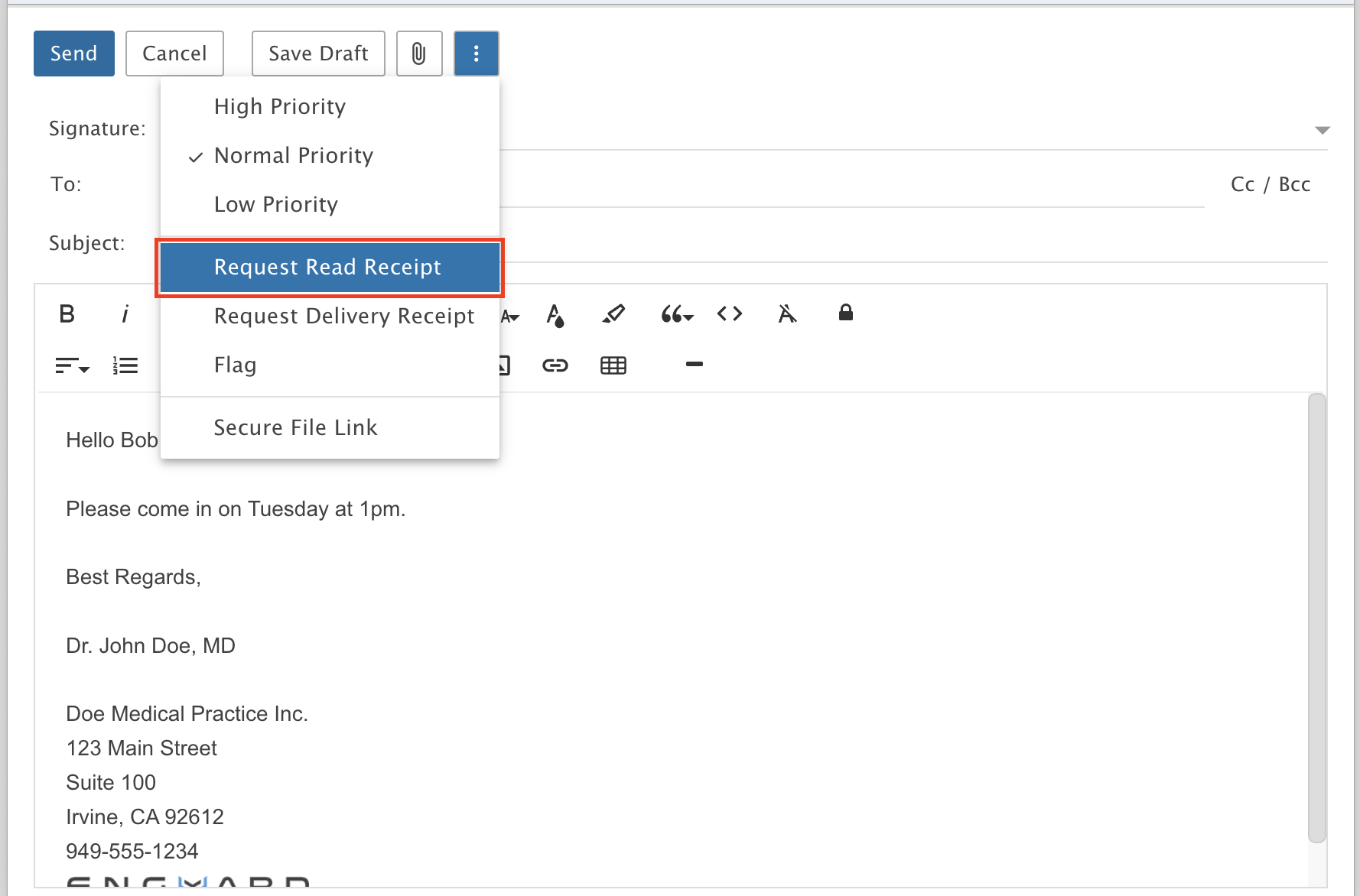
Write a new message, click the Action menu and select Request Read Receipt.
Request read receipts on every message
Step 1: Open Settings
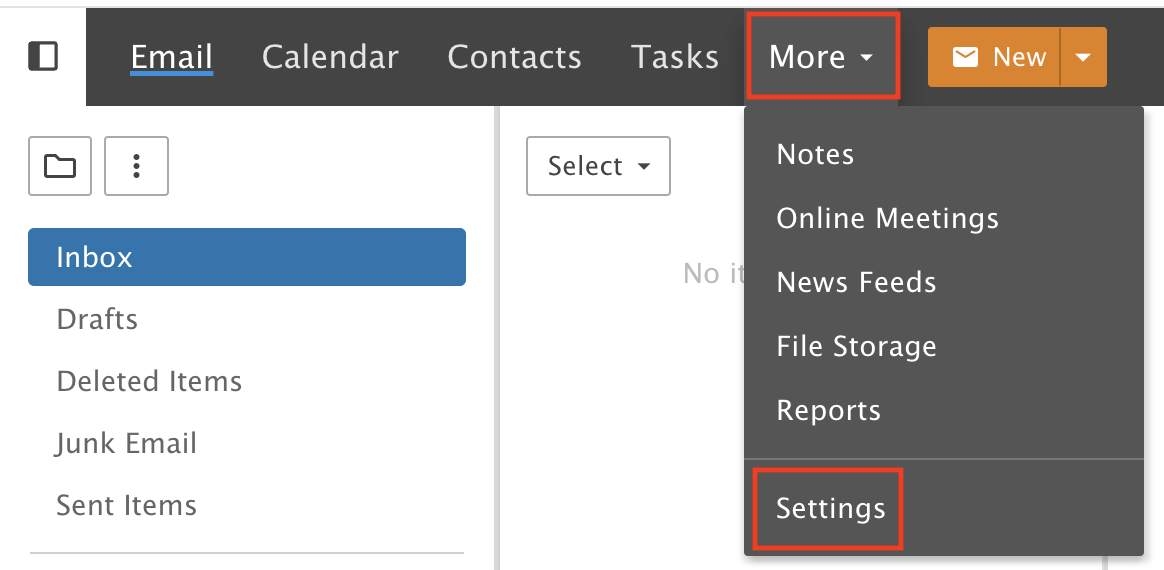
Click the More drop-down menu and choose Settings.
Step 2: Turn it on
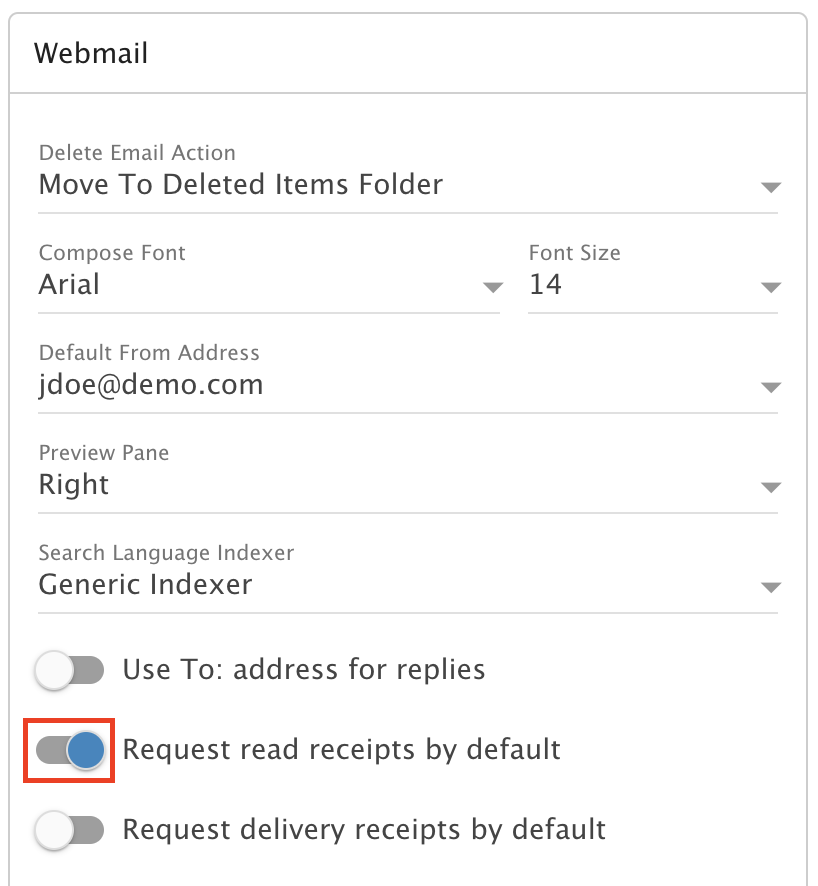
In the Webmail tile, toggle right to turn on Request read receipts by default.
Step 3: Save
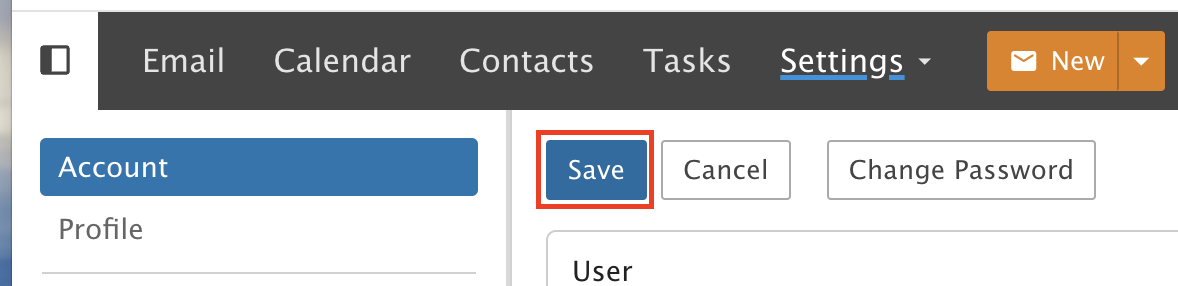
Click Save.