

Adding Multiple Calendars
Add extra calendars, such as a personal one, next to your primary calendar.
You can create as many calendars as you want. Each calendar has its own color for appointments and events. In this example, we create a calendar named Personal to keep work and personal appointments apart.
Step 1: Start a new folder
On the Calendar tab, click the Folder icon on the top left.
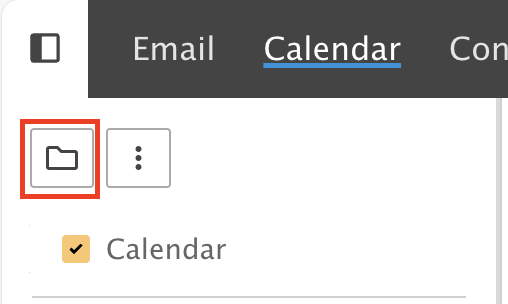
Then click New Folder.
Step 2: Name it and pick a color
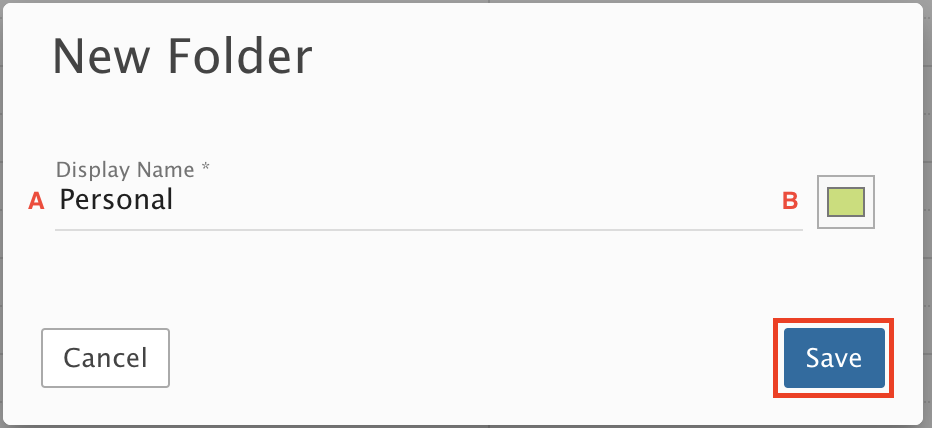
Type a Name (A) and pick a color (B), then click Save.
Step 3: Check your new calendar
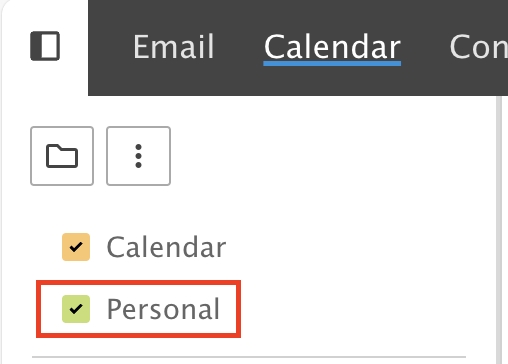
Your new calendar is listed under your Primary Calendar.
Using your calendars
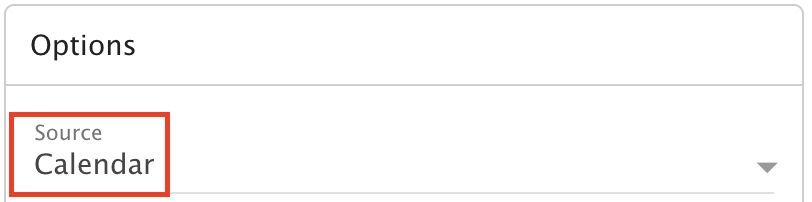
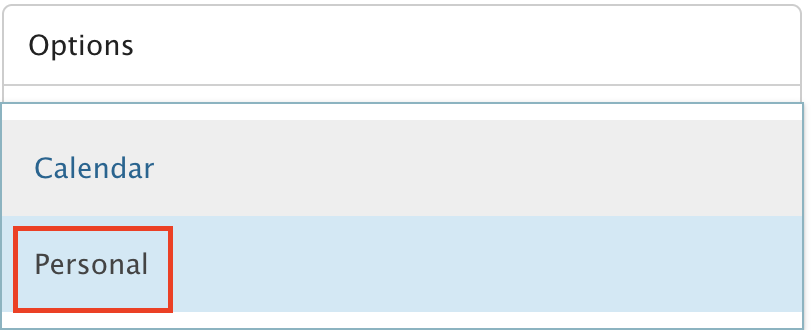
New appointments go on your primary calendar by default. To put one on a different calendar, choose it from the Source drop-down under options in the new appointment window.
All your calendars are visible and color coded by default.
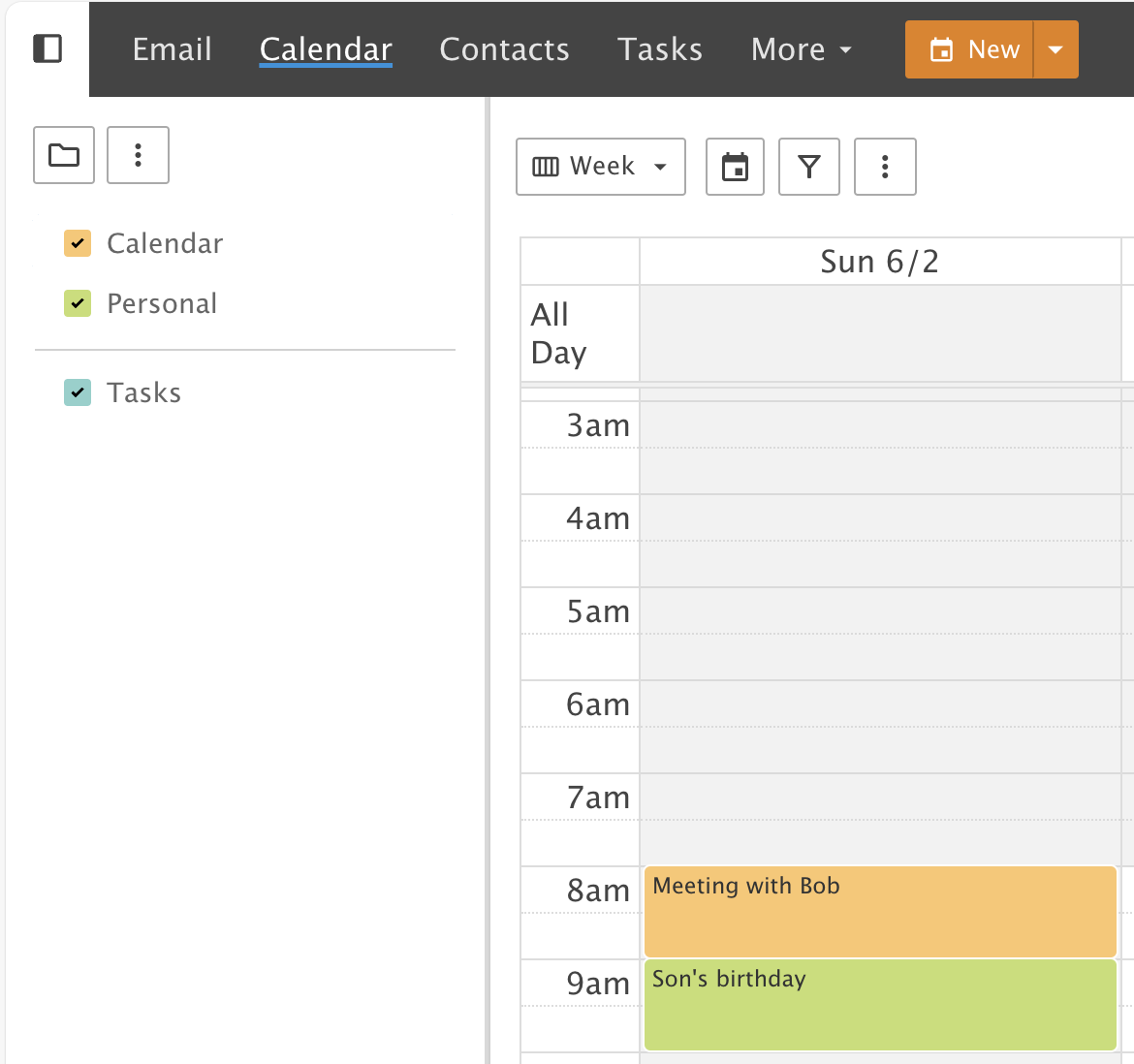
To hide a calendar, uncheck the box next to its name. Its appointments are no longer visible. To show it again, check the box.