Email Setup on Outlook 2016
Add your EnGuard IMAP email account to Outlook 2016, step by step.
The screenshots are for reference only. Please read the instructions at each step.
Step 1: Start adding an account
If this is the first email account in Outlook, you will see this prompt. Click Next.
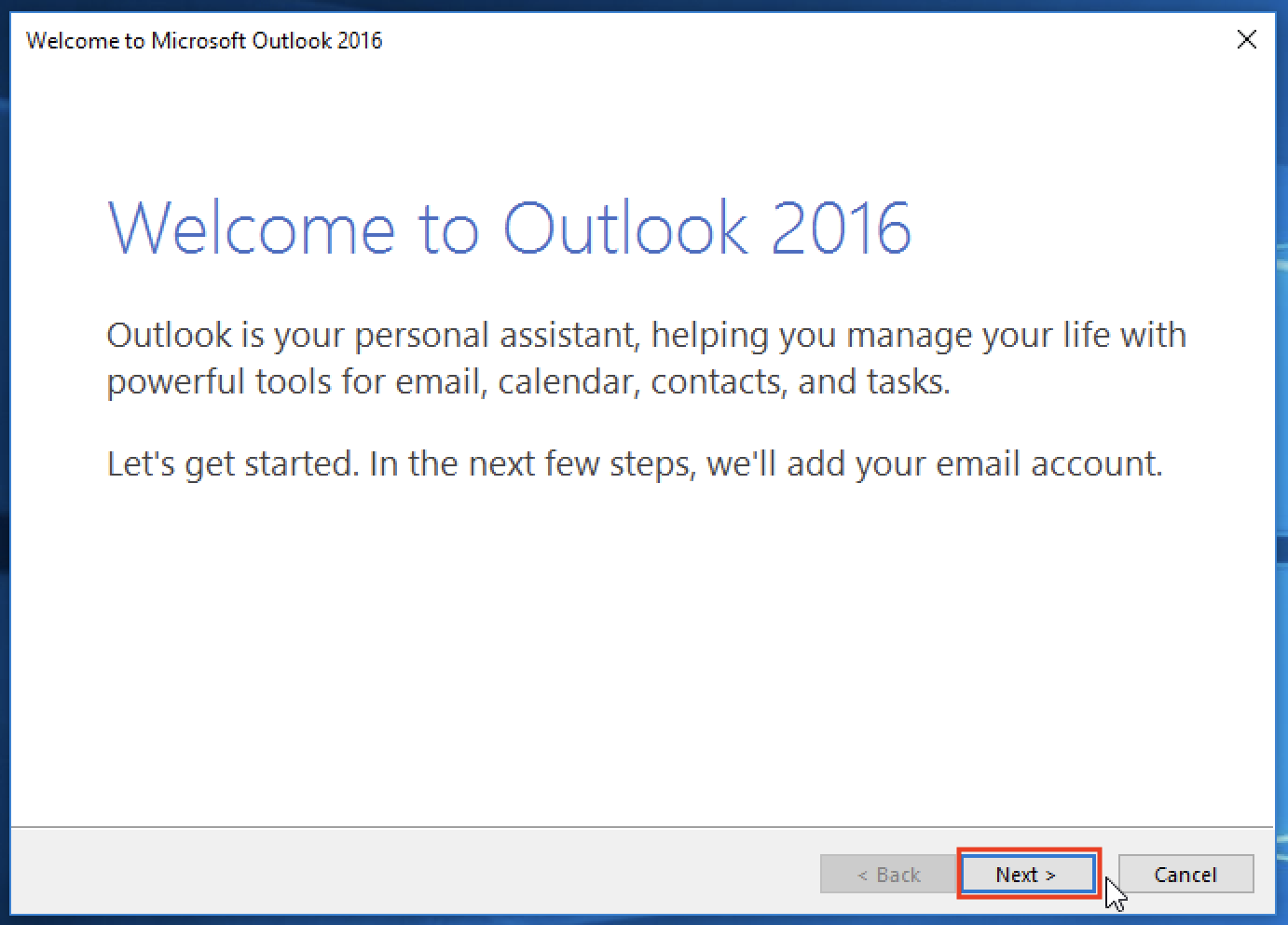
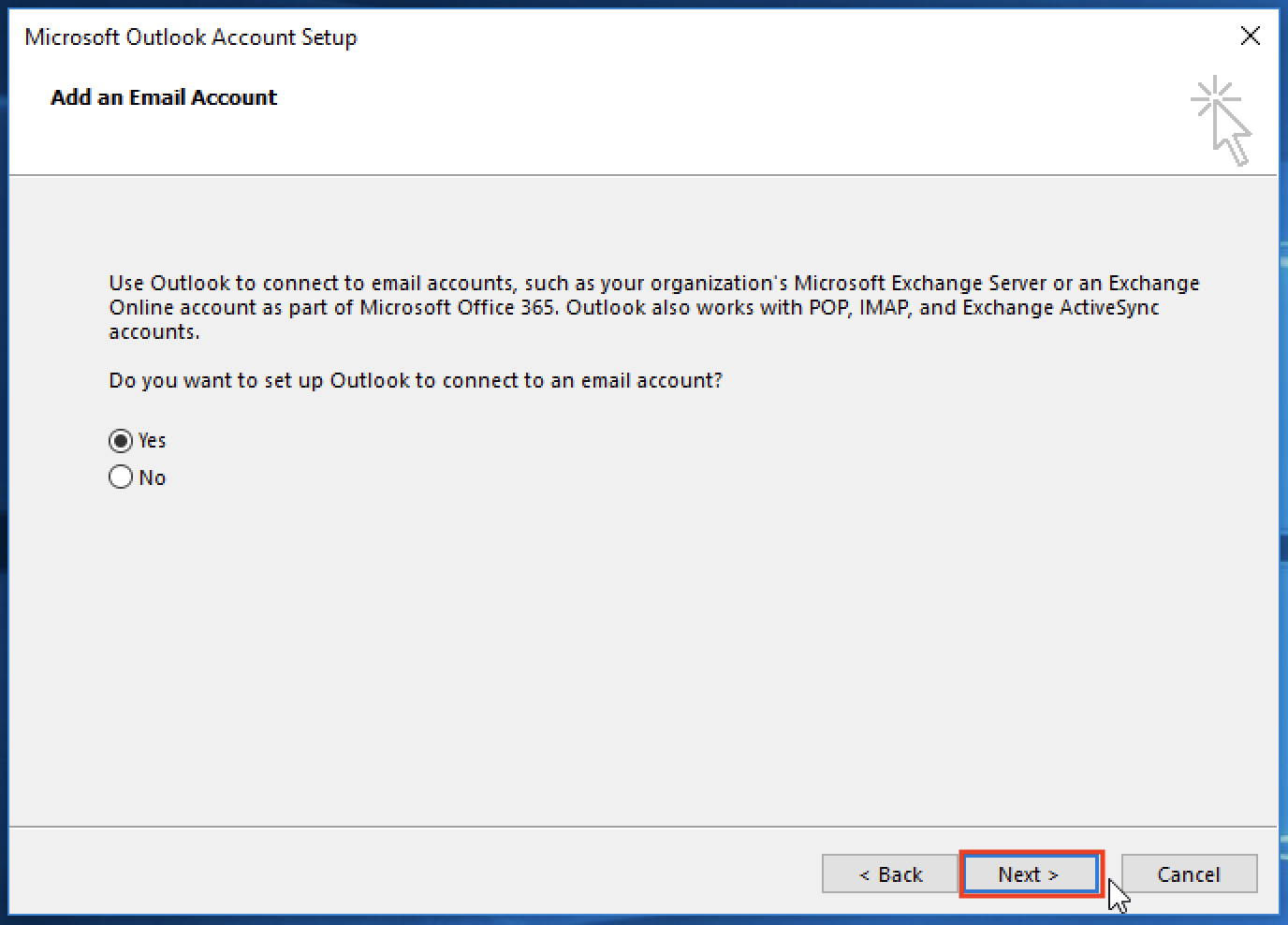
Click Next again.
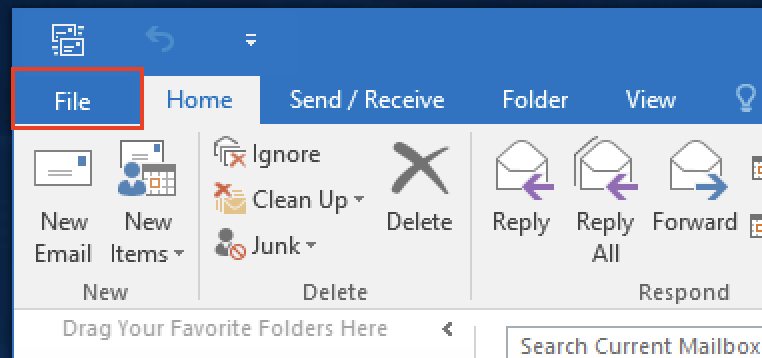
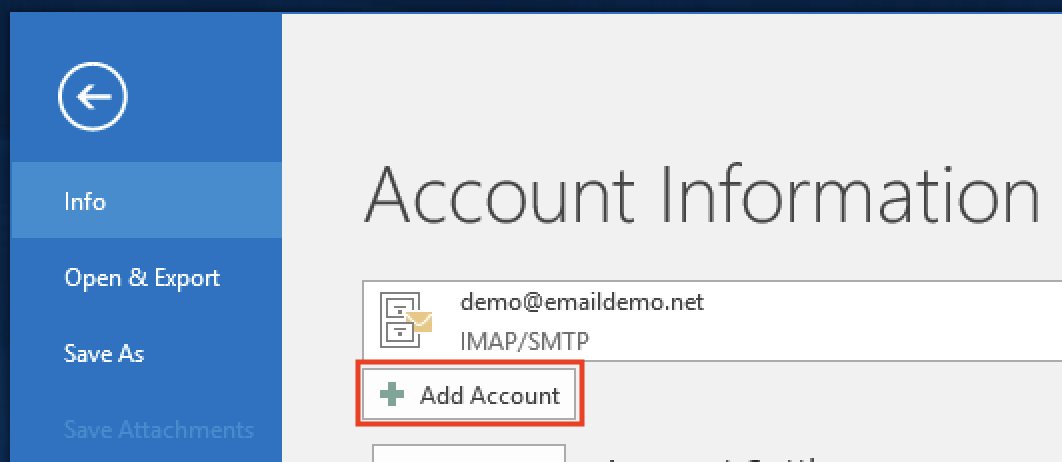
If you are adding another account to Outlook, click File.
Then click Add Account.
Step 2: Enter your details
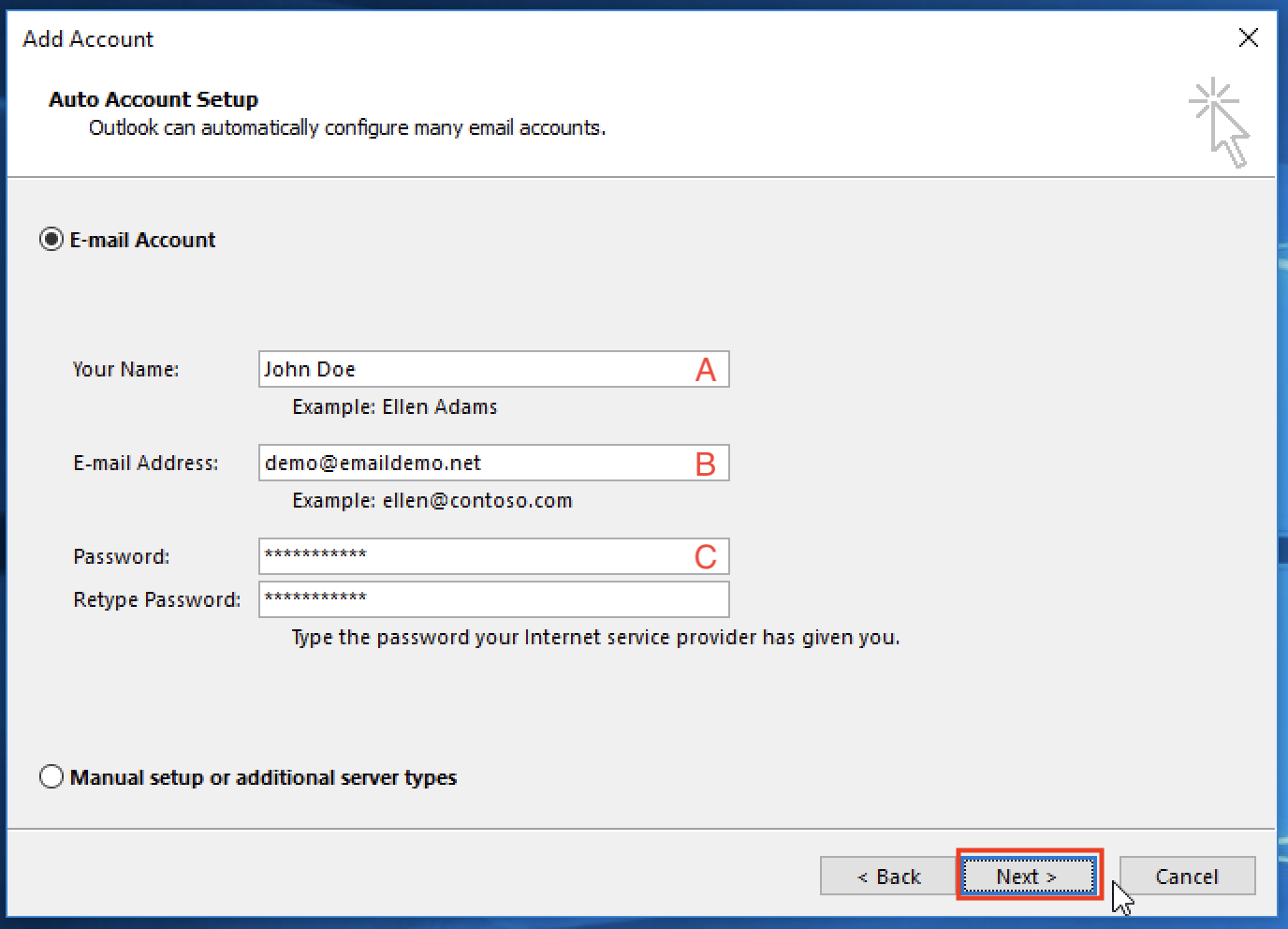
Fill in the following, then click Next.
A) Your name. Recipients see this on all outgoing messages.
B) Your email address
C) Your password, typed twice
Step 3: Allow the website
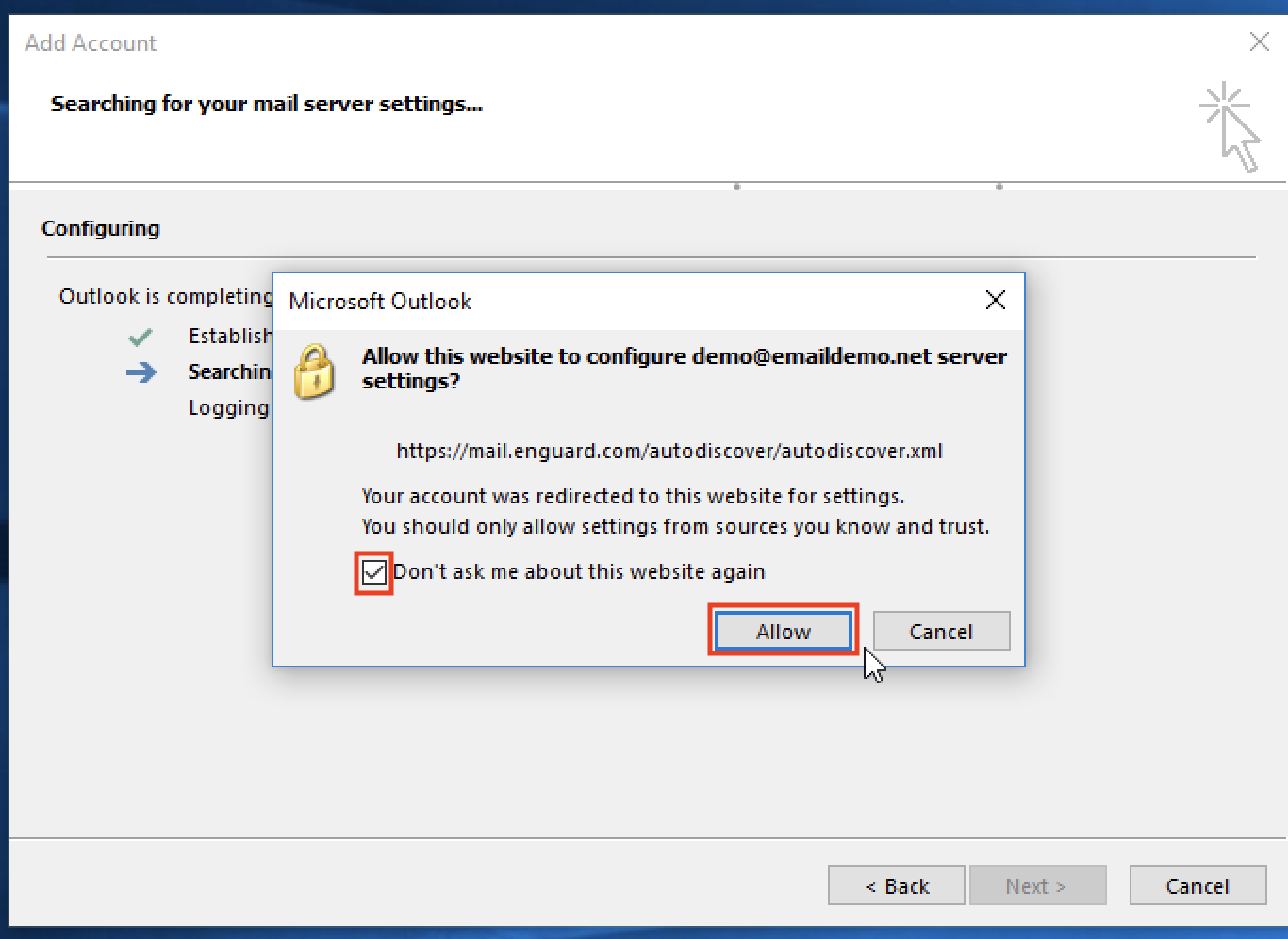
Check the box for Don't ask me about this website again, then click Allow.
Step 4: Choose to change settings
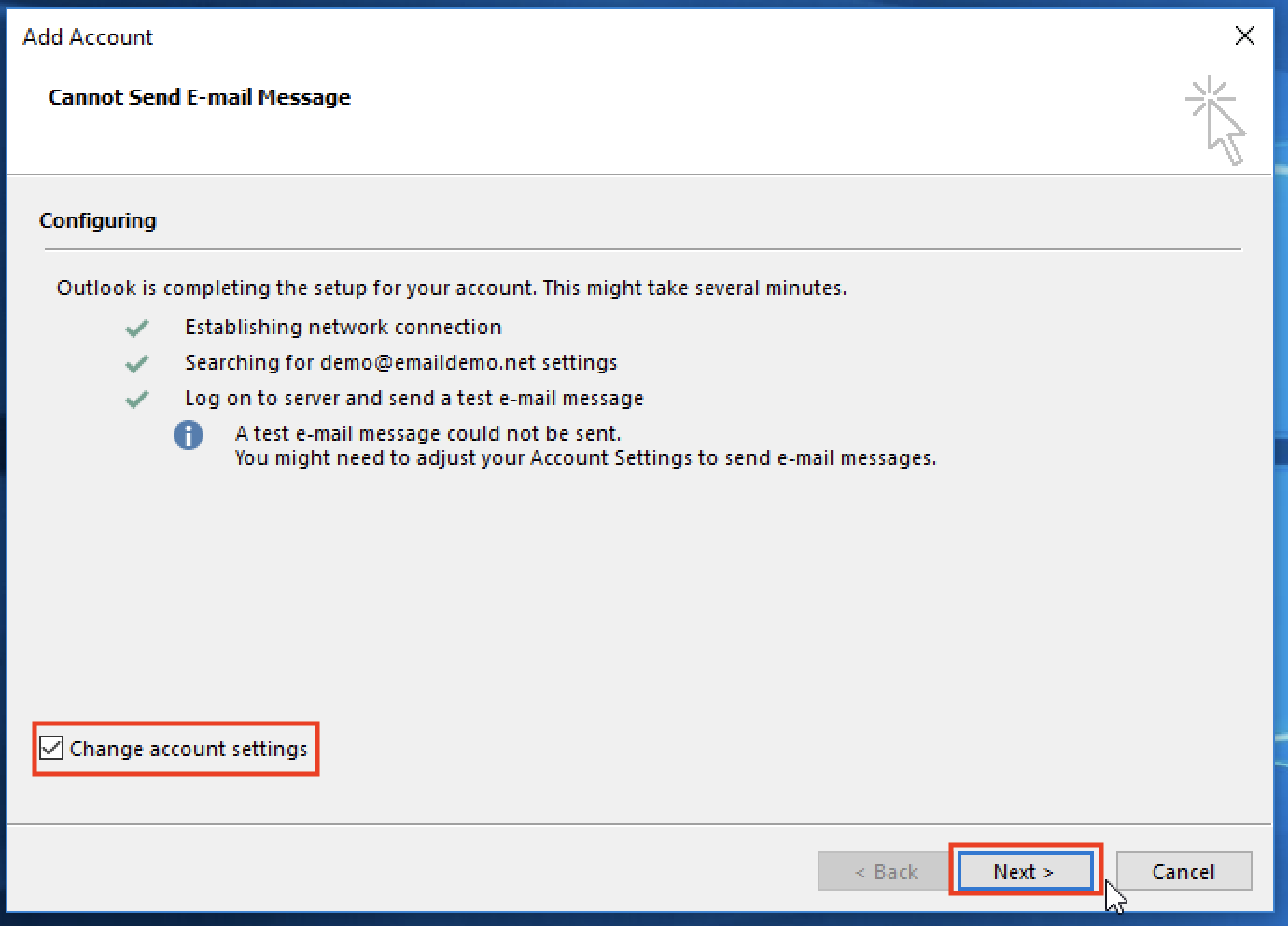
Check the box for Change account settings, then click Next.
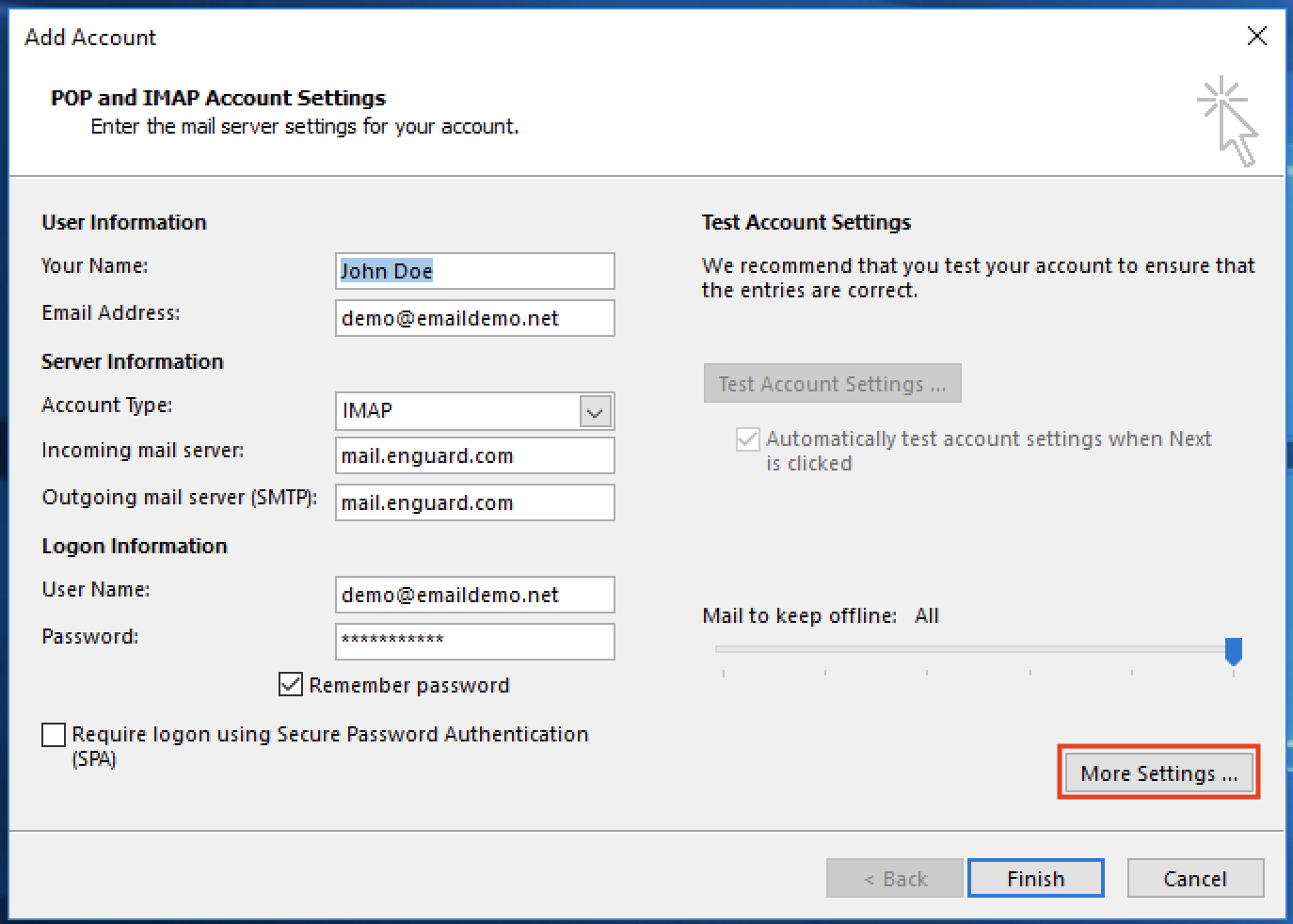
Step 5: Open More Settings
Click More Settings ...
Step 6: Set the outgoing port
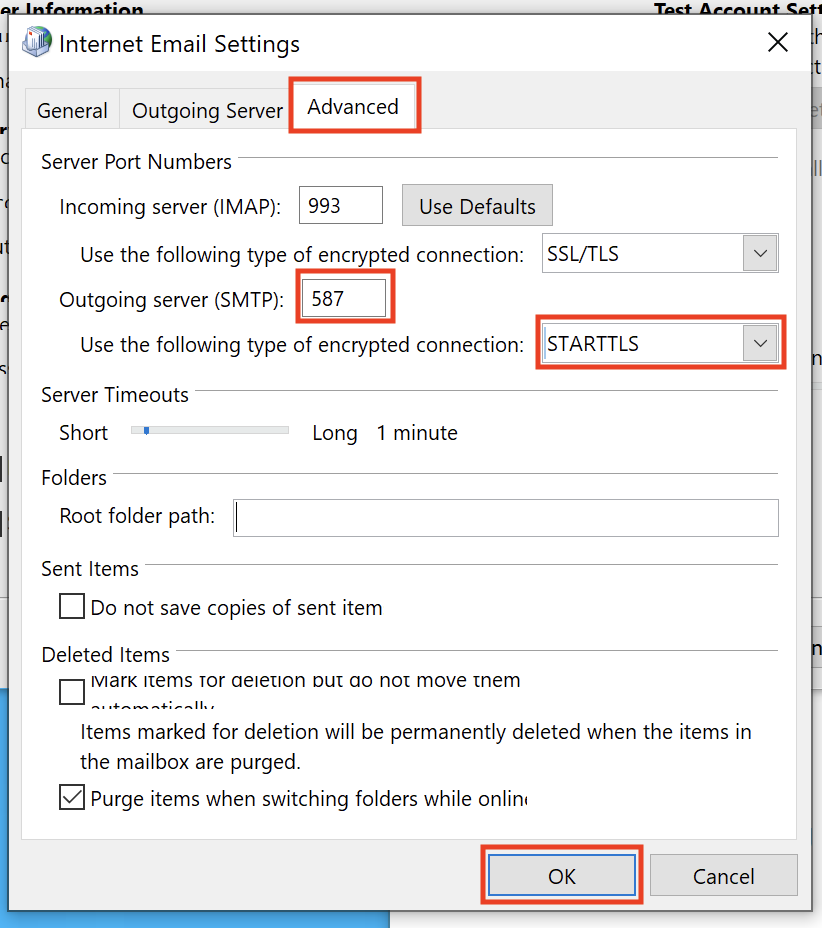
Go to the Advanced tab.
Set Outgoing server (SMTP) to port 587.
In the Use the following type of encrypted connection drop-down, select STARTTLS.
Click OK.
Step 7: Finish
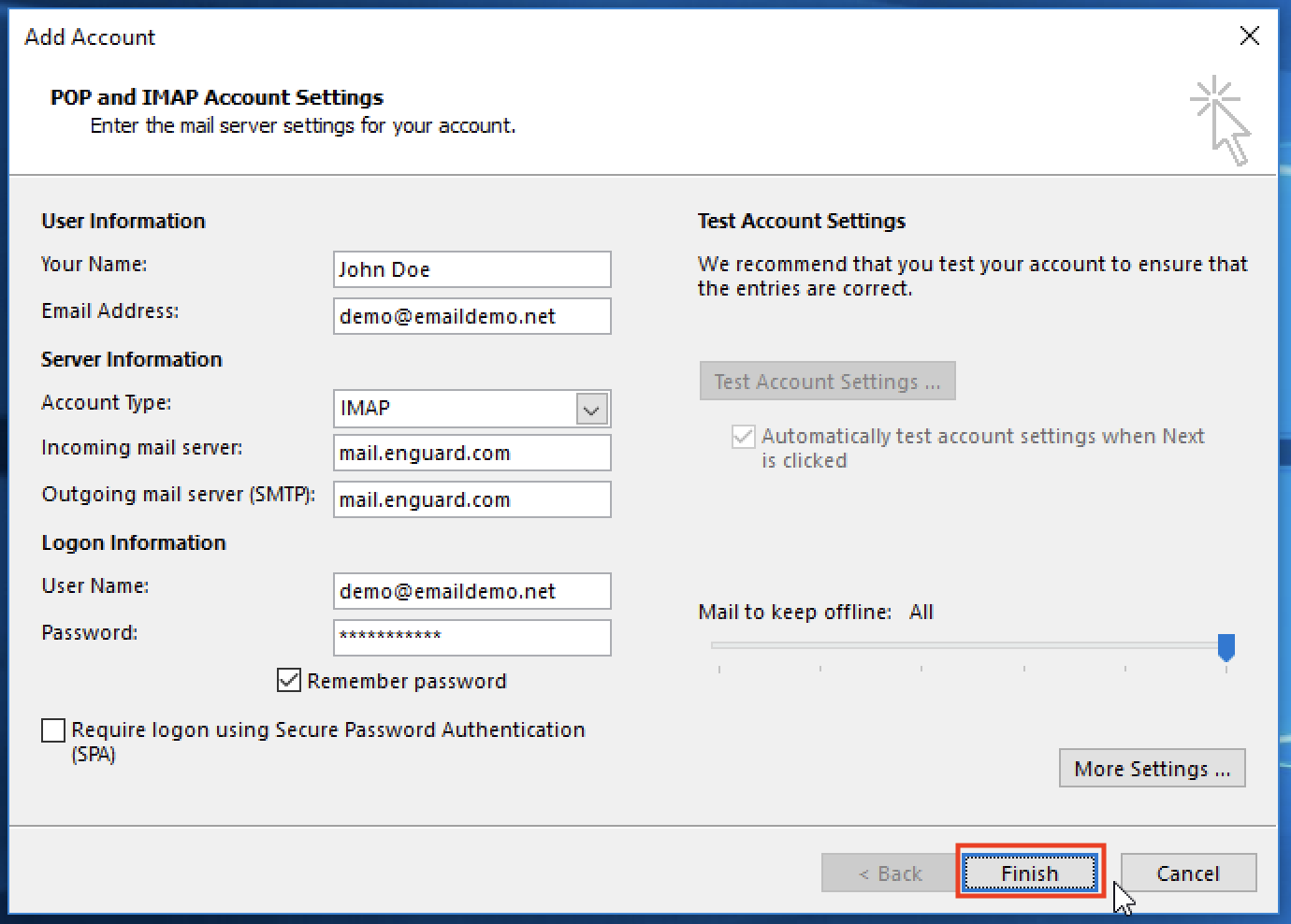
Click Finish.
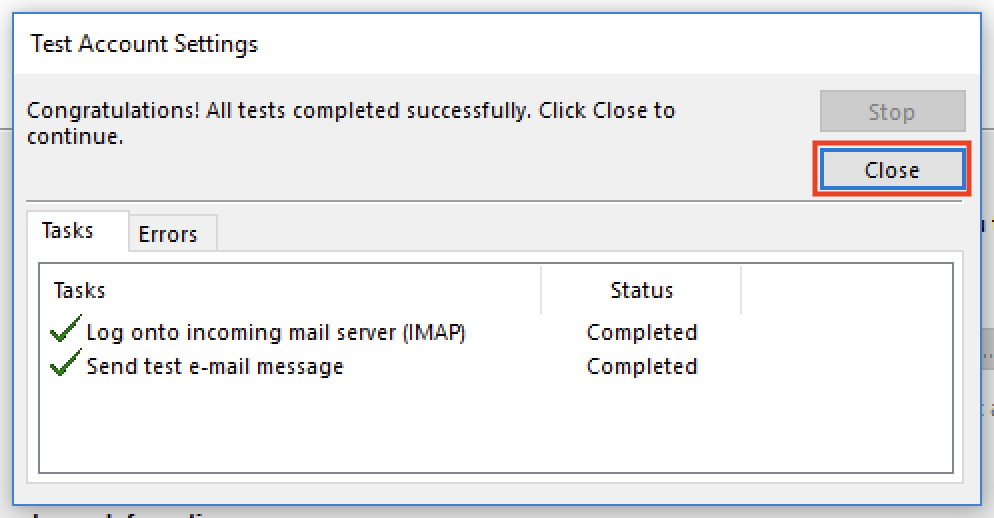
Step 8: Close
Click Close. Your account is ready to use.