Outlook Connects to Microsoft 365 Instead of EnGuard
Make Outlook connect to EnGuard instead of Microsoft 365 by downloading and running one small file.
By default, Outlook tries to connect to Microsoft 365 servers instead of EnGuard servers.
Step 1: Download the file
Download this file to your computer.
It adds the following keys to your Windows registry:
HKEY_CURRENT_USER\SOFTWARE\Microsoft\Office\16.0\Outlook\AutoDiscover\ExcludeExplicitO365Endpoint
This key makes Outlook skip the autodiscover lookup to Microsoft 365 servers.
HKEY_CURRENT_USER\SOFTWARE\Microsoft\Office\16.0\Outlook\AutoDiscover\ExcludeHttpsRootDomain
This key makes Outlook skip the autodiscover lookup to https://yourdomain.com/autodiscover/autodiscover.xml
HKEY_CURRENT_USER\SOFTWARE\Microsoft\Office\16.0\Outlook\AutoDiscover\PreferLocalXML
This key makes Outlook use a local file that points to EnGuard servers, instead of using autodiscover.
Step 2: Open the file
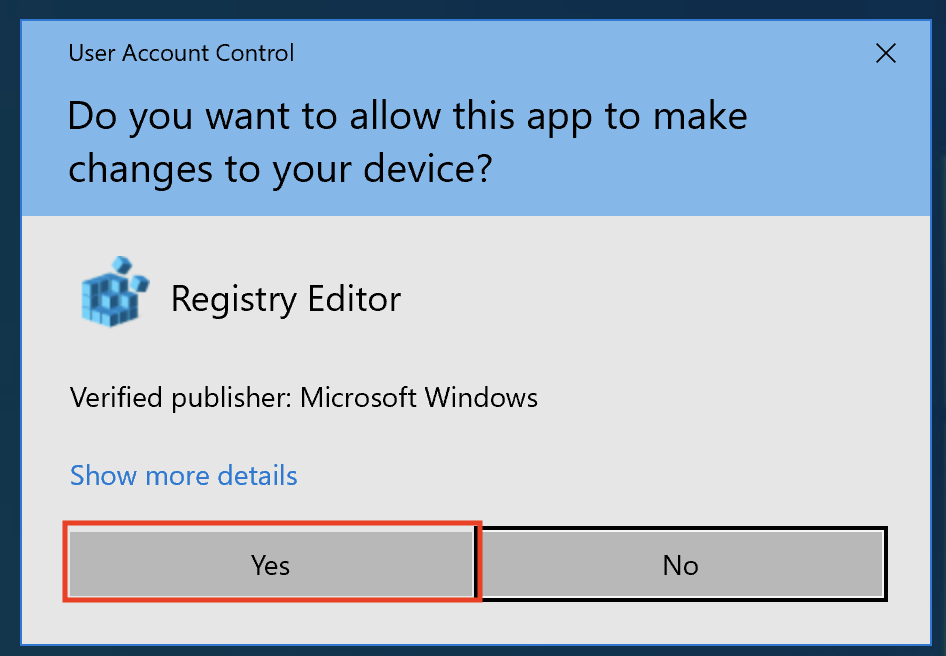
Open the file you downloaded and click Yes.
Step 3: Confirm
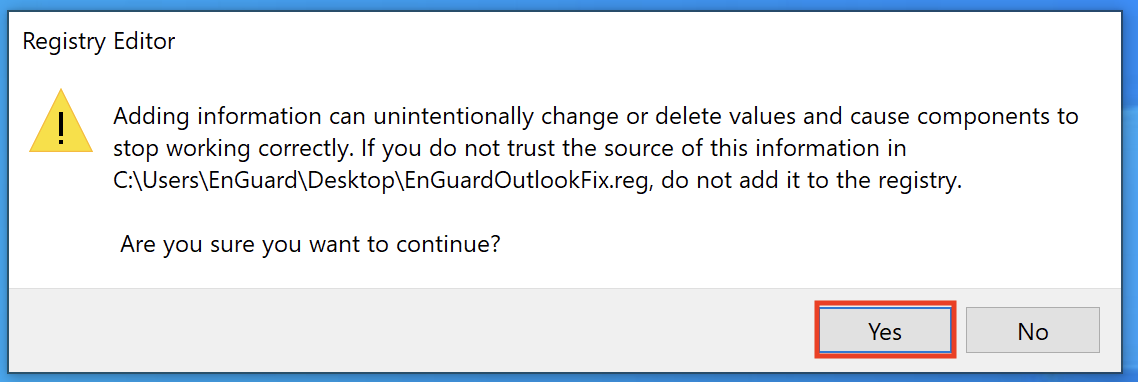
Click Yes.
Step 4: Restart your computer
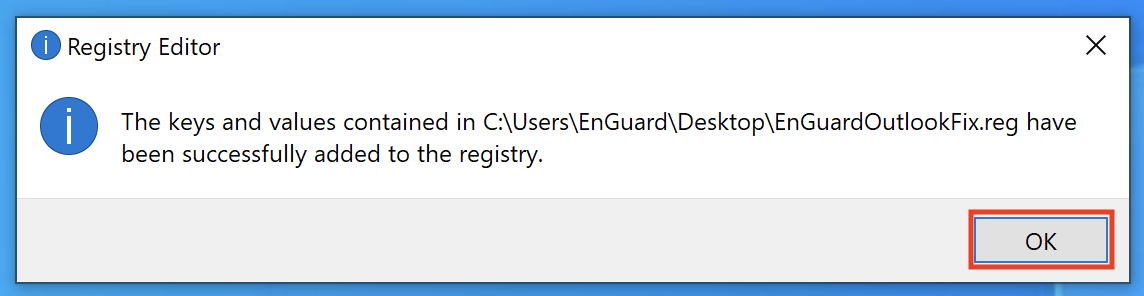
Click OK, then restart your computer.