Enable / Disable Desktop Sync
Turn Desktop Sync on or off for your users.
Desktop Sync uses Microsoft Exchange technology to sync eM Client, Classic Outlook and macOS (Mail, Calendar, Reminders, Contacts and Notes).
If you buy eM Client from us, Desktop Sync is free. Otherwise, it is only included with the Enterprise Plan.
Step 0: Open your email management page
See this short guide to get to the page where you manage a domain's email service: How to Get to Your Email Management Page
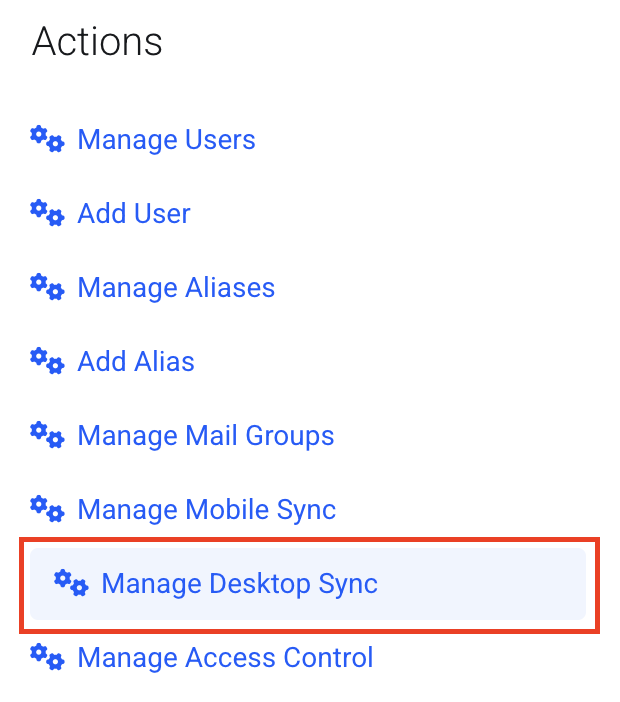
Step 1: Open Manage Desktop Sync
Click Manage Desktop Sync.
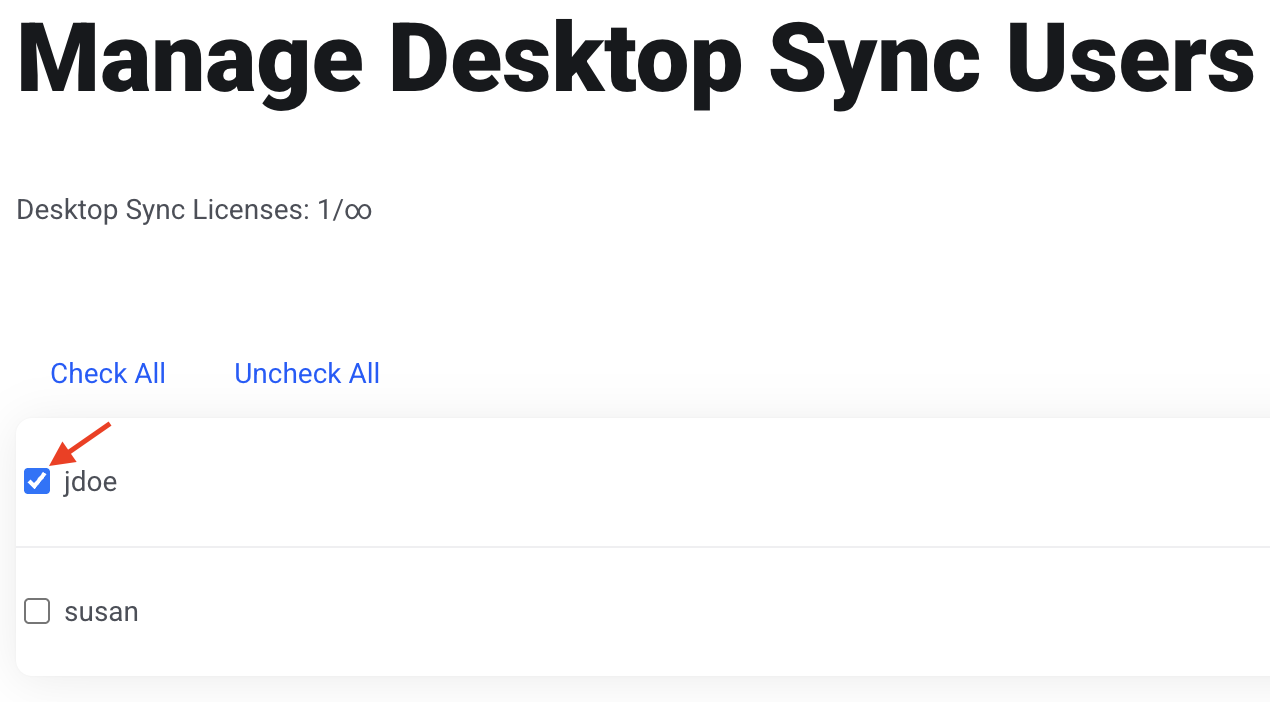
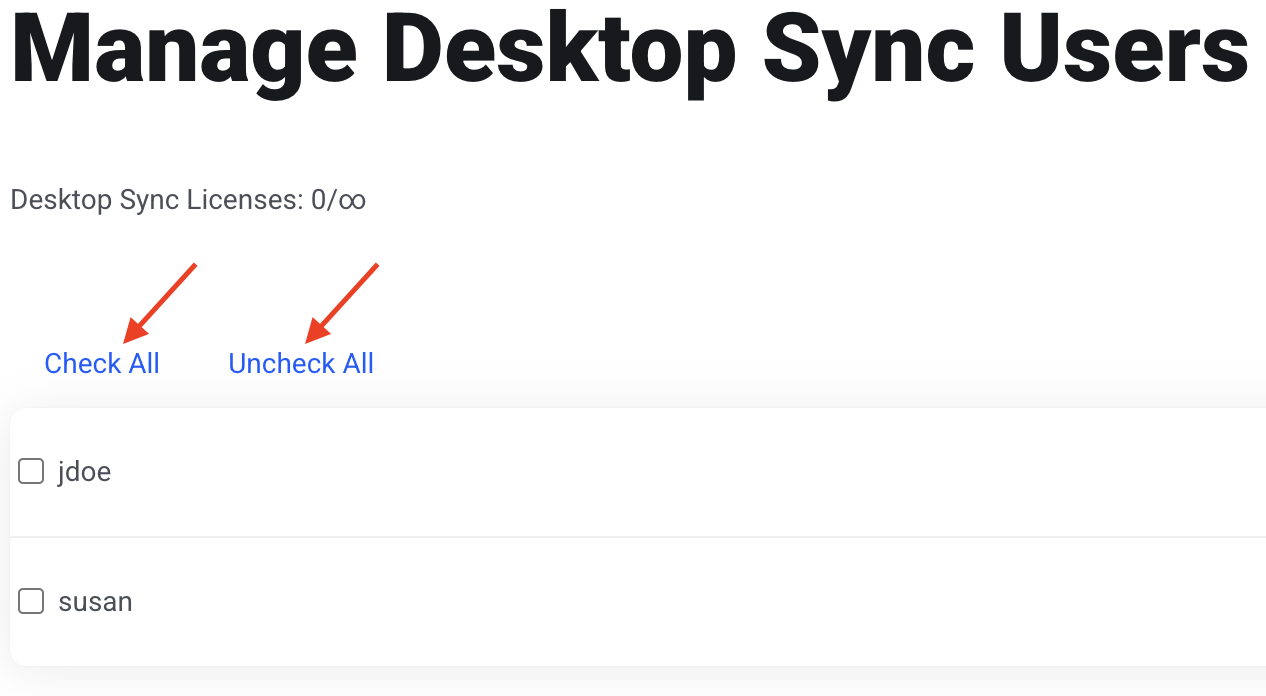
Step 2: Check the users to turn on
Check the box next to each user you want to enable.
To turn off Desktop Sync, uncheck the box.
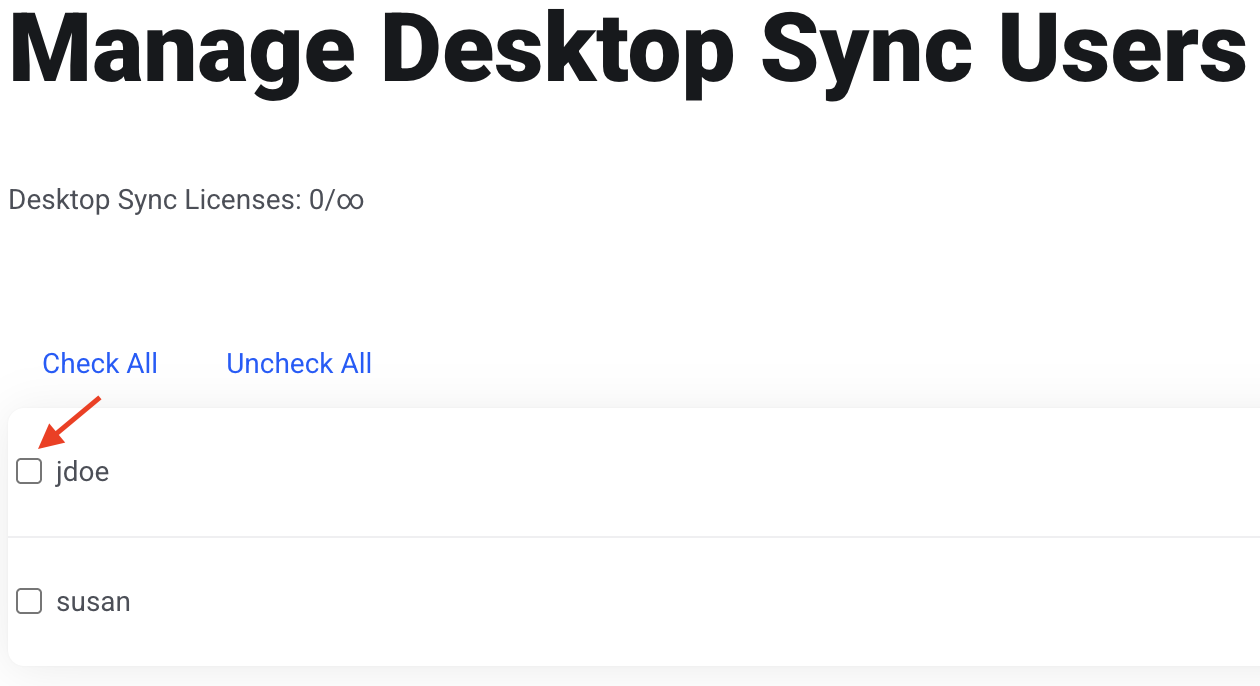
You can also use Check All or Uncheck All to change everyone at once.
Step 3: Save
Click Save Changes.