

Getting Started with Webmail
A short tour of EnGuard webmail: first login, the top menu, your folders and the green shield.
Welcome to EnGuard Mail, a web browser based email platform that is fast, reliable and very secure.
Our Webmail includes Encrypted Email, Telehealth (Online Meetings), Chat, Calendars, Contacts, Task Management and Notes.
You can send Password Protected Encrypted Emails and Secure File Attachments (up to 2,000MB).
We support Microsoft Edge and Google Chrome only. Both are free on PC and Mac.
Your first login
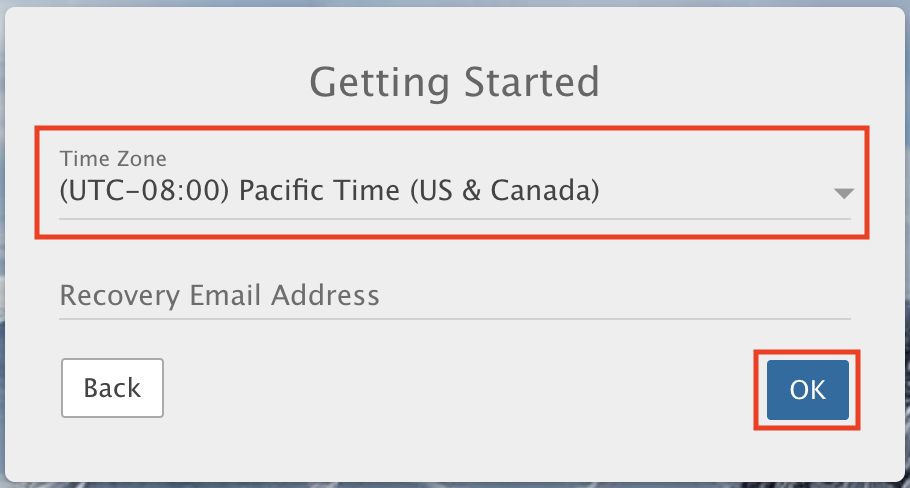
1. Set your time zone
The first time you log in to Webmail, set your time zone. Skip Recovery Email Address and click OK.
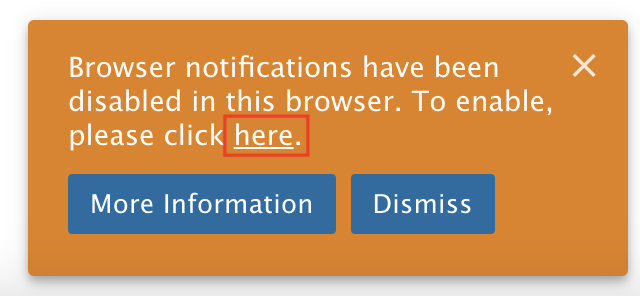
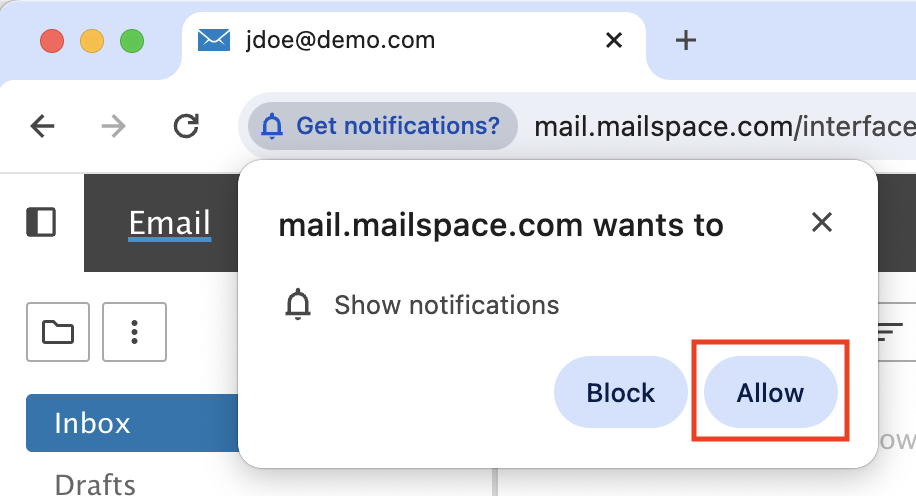
2. Turn on browser notifications
Enable Browser Notifications to get alerts for new email, chats, reminders and more.
A tour of the top menu
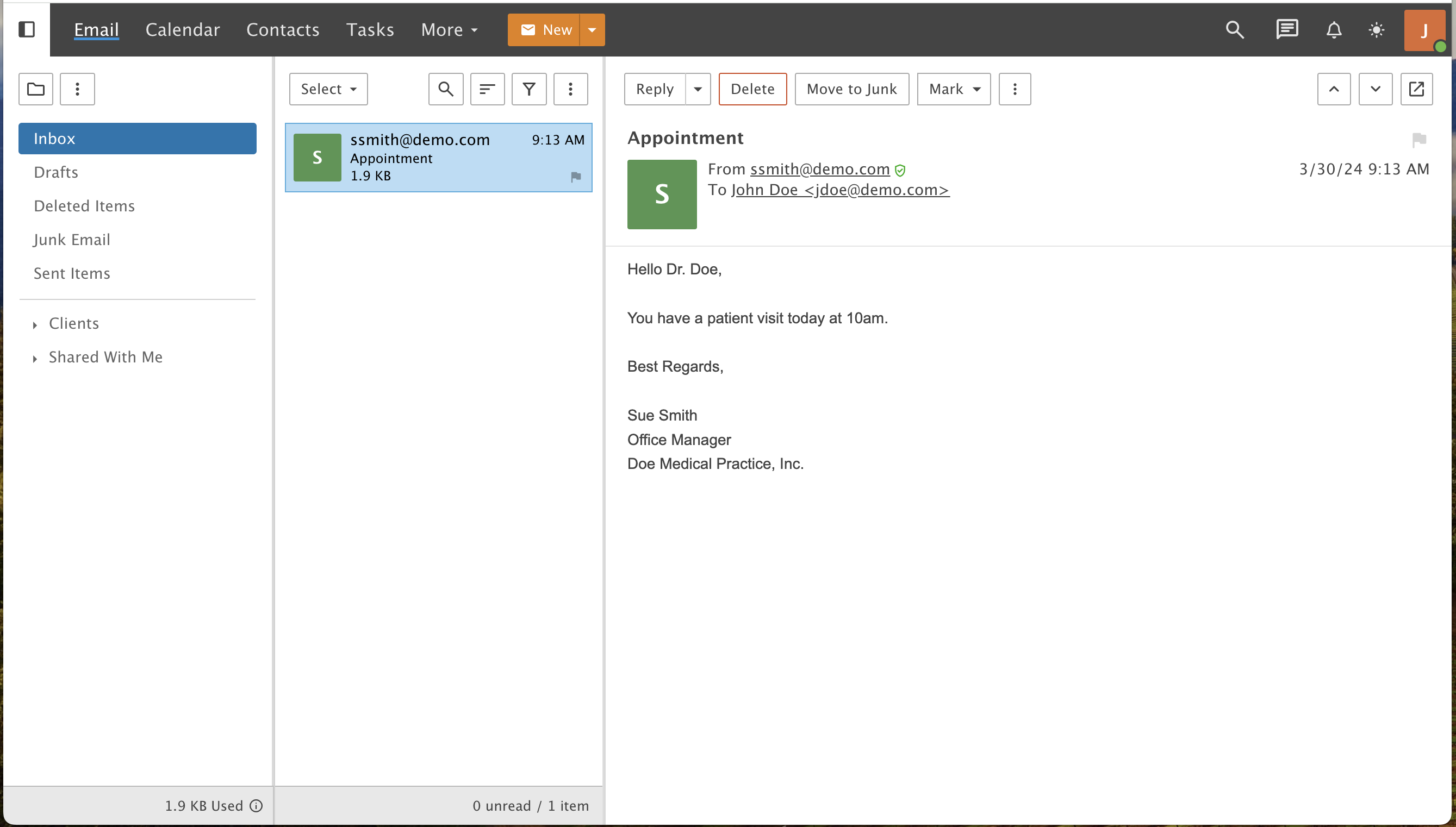
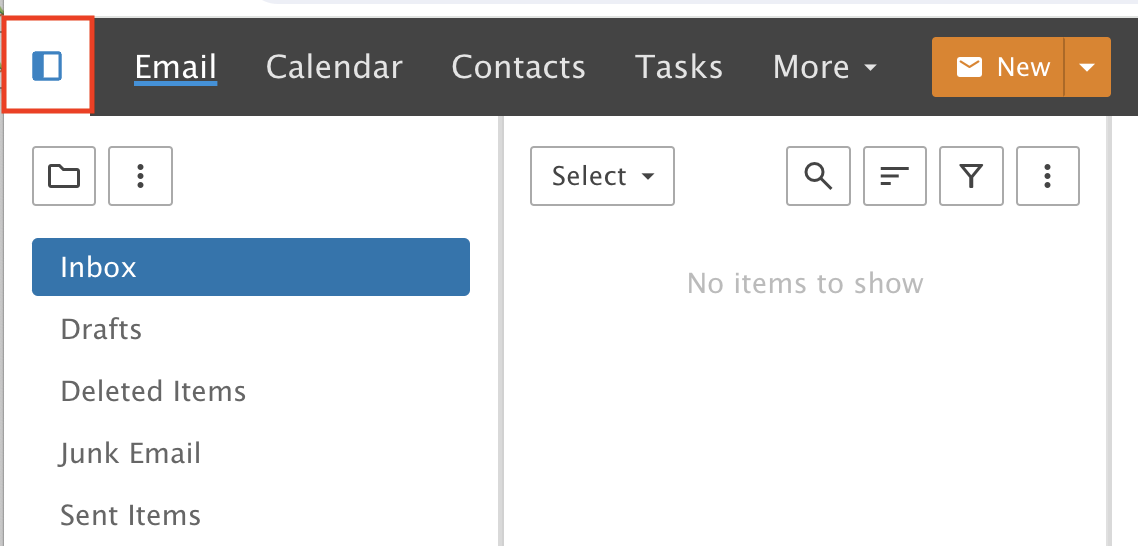
3. Show or hide your folders
The Show/Hide icon at the top of the folder list hides or shows your folders. This helps a lot on smaller screens like tablets and phones.
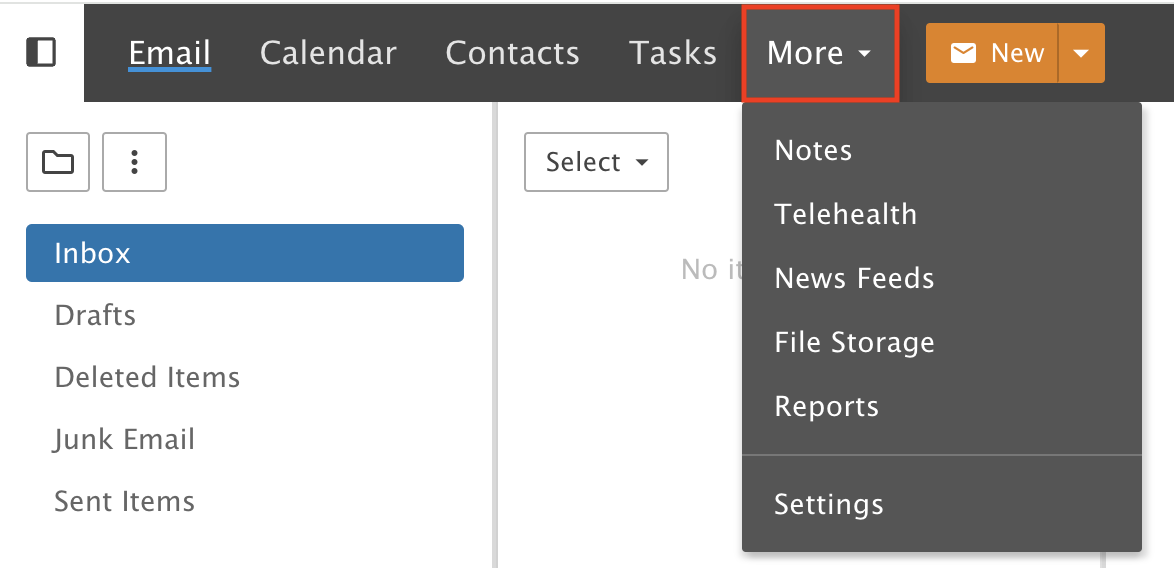
4. The More menu
Click the More drop-down to see more menus.
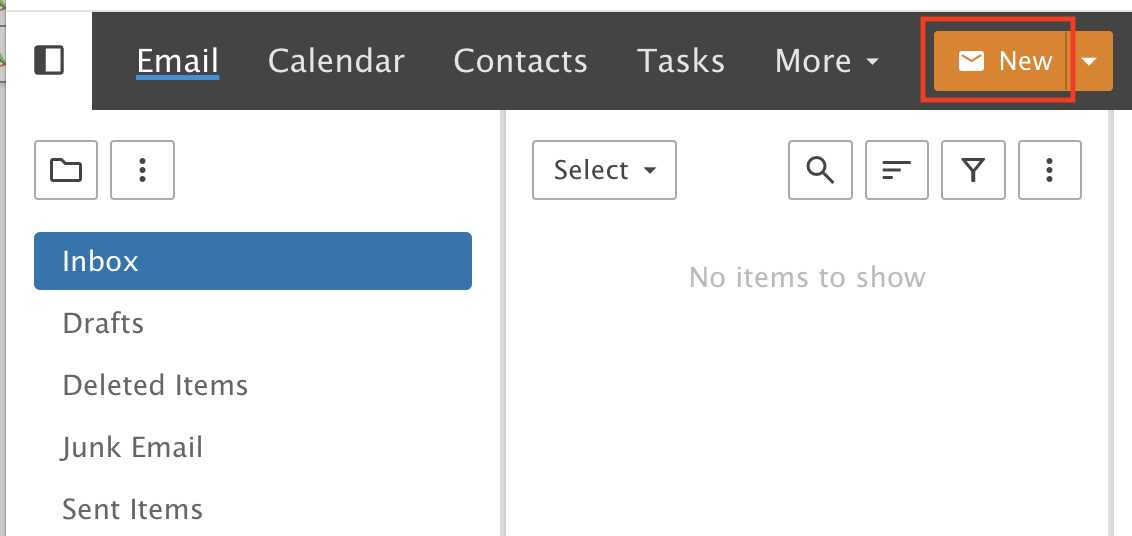
5. The New button
The New button opens a pop-up window. What it creates depends on which section you are in.
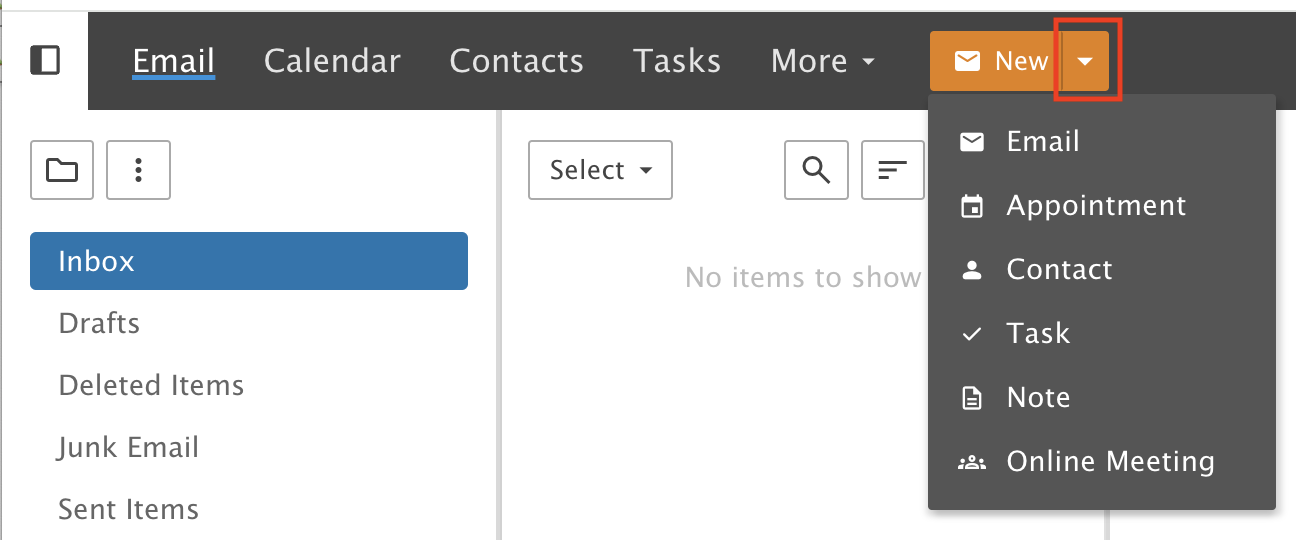
6. The New drop-down
The New drop-down menu opens a pop-up window for other items, no matter which section you are in.
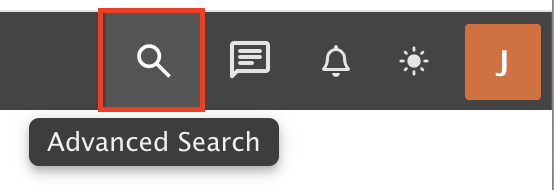
7. Advanced Search
To the right of the main menu is Advanced Search. You can search your email, notes, contacts, calendars and tasks.
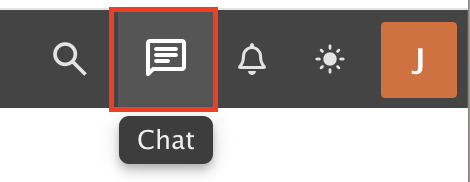
8. Chat
The Chat icon opens a pop-up window to send instant messages to other users in your organization.
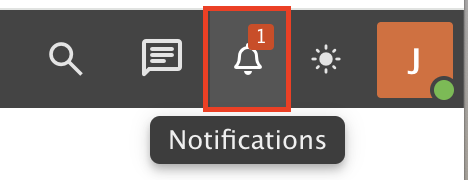
9. Notifications bell
The Notifications Bell alerts you about calendar appointments, task reminders, folders shared by other users and more.
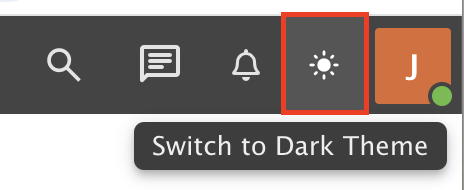
10. Dark or light theme
Click the Brightness Icon to switch between the Dark Theme and the Light Theme.
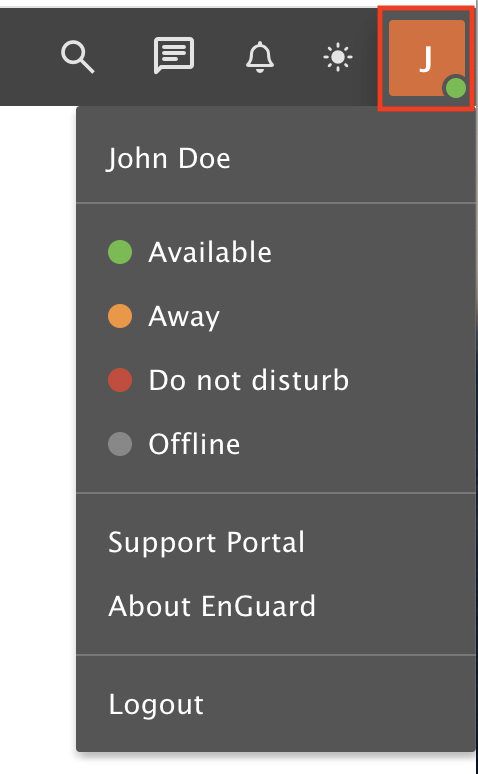
11. Your account menu
The last drop-down menu shows your Chat Availability status and a link to our Support Portal. You also log out from here.
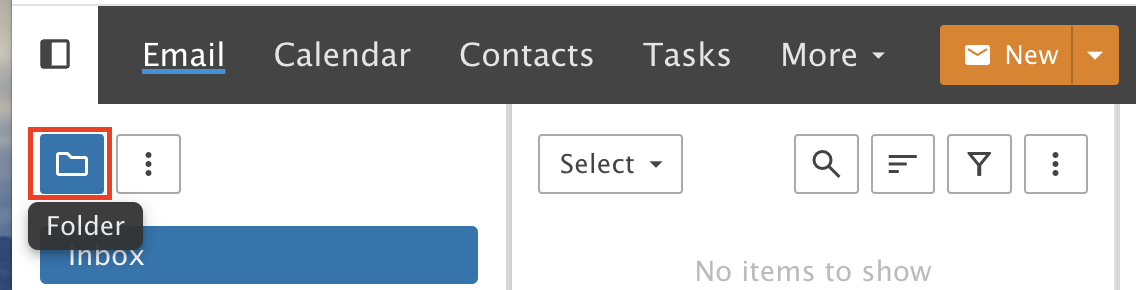
12. The Folder icon
The Folder Icon has different folder tools in each section.
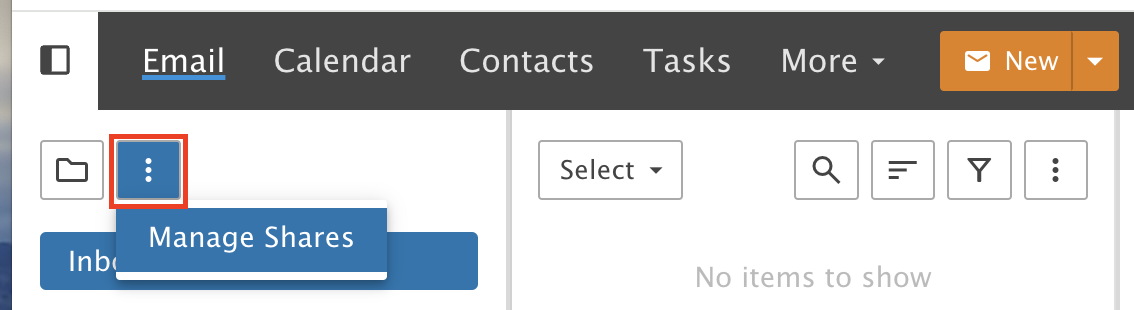
13. The Actions icon
The Actions Icon opens a Manage Shares shortcut to your Sharing settings.
Your folders
14. Default folders
Everyone starts with these folders: Inbox, Drafts, Deleted Items, Junk Email and Sent Items. When you open the Email section you start in your Inbox, where all new email arrives.
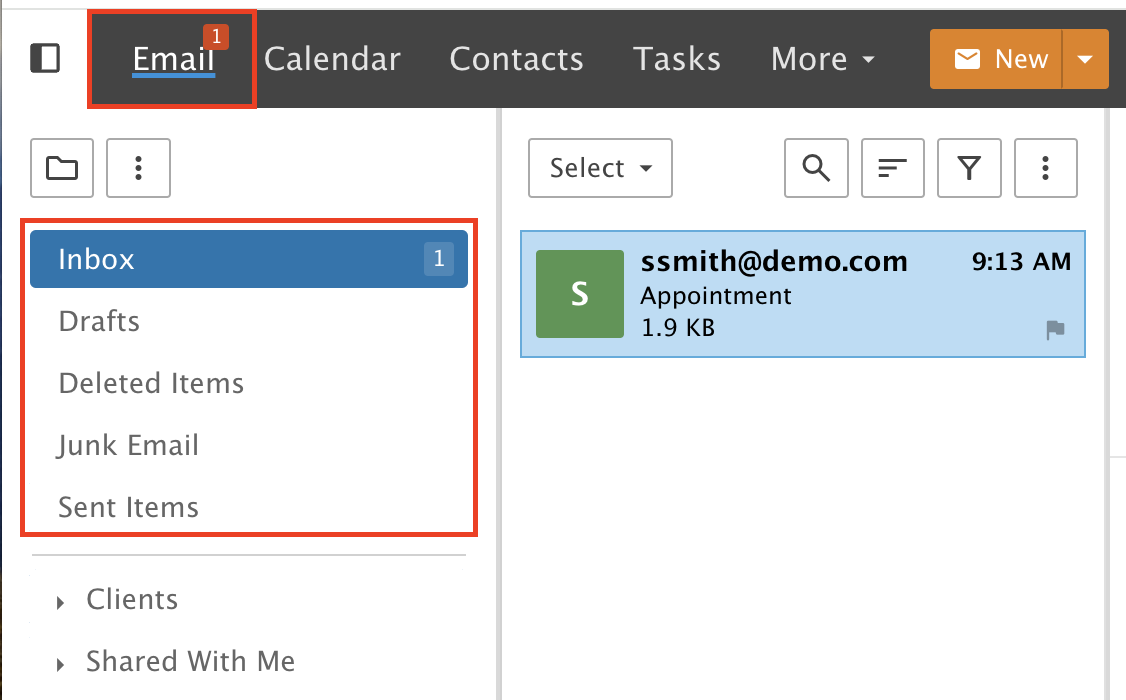
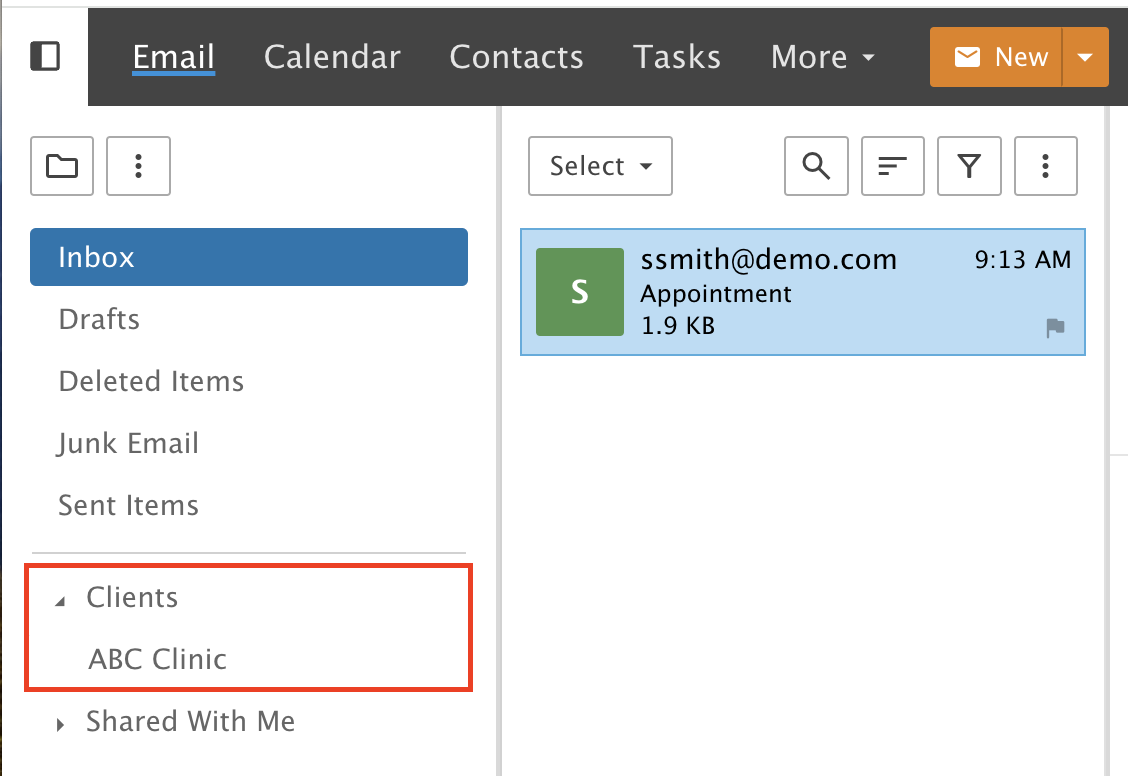
15. Custom folders
Under the default folders are Custom Folders, which you can create to keep your messages organized. You can also create Sub Folders inside any folder.
16. Shared folders
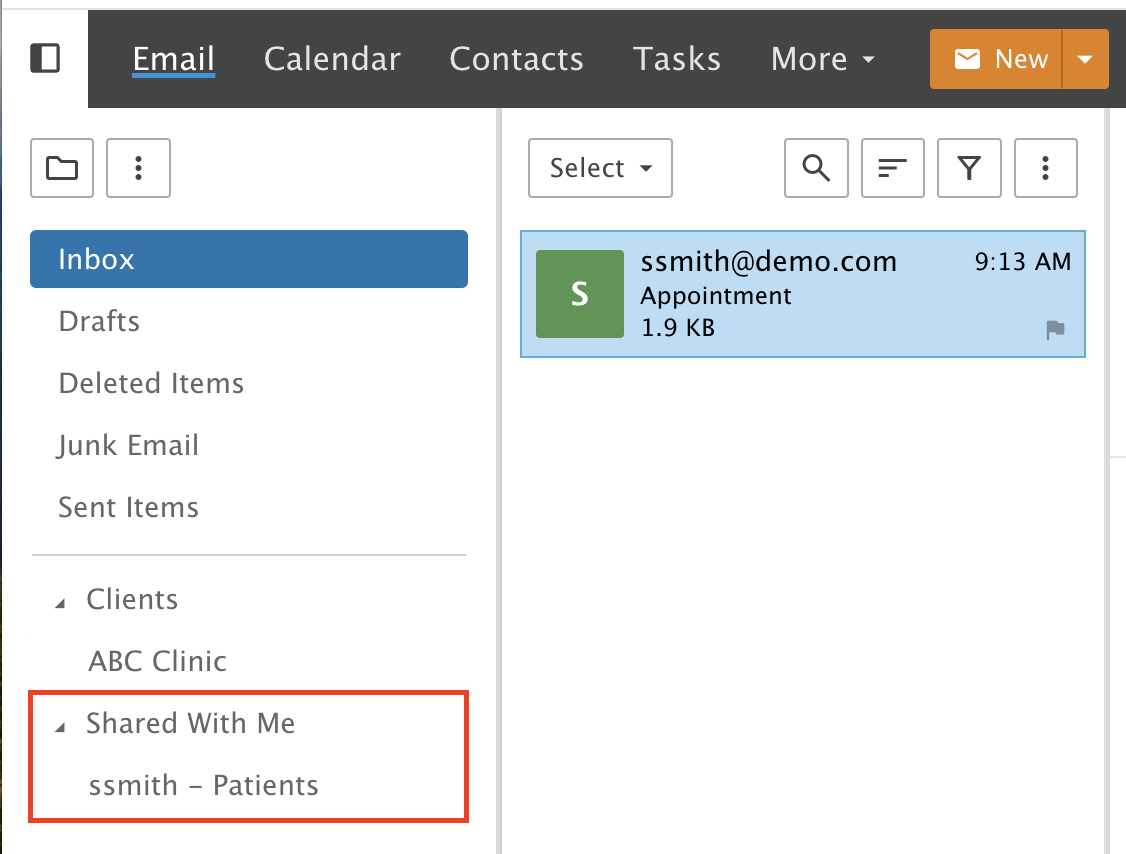
Under your custom folders are the Shared Folders other users have shared with you.
Messages from trusted and outside senders
17. The green shield
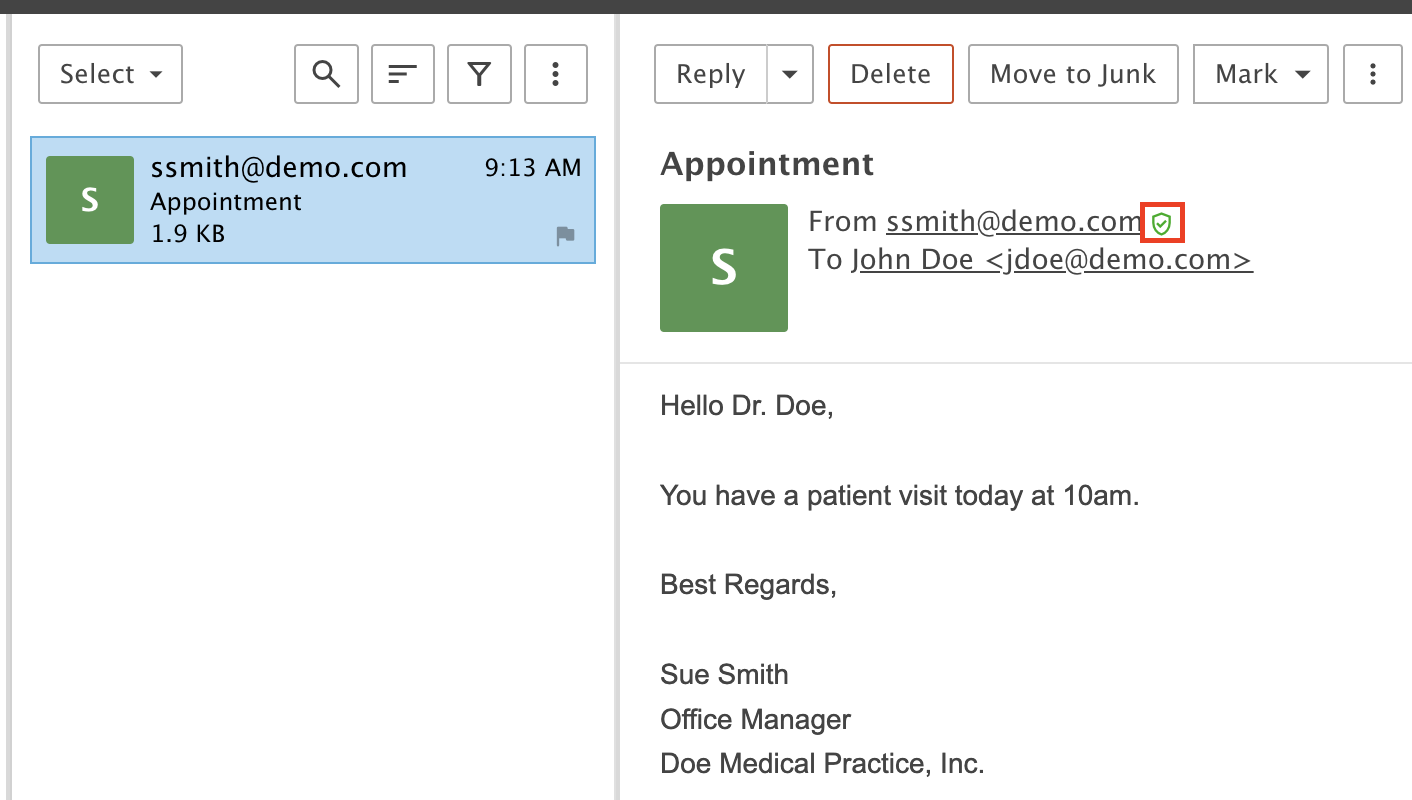
Emails from Trusted Senders show a Green Sender Verification Shield.
18. Emails from outside your organization
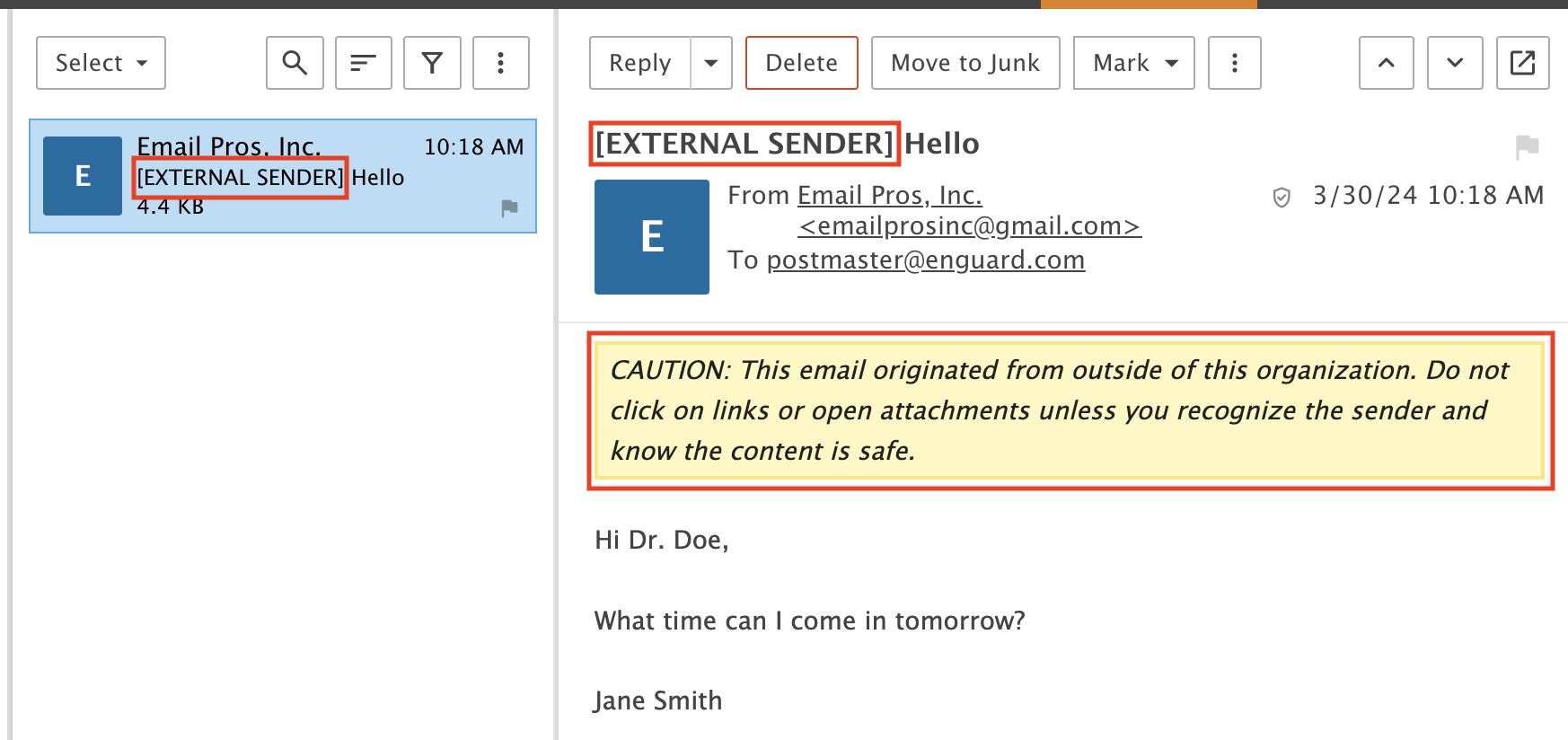
Emails from the outside world are marked with a changed subject line and a yellow banner warning inside the message. You can turn off the subject line change or the yellow banner by contacting our support team. We can also change the wording for your organization.
Your storage
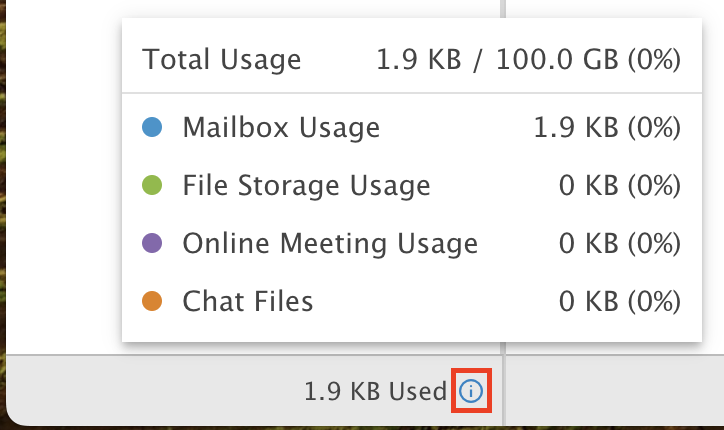
19. Check your storage space
Hover your mouse over the Information Icon at the bottom left to see how much storage space you are using.
Want more detail on a feature? See our webmail guides.