eChat Setup in Mozilla Thunderbird for PC
Add eChat to Mozilla Thunderbird on a Windows PC so you can chat with people in your organization.
Mozilla Thunderbird is a free mail client that we support for Windows users. You can download it for free from Mozilla and start using it right away.
When this was written, the latest version of Thunderbird was 52.2.1. Update your software to the latest version so your screen matches the pictures. The pictures are for reference only, so follow the written steps.
Part 1: Find your mail server address
You use the mail server address for both the incoming and outgoing mail server settings when you add your email account.
Step 1: Open your webmail address
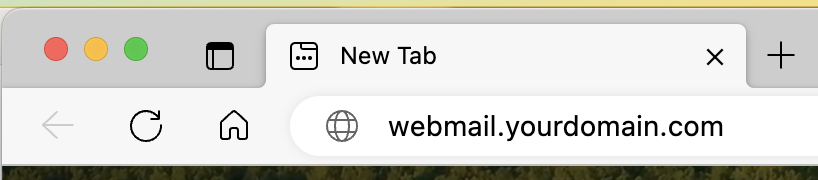
Open a web browser on your computer and go to webmail.yourdomain.com. Replace yourdomain.com with your actual domain name.
For example, if your email address is bob@xyzhealth.com, type webmail.xyzhealth.com.
Do not use a search box (Google, Bing, Yahoo and so on). Do not type http:// or https://. Type the address in the browser's address bar.
Step 2: Read your mail server address
You are redirected to your mail server. Your mail server address is the first part of the URL.
In this example, the mail server address is mail.enguard.com.

Step 3: Write it down
Write down your mail server address. You need it for the steps below.
Part 2: Add your account to Thunderbird for chat
Step 4: Start chat setup
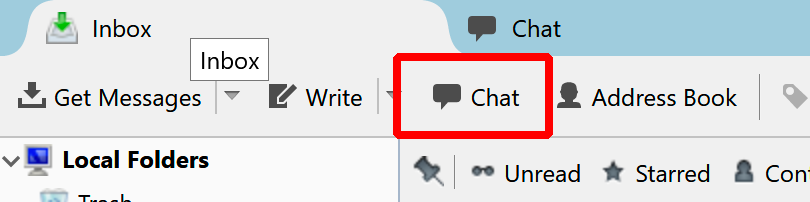
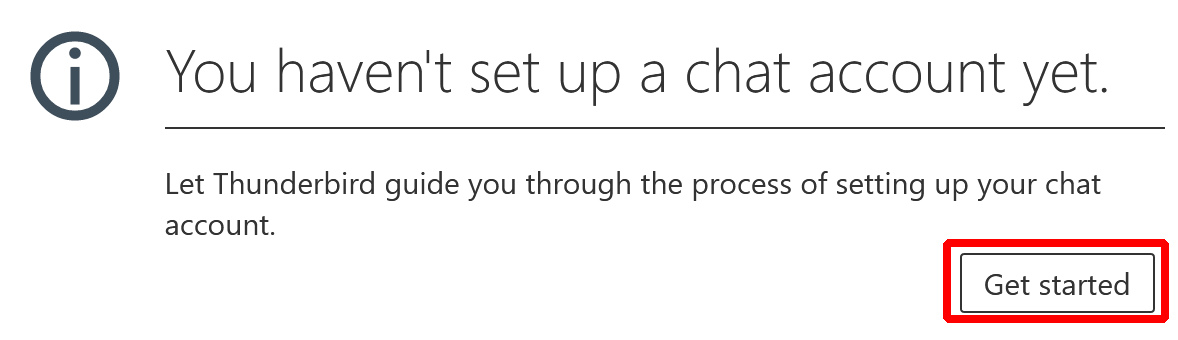
Click the Chat icon, then click Get Started.
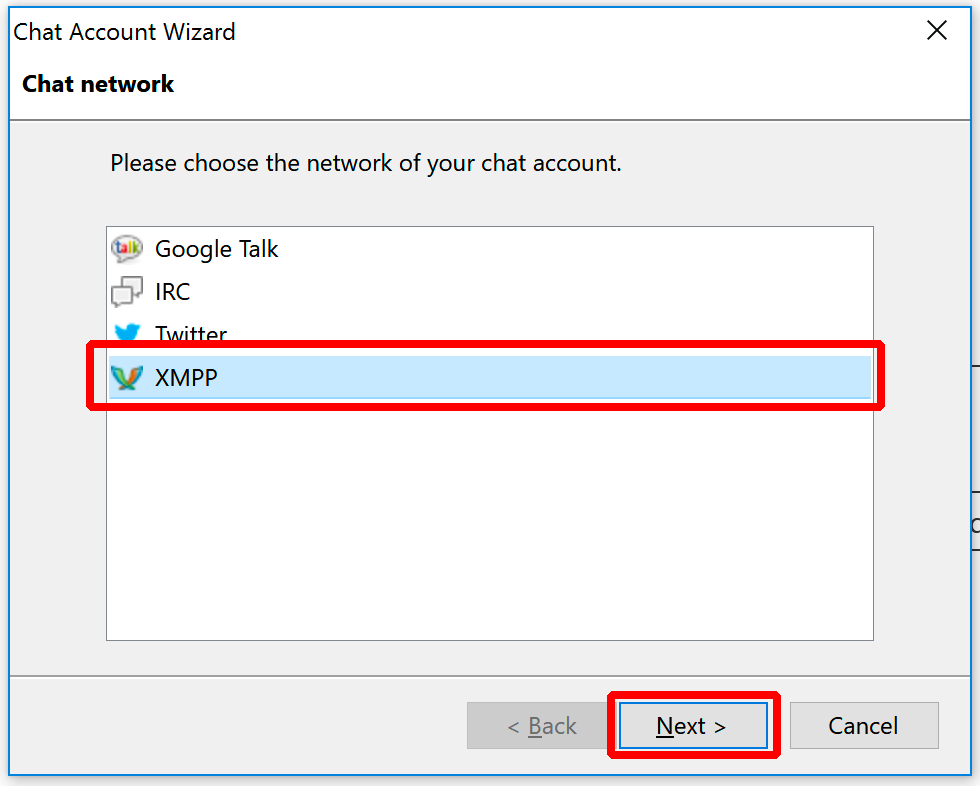
Step 5: Choose XMPP
Select XMPP, then click Next.
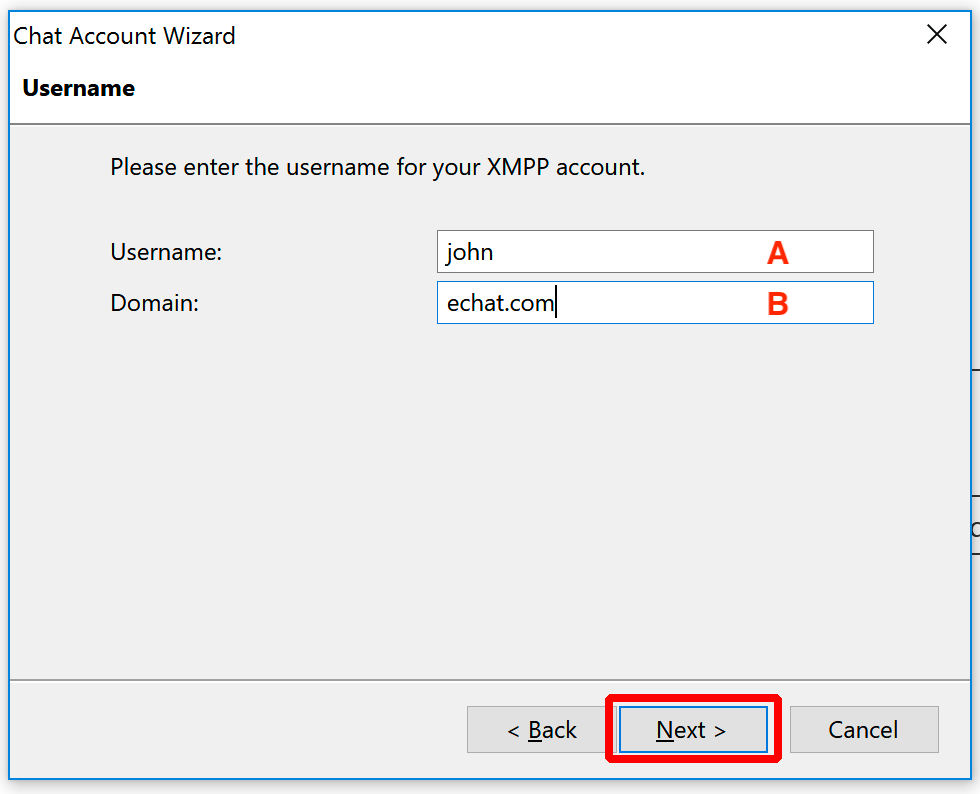
Step 6: Enter your user information
In this example, the email address is john@echat.com.
- Enter your user name, the part of your email address before the @ symbol.
- Enter your domain name, the part after the @ symbol.
Click Next.
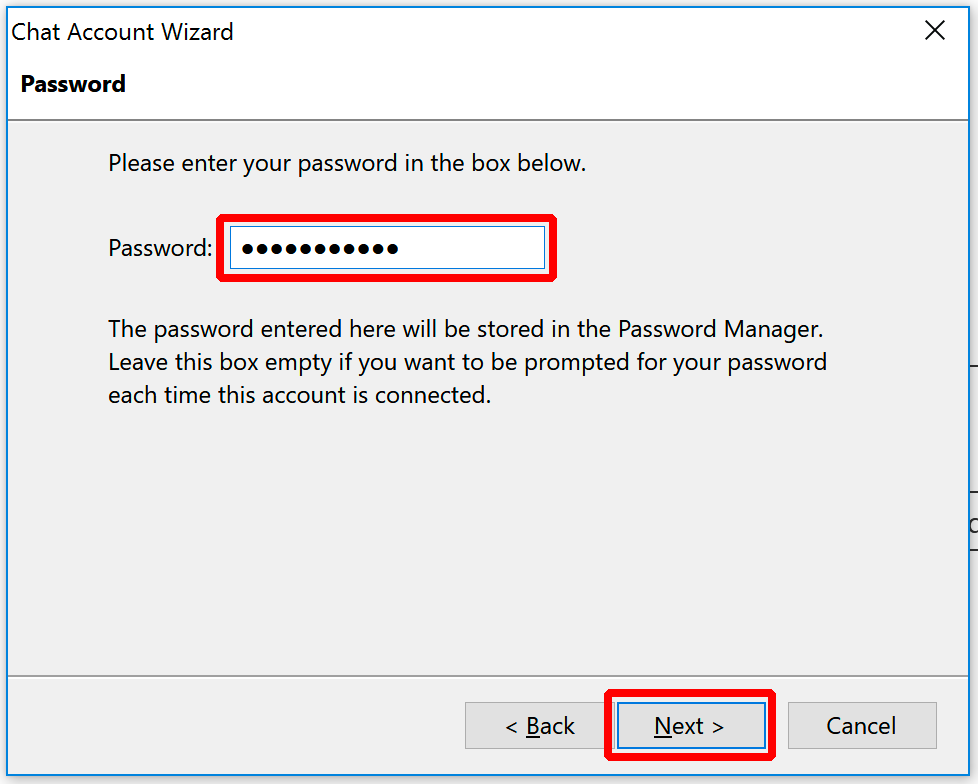
Step 7: Enter your password
Enter your email password, then click Next.
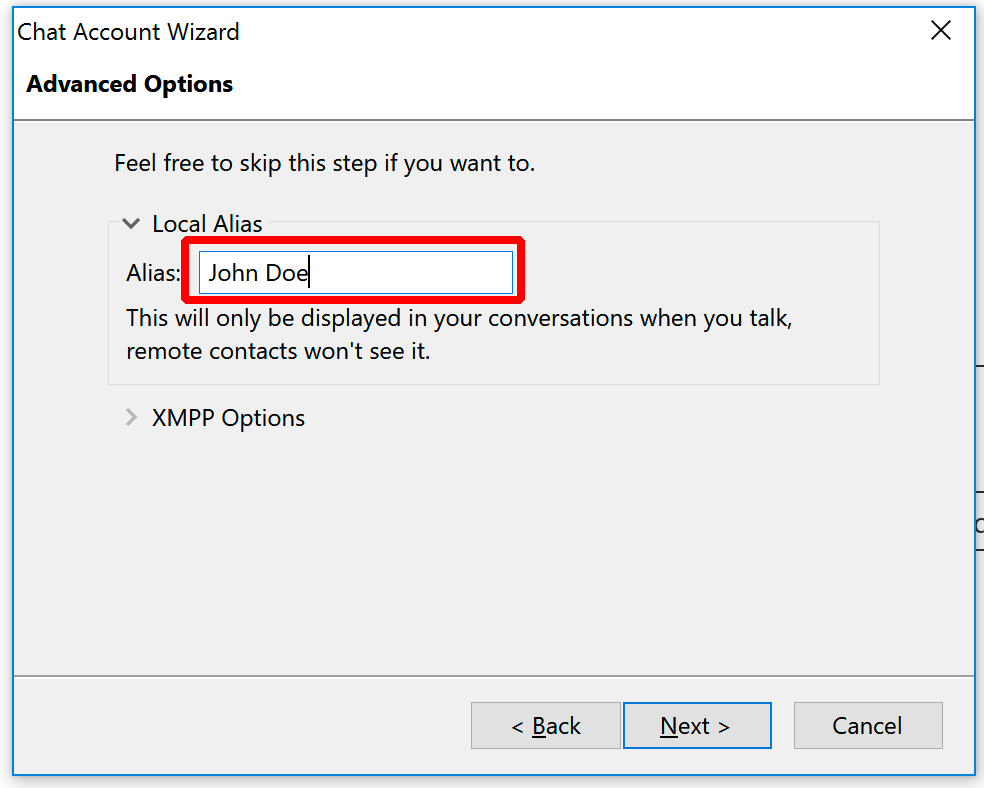
Step 8: Enter your name
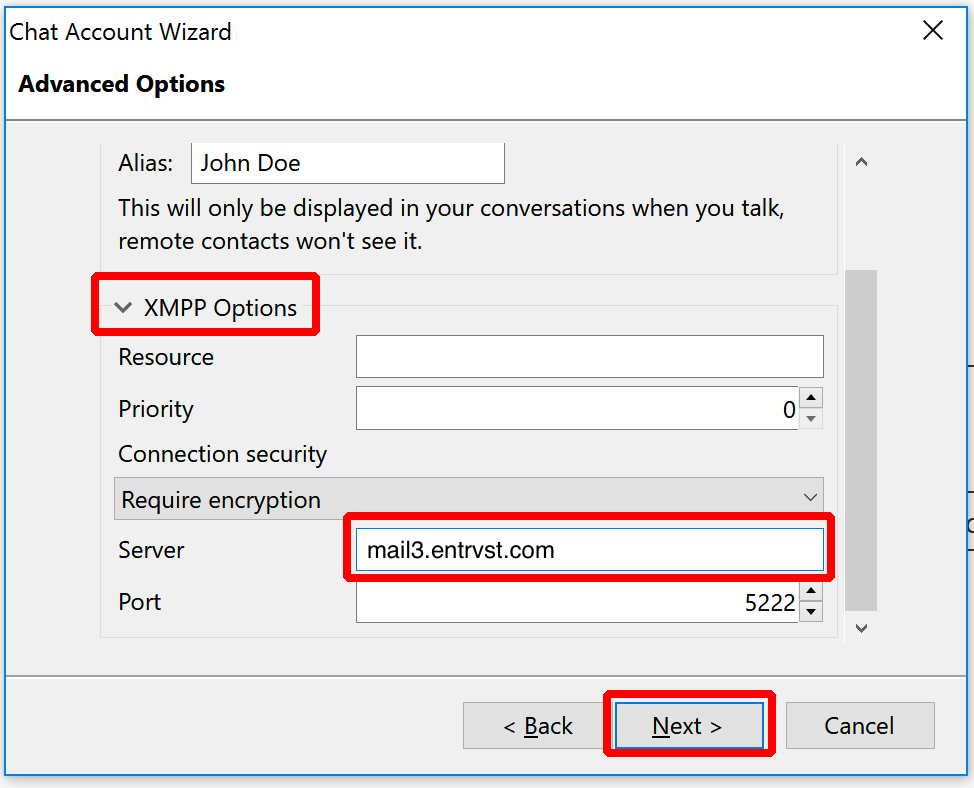
Type your name in the Alias box.
Step 9: Enter the server
Expand XMPP Options.
For Server, enter your mail server address.
Click Next.
Step 10: Finish
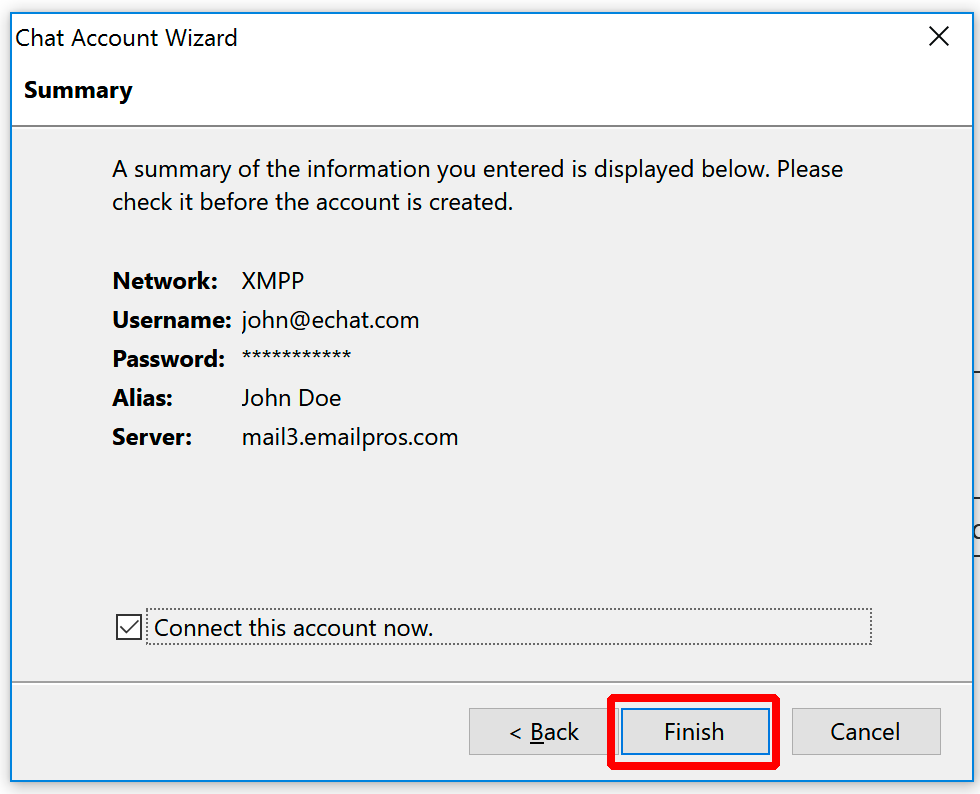
Click Finish.
All done
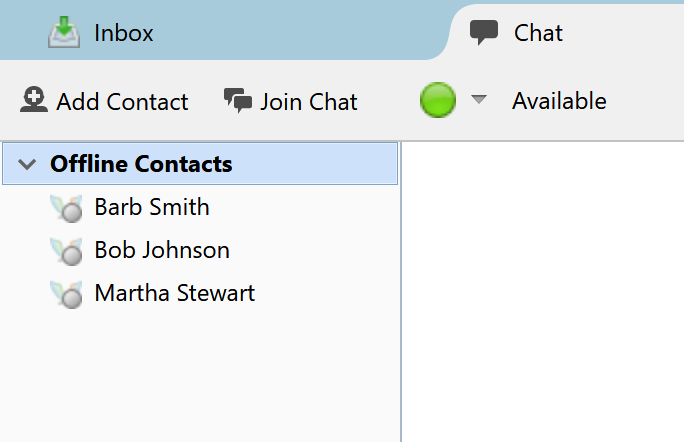
Your account is now added to Thunderbird for eChat. You will see a list of users in your organization.
To start a chat, double-click any online user.