

I am not receiving emails from specific senders
Find a missing email: check Junk E-mail, add the sender to Trusted Senders, and contact us if it still does not arrive.
If an email from someone is missing, our spam filter may have caught it. Follow the three steps below to find it and make sure future messages arrive.
Why a message can go missing
Every incoming email is checked for spam. Sometimes a real message gets caught, or the sender has a problem on their end. Here is what can happen:
- If a message looks a bit like spam, it goes to your Junk E-mail folder.
- If it looks very much like spam, our server deletes it before it reaches your inbox.
- If the sender is on a public blacklist, our server blocks them. Senders end up on blacklists when a virus-infected or hacked computer sends spam, when their email or web hosting company lets spammers use its network, or when their network or IP address has been compromised.
- If the sender's DNS records are not set up properly, they can break their own security rules and their message gets rejected.
- Our server also blocks misconfigured mail servers. Most of these have no reverse DNS, or they are trying to fake (spoof) a domain name.
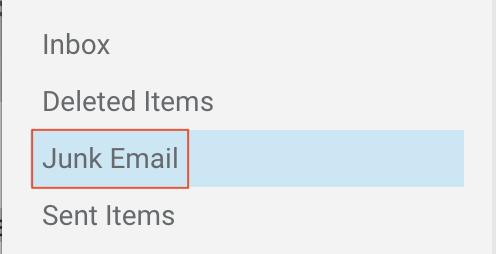
Step 1: Check your Junk E-mail folder
Open your Junk E-mail folder first. Missing messages often end up there. If you do not see the message in any folder, it may have been blocked as spam.
Step 2: Add the sender to your Trusted Senders list
This keeps their messages out of Junk E-mail and stops them from being blocked in the future. Follow our step-by-step guide to Trusted Senders. Any user can do this for their own address. After you save the change, ask the sender to send the message again.
Step 3: Contact us if it still does not arrive
If the sender is on your Trusted Senders list and you still do not get their email, they are most likely on a public blacklist, their mail server is set up incorrectly, or we are blocking them for the whole server.
Email our support team and we will check our server logs. We can tell whether the message reached our servers, what happened to it, and why. Please include:
- The sender's full email address
- The recipient's full email address
- The date and time the message was sent, as close as you can
Please email us from an authorized contact email address on your EnGuard account.