Secure File Link Critical Update
Reset old "Public (Forever)" Secure File Link links so each file gets its own link.
Secure File Link uses a different URL format in the New Webmail than in the Old Webmail.
If you had Public Links turned on with the time expiration set to None (the link stays active forever) in our previous webmail, those links were not carried over. Instead, all your public files ended up with the same URL link, pointing to your first file.
To fix it, go into each file that shows Public (Forever) and reset the URL link.
Step 1: Open the file
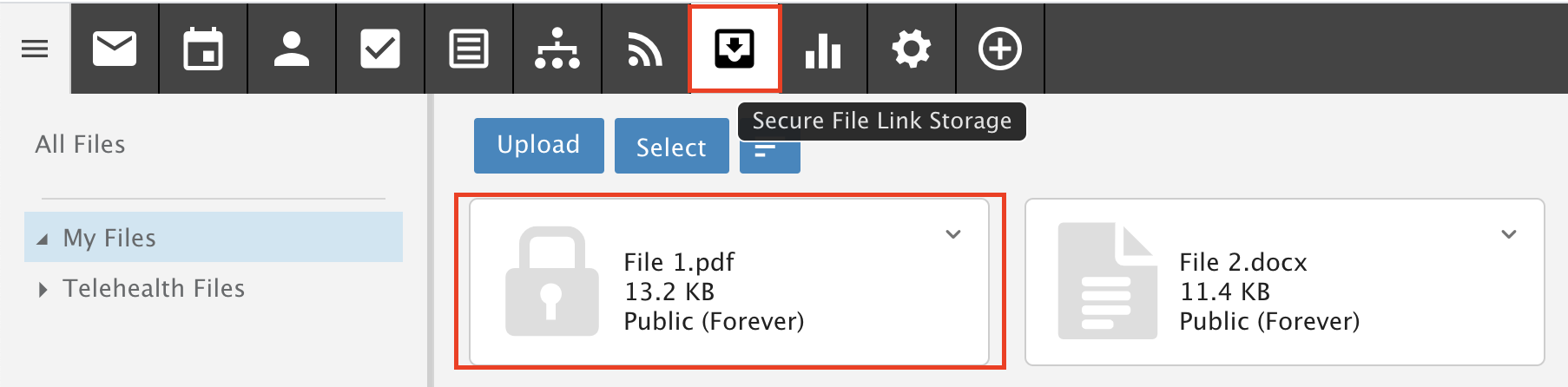
Go into Secure File Link Storage in the top menu.
Click a file that shows Public (Forever).
Step 2: Turn off public access
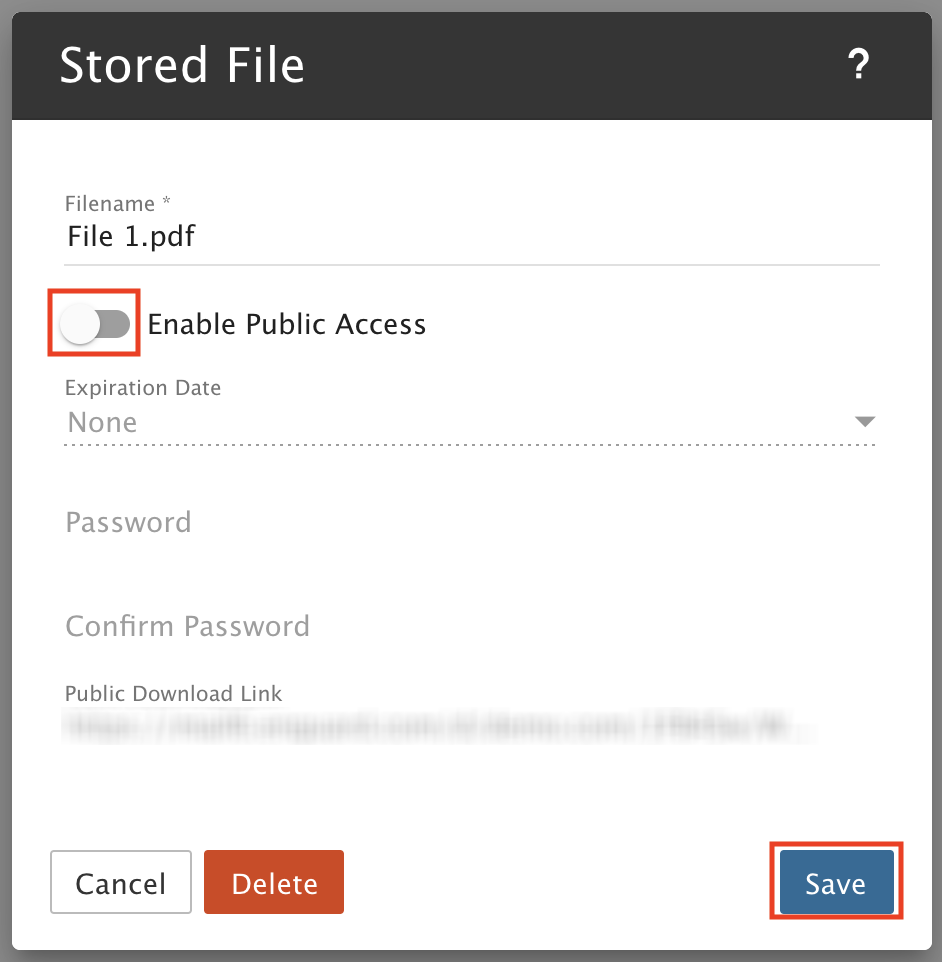
Turn OFF Enable Public Access.
Click Save.
Step 3: Check it is private
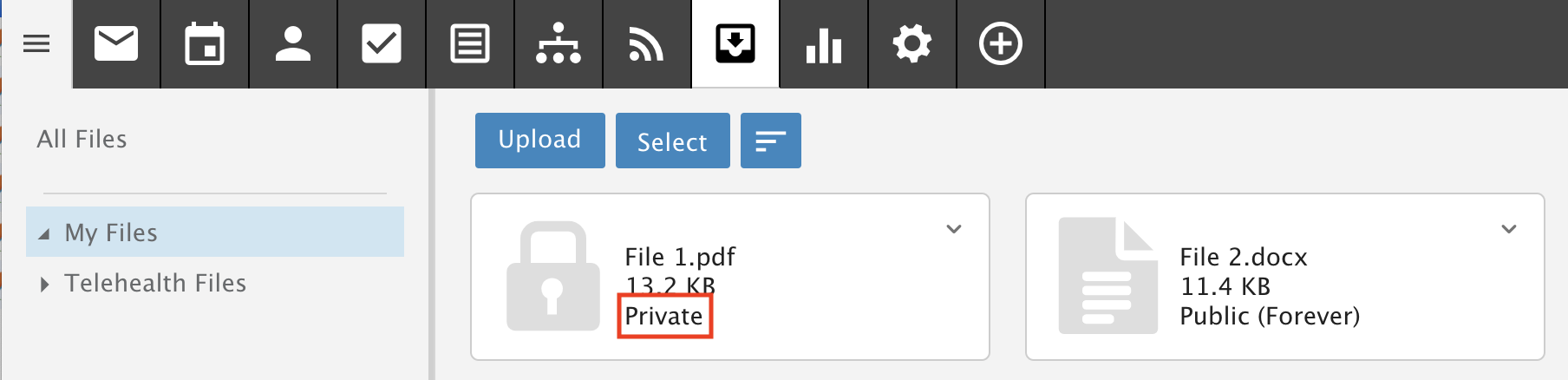
Make sure the file now shows Private.
Click the file to open it again.
Step 4: Turn public access back on
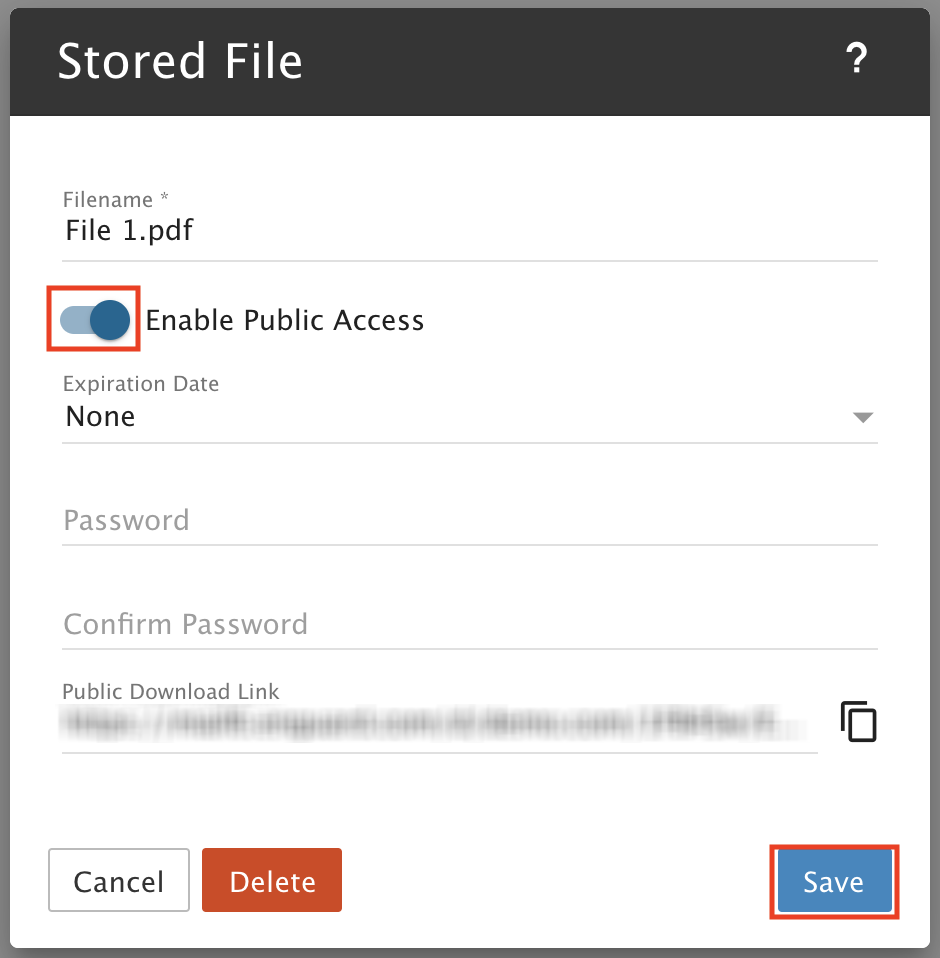
Turn ON Enable Public Access.
Click Save.
Your file now has a unique link pointing to it.